
For academic work, transcription comes down to four things: the text has to be accurate, it has to show who said what, you have to be able to export it into the tool you write in, and it has to fit a student budget. Whether you are transcribing a two-hour lecture, a set of research interviews for your dissertation, or a focus group, the deliverable is the same — text you can read top to bottom, code line by line, and quote straight into a paper.
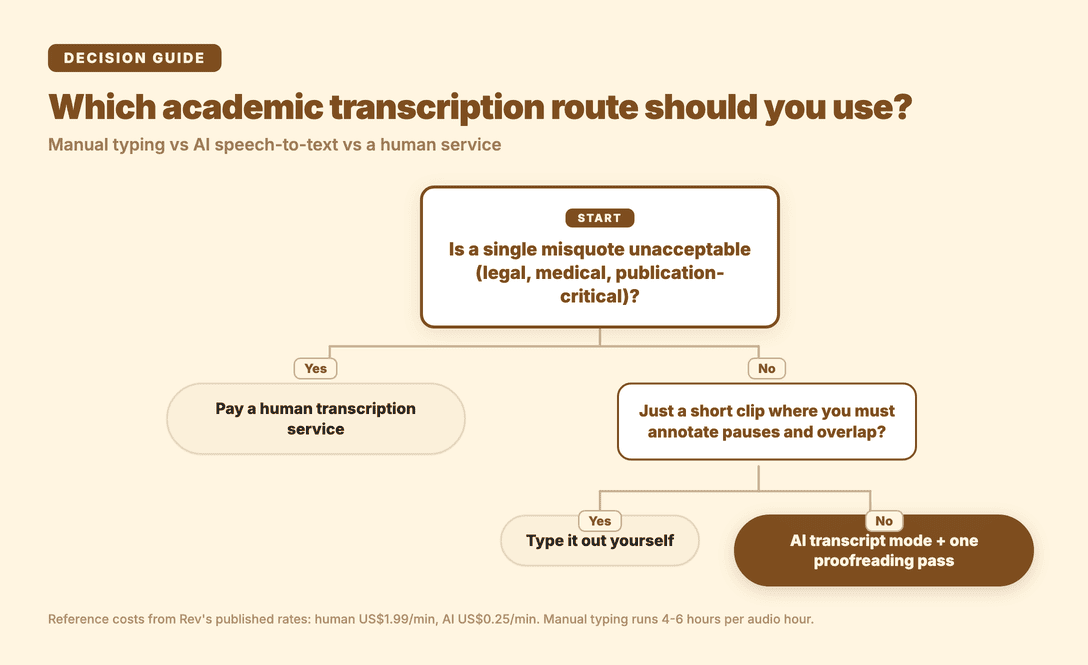
There are three ways to get there: type it out yourself, use AI speech-to-text, or pay for human transcription. The short answer most students and researchers land on is AI transcription plus one proofreading pass — it does the overwhelming majority of the grind for a few dollars, and you check the parts that carry weight. This guide walks through the trade-offs, the criteria that actually matter for academic recordings, and where the more expensive human option still earns its place.
What counts as academic transcription?
Academic transcription is the conversion of scholarly audio or video into readable, citable text. In practice that covers a handful of recurring jobs:
- Lectures and seminars — turning a recorded class into notes you can search and review before an exam.
- Research interviews — one-on-one or small-group qualitative interviews you need to code and quote, often under an ethics protocol.
- Focus groups — multi-speaker discussions where telling participants apart is the whole point.
- Dissertation and thesis recordings — your own data, where a misquoted participant is a real integrity problem.
- Viva and defence recordings — kept for the record and occasionally re-checked.
The common thread is that the output is meant to be read by a person, not displayed on screen. That distinction decides which mode you pick inside a tool, which is where a lot of first-time users go wrong.
What's the difference between a transcript and subtitles?
This trips people up constantly, because many tools do both and the wrong choice produces a file you can't use:
- Subtitles are built to be read on screen over a video. They are cut into short timed lines, conventionally carry no punctuation, and export as SRT or VTT. Great for a lecture you'll re-watch; useless for coding interview data.
- A transcript is built to be read by a person. It needs punctuation, paragraphs, and speaker labels so you can read it, annotate it, and pull quotes into a paper.
Academic work almost always wants the second kind. So if a tool offers a subtitle mode and a transcript mode, choose transcript mode — otherwise you get a wall of short, timestamped, unpunctuated fragments that are harder to work with, not easier.
The three approaches, compared
| Approach | Accuracy | Speed | Speaker labels | Typical cost | Best for |
|---|---|---|---|---|---|
| Manual typing | Highest ceiling (you control every word) | Very slow — roughly 4–6 hours per audio hour | You add them by hand | Your time | Short clips, or passages needing exact annotation of pauses/overlap |
| AI speech-to-text | High; needs one proofread pass | Minutes per recording | Automatic (diarization) | A few dollars per month for unlimited-ish student use | Most lectures, interviews, dissertation data |
| Human transcription service | Verified, with a turnaround guarantee | Hours, not minutes (often same-day) | Included or as an add-on | Per-minute — adds up fast on long recordings | High-stakes verbatim: legal, medical, publication-critical quotes |
A few notes to read alongside the table.
Manual typing has the highest accuracy ceiling because you control every word — but the time cost is brutal. The common rule of thumb is that one audio hour takes four to six hours to type up, and longer again with multiple speakers, accents, or poor recording quality. For a researcher with a stack of interviews, that maths rarely works.
Human transcription services publish concrete numbers worth knowing. Rev, for example, lists human transcription at US$1.99/minute with a 99%+ accuracy guarantee and delivery in 12 hours or less, and AI transcription at US$0.25/minute — a useful reference for the cost gap between the two tiers. On a single 90-minute interview, human transcription at that rate is roughly US$179; across a dissertation's worth of interviews it becomes a serious line item. The reason it still exists: for verbatim-critical recordings — court-admissible testimony, medical records, quotes going into a published paper — a guaranteed human pass is worth paying for.
AI speech-to-text is the middle ground most academic users settle on. It transcribes in minutes, separates speakers automatically, and adds punctuation and paragraphs. The one honest caveat: AI transcription does not replace the final proofread. Before you quote a participant verbatim, do one human pass over names, proper nouns, and key numbers. High accuracy is not zero errors, and the heavier a quote, the more it's worth checking.
What should academics look for in an AI transcription tool?
Not all AI transcription is equal for scholarly audio. These are the criteria that actually move the needle:
- Multilingual and accented-speech accuracy. Research audio is rarely clean studio English. A tool that benchmarks several speech-recognition models and routes to the best one per language will beat a single-model tool on accented or non-English recordings.
- Speaker identification (diarization). For interviews and focus groups, telling Speaker 1 from Speaker 2 — and renaming them to real roles — is non-negotiable.
- Punctuation and paragraphing. Without it you get an unreadable block. This is a transcript-mode feature, so confirm the tool has a genuine transcript mode.
- Export formats you can actually use. DOCX to edit, TXT for a notes app, and a spreadsheet format (XLSX) for coding with timecodes are the academic staples.
- A custom glossary. Set the spellings of names, institutions, and technical terms up front so the tool stops mis-hearing the words that matter most in your field.
- Handling of long recordings. Lectures and vivas run long, so check the per-file duration and size limits before you rely on a tool.
- Budget fit. Students and early-career researchers need a flat, affordable plan, not per-minute billing that punishes long recordings.
How do you transcribe academic audio with Subanana?
I run Subanana, so I'll use it to walk through the flow. Where it fits academic work is the combination of multilingual accuracy, speaker identification, automatic punctuation and paragraphing, a custom glossary, and flat-rate plans rather than per-minute billing.
The critical first step is choosing the right mode. Subanana has a subtitle mode, a transcript mode, and a meeting mode — for an academic transcript you want transcript mode, because that's what adds punctuation, breaks text into paragraphs by meaning, and produces something readable. The flow is four steps:
- Import the recording. Upload the lecture or interview file (.mp4 / .mov / .webm / .ogg), or paste a public YouTube / Instagram / Facebook link to import a recorded talk directly. For private or access-restricted recordings, use file upload.
- Choose transcript mode and set the source language. Pick the language of the recording — Subanana covers 95+ languages, so most research audio is in range — set speakers to auto-detect (or type the count), and turn on automatic punctuation and paragraphing. For the names, institutions, and field-specific terms most likely to be mis-heard, set up a Glossary first so the system prefers your spellings.
- Proofread and label speakers. When transcription finishes you land in the editor. It splits voices into Speaker 1, Speaker 2, and so on, removes filler words, and tidies the text. From here you can rename speakers (Speaker 1 → "Interviewer", Speaker 2 → "Participant A") with the whole transcript updating in sync, fix any misheard word by clicking it, and chat with the transcript — ask "where does Participant A discuss methodology?" or "pull the three main themes" to navigate a long recording fast.
- Export. For academic writing the common choices are DOCX (Word, ready to edit) or TXT (to drop into Obsidian or Notion); for coding and citation, XLSX lays out timecodes, speaker, and text as a table. VTT, SRT, and Markdown are supported too.
Once you've proofread and exported, the transcript drops straight into your thesis, paper, or analysis. To see how the modes are built, see AI transcription and AI meeting transcription.
What about accuracy across languages and accents?
This is exactly where general-purpose speech tools tend to be weakest, and it's where a lot of academic audio lives — international participants, accented English, languages outside the usual handful. Two things are worth checking:
- Accuracy across languages. Subanana continuously benchmarks the available speech-recognition models and picks the best-performing one for each source language, rather than locking into a single provider. If a transcription goes wrong, it automatically re-runs the affected part on a different model — a re-run that doesn't cost you any extra minutes.
- Translating the transcript. Your audio might be in one language while you need the transcript in another. Transcript mode supports a single translation target, so you can transcribe in the source language and translate into one other language in the same pass.
One boundary worth flagging: mid-sentence code-switching — a speaker flipping between two languages within one sentence, detected in real time — is a strength of Subanana's live caption feature, not transcript mode. For recorded interviews you're leaning on multilingual accuracy and speaker labels, not real-time language switching. If you need captions at a live event or guest lecture, see AI real-time transcription.
Academic transcription FAQ
Is AI transcription accurate enough for a dissertation? For most qualitative data, yes — provided you do one proofreading pass before you quote anyone. AI handles the bulk of the text, the paragraphing, and the speaker separation; you verify names, proper nouns, and key numbers, and read closely the passages you intend to quote verbatim. For recordings where a single misquote is unacceptable, a human transcription service is the safer route.
Can it tell apart speakers in a focus group or group interview? Yes. Transcript mode supports speaker identification — it separates Speaker 1, Speaker 2, and so on automatically, and you can rename them to real roles in the editor, with the whole transcript updating in sync.
Can the free tier produce a full transcript I can hand in? You can run a recording and preview the result, but exporting is a paid step. The free tier doesn't support transcript file downloads, and you can't select-and-copy the text in the editor either — the only output is a watermarked video, first 5 minutes only, at 720p. Every plan, including free, accepts files up to 30 GB or 8 hours; on the free plan, only the first 15 minutes of each file is transcribed. To export usable files (DOCX / TXT / XLSX), you need a paid plan. See pricing for details.
Does a long lecture or viva recording (one to three hours) work? Yes. Every plan, including free, takes up to 30 GB / 8 hours per file (on the free plan, only the first 15 minutes of each file is transcribed), which covers most single recordings. For a long file, use the editor's AI chat to find the key passages first, then proofread closely the parts you'll cite.
How do I stop it from misspelling names and technical terms? Set up a Glossary before you transcribe. Pin the people, institutions, and field-specific terms you don't want mis-heard, and the system prefers your spellings — far less cleanup than fixing the same term twenty times by hand afterwards.