
You have a video in Canva and want captions on it: Canva generates captions from the audio for free, places them in an editable timeline layer, and publishes a list of 57 languages its caption recognition covers. This guide gives you the exact click path, language and style details, Canva’s documented troubleshooting steps, and the point where a dedicated subtitle tool earns its place in the workflow.
Disclosure: I run Subanana, an AI subtitle and transcription tool; the Canva details below come from Canva’s own help and feature pages, linked throughout.
Short answer
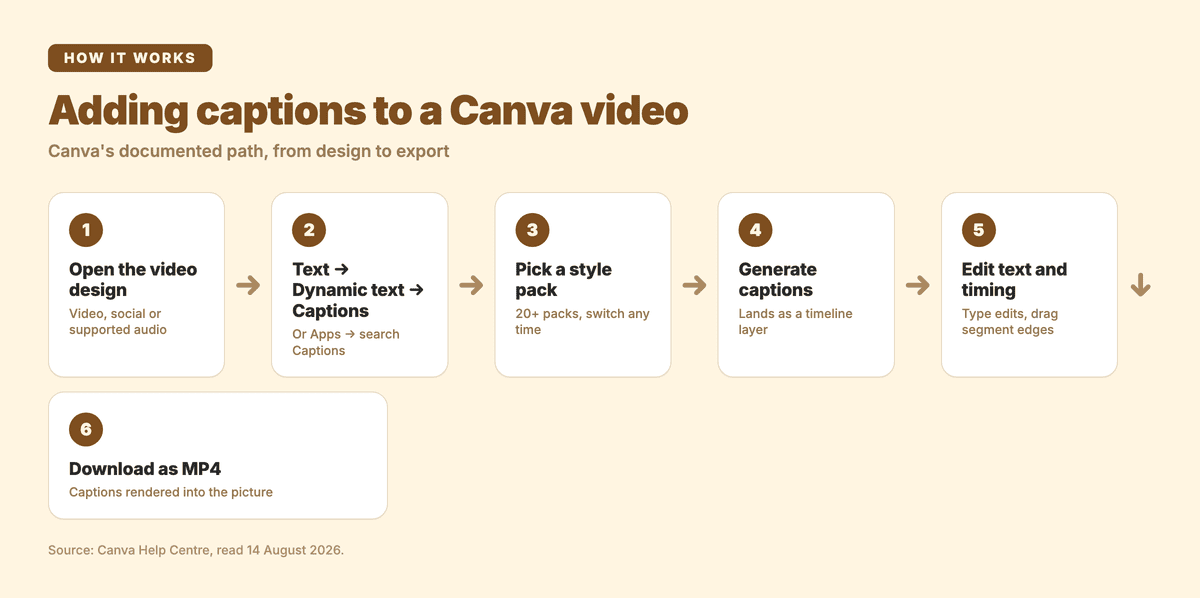
Open your video design in Canva. Select Text → Dynamic text → Captions, choose a style pack, check the media under Apply captions to, and select Generate captions. Canva creates the captions as an editable timeline layer, where you can change wording, timing, style, and position. When the video is ready, download the design as an MP4. The captions are rendered into the picture in that exported video.
What Canva’s auto-captions are
Canva describes auto captions on its auto caption generator page as: “Auto captions or automatic captions, are computer-generated transcriptions produced using Automatic Speech Recognition (ASR) technology.”
In Canva’s help centre the feature is named Editable Captions, and the article states: “Editable Captions is a different feature from captions generated through Accessibility and the Show captions button.” Canva also calls it a free auto caption generator.
Before you start, check these requirements:
- Your design is a video or social media type.
- Your audio is in a supported format: M4A, MP3, OGG, WAV, or WEBM.
- The video or audio contains speech.
- On desktop, the video has finished uploading before you generate captions.
To check the design type, open File. The design type appears below the design name.
Step by step: generating captions on a Canva video
-
Open your video design in the Canva editor.
-
Go to Text, then under Dynamic text, select Captions. You can also go to Apps and search for Captions, or select the video or audio file and choose Captions from the toolbar.
-
Choose a caption style pack.
-
Optional: open the dropdown under Apply captions to and deselect any videos you do not want included.
-
Select Generate captions. Canva adds the captions to the video timeline.
On mobile, videos appear directly in the Captions Panel, so no upload is needed. Only the audio is processed, which makes captions generate faster.
When the video is finished, export the design as an MP4 and the captions are rendered into the picture. Canva’s help page puts the constraint plainly: “Captions won’t be embedded in image formats or PDFs, so be sure to choose a video format.”
Setting the spoken language, and the 57 Canva covers
“By default, Canva automatically detects the spoken language in your video or audio.”
You can set the language yourself. Select Edit next to Automatically detect spoken language, then choose a language from the dropdown. Canva notes that “Selecting the spoken language manually can improve speech recognition and produce more accurate captions.”
If the detected language is wrong, delete the existing captions, choose the correct spoken language, and generate the captions again. If your design contains clips in different languages, make sure the media selected under Apply captions to matches the spoken language you selected.
Canva’s help article on generating captions says: “These languages are currently supported in captions:”
Afrikaans, Arabic, Armenian, Azerbaijani, Belarusian, Bosnian, Bulgarian, Catalan, Chinese, Croatian, Czech, Danish, Dutch, English, Estonian, Finnish, French, Galician, German, Greek, Hebrew, Hindi, Hungarian, Icelandic, Indonesian, Italian, Japanese, Kannada, Kazakh, Korean, Latvian, Lithuanian, Macedonian, Malay, Marathi, Maori, Nepali, Norwegian, Persian, Polish, Portuguese, Romanian, Russian, Serbian, Slovak, Slovenian, Spanish, Swahili, Swedish, Tagalog, Tamil, Thai, Turkish, Ukrainian, Urdu, Vietnamese, and Welsh.
That list has 57 entries. It describes recognition from audio, while AI Translator (Pro) — described on Canva’s auto caption page — offers over 100 options for translating a caption track that already exists.
Canva’s translation workflow uses the heading “Translate captions into another language before generating them.” Open the Captions panel, choose a language under Translate captions into, and generate the captions.
Styling and animating the captions
Canva’s help article states: “Caption style packs will be available in English, Spanish, Portuguese, French, Indonesian, and German at launch. Support for additional locales will be added soon.”
The packs apply font, colour, and animations to the full caption layer. They also use accessibility-safe defaults. Style packs that do not match your Brand Kit may be hidden, with the Brand Kit default shown instead.
To change a pack, select any caption segment in the timeline, choose Captions in the toolbar, select Styles, and choose another pack. The new pack applies to all captions instantly.
You can also restyle an individual caption from the toolbar. Available controls include font, colour, size, and effects.
For animation, open the Animate menu and choose Reveal, Highlight, or Snake. Canva is rolling this feature out gradually, so it may not appear in every account yet.
Editing the caption text and timing
Canva describes the editing view this way: “Captions appear as a dedicated timeline layer, so you can see exactly where they play in your video. Edit the text and adjust the timing within the video timeline view.”
Select a caption segment and type your edits directly. You can also open the Captions panel and edit the line there.
To change timing, drag the start or end edge of a caption segment. You can drag a caption to reposition it in the timeline. You can delete one caption, all captions, or individual lines. These controls let you correct wording and adjust when each line appears without rebuilding the caption layer.
When captions come out wrong
Canva documents three common causes:
- Speech is unclear.
- Background noise is too high.
- Music overlaps with speech.
Its suggested workarounds are:
- Re-upload the video and try again.
- Lower the background music in the editor.
- Select the video, open Audio tools, choose Enhance voice, and regenerate the captions.
- As a last resort, add captions manually with the Text tool. Canva says this “is only a workaround and may not work for all scenarios.”
Every ASR system, Canva’s included and ours included, can mishear proper nouns, brand names, product names, and specialist jargon. These words are often rare in the audio used to train a general model. Read every line before you publish.
A pre-export checklist for Canva captions
Before you download the final MP4, run through these checks. They catch the most common reasons a caption track looks fine in the editor but reads wrong once it is baked into the video.
- Design type. Confirm under File that the design is a video, social media, or supported audio type. Canva’s caption generator does not run on a static or PDF design.
- Spoken language. If Canva auto-detected the wrong language, delete the existing captions, click Edit next to Automatically detect spoken language, choose the correct language, and regenerate rather than editing line by line.
- Proper nouns and product names. Read every line once before export. ASR systems, Canva’s included, are most likely to mishear names, brand terms, and jargon that appear rarely in training audio.
- Style pack availability. If a caption style pack does not match your Brand Kit, or has not launched in your locale yet, Canva may hide it in the Captions panel and show the Brand Kit default instead. So a pack you expected but do not see in the panel could be either cause, not necessarily a bug.
- Export format. Captions render into the picture only in a video export, not into image or PDF formats. If you need the caption text as a standalone file rather than burned into the video, generate that file in Subanana before you export the Canva design; Canva’s Editable Captions renders into the video only, it does not hand you a separate caption-file download.
Working through this list before export is faster than re-uploading and regenerating after the fact, especially once the caption layer has already been restyled and retimed.
Where a dedicated subtitle tool fits
Canva is the design surface: templates, motion, and brand styling applied straight onto the video. Subanana is a different layer for subtitle files, multiple languages, and text review.
Subanana supports 95+ languages. It continuously benchmarks speech-recognition models by language and use case, then routes each job to the best-benchmarked model for that task. Subtitle and transcript jobs need different output shapes. If a segment returns text that does not match the audio, that segment is automatically re-run on another model.
Its glossary works at two levels: a workspace-wide list that applies to every project, plus custom lists attached to a single project. Each term is tagged Universal, for the same spelling in every language, or language-specific. Terms can be added one at a time, pasted in a batch, or bulk-imported from XLSX or CSV.
The AI correction layer reads the transcript text, flags words it thinks were misheard, and proposes a replacement for each one. You confirm or reject every suggestion before it applies.
One subtitle job can produce several target languages at once, such as an English SRT and a Spanish SRT from one pass. It can also place the source and translation in the same file as a bilingual SRT.
Subanana exports six standalone file formats: SRT, VTT, TXT, DOCX (Word), XLSX (Excel), and Markdown (MD). It can also provide a ZIP containing all six formats. Separately, Subanana can render a video with subtitles burned in, in one language or bilingual.
Each file can be up to 30 GB or 8 hours on every plan. You can upload a local video or audio file, or import from a public YouTube, Instagram, or Facebook link. Supported video formats include MP4, MOV, M4V, WEBM, MKV, and MPEG. Supported audio formats include MP3, M4A, WAV, OGG, AAC, FLAC, and OPUS.
Subanana runs in the browser, so there is no software to install and it works across devices.
There are two practical routes:
Route A: stay in Canva end to end. This suits a social clip where you want Canva’s templates and style packs doing the visual work, and the captions only need to live in the exported video.
Route B: prepare the subtitle text in Subanana first. Generate and correct the subtitle file in Subanana, then bring the finished text into Canva as your reference script while Canva handles the design layer. This works well when the audio contains proper nouns, when you need a caption track as a file for other platforms, or when one recording must ship in several languages.
FAQ
Does Canva have automatic captions?
Yes. Canva’s Editable Captions feature generates captions from speech in a video or supported audio file. Open the design, select Text, choose Dynamic text, and select Captions. After you choose a style pack and select Generate captions, the result appears as an editable layer in the video timeline.
What languages can Canva generate captions in?
Canva publishes a list of 57 supported caption-recognition languages. It includes English, Spanish, French, German, Portuguese, Arabic, Hindi, Indonesian, Thai, Vietnamese, Chinese, Japanese, Korean, Turkish, Ukrainian, Urdu, and Welsh, among others. Canva automatically detects the spoken language by default, or you can select it manually before generating captions.
Can I edit Canva’s auto-captions after they’re generated?
Yes. Captions appear as a dedicated timeline layer. Select a caption segment to edit its wording, or open the Captions panel and edit the line there. You can drag the start and end edges to change timing, reposition a caption, delete individual lines, or remove the full caption layer.
How do I download a Canva video with the captions on it?
Finish editing the captions, then download the design as an MP4 video. Canva’s documented export path places the captions into the picture in that video, so the caption text travels with the picture rather than as a separate track. If you also want the caption track as its own file, generate it in Subanana and export SRT, VTT, TXT, DOCX, XLSX or Markdown.
Why didn’t my captions generate?
Check that the design is a supported video or social media type, the media contains speech, and the upload has finished. Canva also lists unclear speech, high background noise, and music overlapping speech as possible causes. Try re-uploading, lowering the music, using Audio tools → Enhance voice, and generating again.
Can I change the caption style or animation?
Yes. To change the full caption style, select a caption segment, choose Captions in the toolbar, then open Styles. Canva provides more than 20 curated style packs. You can also restyle an individual caption with font, colour, size, and effects. The Animate menu includes Reveal, Highlight, and Snake where the feature has rolled out.
How do I get a subtitle file I can use somewhere else?
Use Subanana to generate a standalone subtitle file from a local upload or a public YouTube, Instagram, or Facebook link. It supports 95+ languages and exports SRT, VTT, TXT, DOCX, XLSX, and Markdown, plus a ZIP containing all six. It can also create several translation targets in one job and a bilingual SRT.
Related guides
- How to add subtitles in Filmora
- How to add subtitles in iMovie
- How to add subtitles in Final Cut Pro
- How to add subtitles in YouTube
Sources: Canva Help — generate and animate captions and Canva auto caption generator, both read on 13 August 2026, plus Canva’s own help article on editing and managing video captions and Subanana product documentation.