
To transcribe audio to text accurately, you need three things working together: a speech-recognition model that handles your specific audio well, a clean enough recording for it to work with, and one human proofreading pass before you treat the text as final. For clear single-speaker audio almost any modern tool gets you most of the way. The recordings that trip tools up — a noisy cafe interview, a heavy accent, a meeting full of acronyms, four people talking over each other — are exactly the ones where the method matters, and exactly the ones professionals and researchers care about.
I run Subanana, an AI speech-to-text app, so I'll be specific about how I'd transcribe a hard recording with it. But most of this guide is about the general problem: what accuracy actually depends on, and what you can do at each stage to protect it.
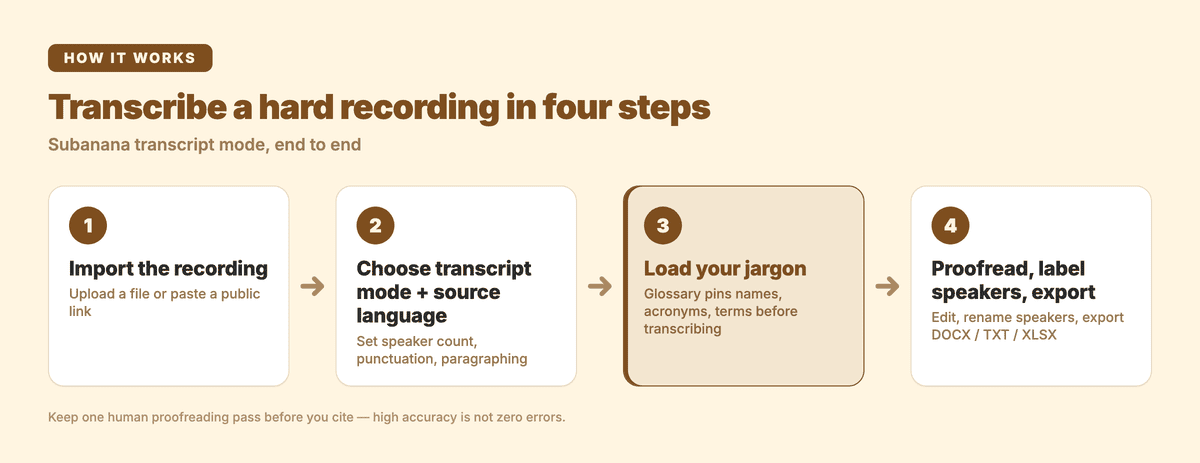
The four-step transcript-mode flow this guide walks through.
What does transcription accuracy actually depend on?
People treat "accuracy" as a single number that belongs to a tool, but on a real recording it's the product of several things, and most of them are upstream of whichever app you pick:
- Recording quality. Background noise, echo, distance from the mic, and cross-talk degrade accuracy faster than anything else. A model can only transcribe what it can hear.
- Speaker accent and dialect. Models are trained on uneven data across accents and languages. Output that's near-perfect on one accent can be noticeably worse on another in the same language.
- Domain vocabulary. Names, brands, acronyms, and technical jargon are the words most likely to be misheard, because they're rare in general training data — and they're often the words that matter most in a research or professional transcript.
- Number of speakers and overlap. Two people finishing each other's sentences is much harder than one person reading a script, both for the transcription and for telling who said what.
- The model itself. Different speech-recognition models are stronger on different languages and audio conditions. Being locked to a single model means inheriting its specific weak spots.
The practical takeaway: you raise accuracy most by improving the recording and the vocabulary you feed the tool, then by choosing a tool that routes hard audio to a model suited to it — not by hunting for one mythical "most accurate" app.
Manual, free, or AI transcription: which is most accurate?
There are three common ways to turn audio into text. Accuracy isn't the only axis — time and cost matter too — so here's the honest trade-off:
| Approach | Accuracy ceiling | Speed | Speaker labels | Best for |
|---|---|---|---|---|
| Type it out by hand | Highest, if you have the time | Very slow (roughly 4-6 hours per audio hour) | You add them manually | Short, high-stakes clips where every word is contested |
| Free auto-caption tools | Lower on accents and jargon | Fast | Usually none | Quick gist of clear, single-speaker English |
| AI speech-to-text | High, with a human proofread | Fast | Automatic (diarization) | Most professional and research transcription |
Manual transcription has the highest ceiling because a careful human can decode noise and overlap a model can't — but at four to six hours per hour of audio, it rarely fits a research deadline or a stack of interviews. Free tools are genuinely useful for a quick read of clean audio, but on accented or jargon-heavy recordings the error rate climbs, and most don't separate speakers or add punctuation, so you spend the saved time restructuring afterwards. AI transcription is the middle ground most people actually want: it does the bulk of the work in minutes and labels speakers, and you keep one human pass for the words that carry weight.
One distinction worth getting right before you start: a transcript is not the same as subtitles. Subtitles are short timed lines meant to be read on screen, conventionally without punctuation. A transcript is meant to be read by a person — punctuation, paragraphs, and speaker labels — so you can annotate it and pull quotes. For research and professional use you want a transcript, which means choosing transcript mode in whatever tool you use, not a subtitle workflow.
How do you transcribe a hard recording accurately with Subanana?
I'll walk through transcript mode specifically, because the hard-case features — multilingual model routing, speaker identification, a glossary for jargon, and a final-proofread editor — are what move accuracy on the recordings that matter. The flow has four steps.
- Import the recording. Upload the audio or video file (.mp4 / .mov / .webm / .ogg), or paste a public YouTube, Instagram, or Facebook link to pull it in directly. If the source is private or access-restricted, upload the file instead.
- Choose transcript mode and set the source language. Pick transcript mode (not subtitle mode), then set the language of the recording — Subanana covers 95+ languages, so most audio is in range. Set the number of speakers to auto-detect or type the count in, and turn on automatic punctuation and paragraphing so the output reads as prose, not a wall of text.
- Load your jargon before transcribing. This is the step most people skip and then regret. Use the Glossary to pin the words most likely to be misheard — people's names, company and product names, acronyms, technical terms — and the system prefers your spellings while transcribing. You can add terms one by one, paste a batch, or bulk-import an XLSX or CSV list, and keep a workspace-wide list plus per-project lists. For a recording dense with domain vocabulary, this does more for accuracy than any setting.
- Proofread, label speakers, and export. When transcription finishes you land in the editor, where the system has split the voices into Speaker 1, Speaker 2, and so on and removed filler words. From here you:
- Rename speakers — change Speaker 1 to a real name or role, and the whole transcript updates in sync.
- Fix misheard words — click any word to edit it; the editor also runs an LLM pass that flags likely misheard or same-sounding-but-wrong words and proposes corrections you approve or reject (it won't silently change anything).
- Chat with the transcript — ask the AI "where do they discuss X?" or "pull the key decisions," which saves real time on a long recording.
- Export the format you need: DOCX to edit in Word, TXT for a notes tool, or XLSX to lay out timecode, speaker, and text as a table for coding and citation. VTT, SRT, and Markdown are available too.
A genuine accuracy advantage worth naming: Subanana continuously benchmarks the available speech-recognition models and routes each job to the best performer for that source language, rather than locking to one vendor. If a transcription comes back with quality problems, it automatically re-runs the affected parts on a different model — and that re-run doesn't cost you any extra minutes. To see how the modes and the transcription pipeline are set up, see AI transcription and the audio-to-text tool.
How do you fix the hard cases — noise, accents, jargon, multiple speakers?
Each hard case has a specific lever. Pull the lever before you blame the tool:
| Hard case | What goes wrong | What actually helps |
|---|---|---|
| Noisy or echoey recording | The model mishears or drops words it can't hear cleanly | Record closer to the mic, reduce background noise at the source; if it's already recorded, proofread the muddy passages closely — no tool recovers what wasn't captured |
| Strong accent or dialect | One model handles an accent worse than another | Use a tool that routes to the best-benched model per language rather than one fixed model; proofread the sections that read oddly |
| Technical jargon, names, acronyms | Rare words get replaced with common-sounding ones | Load a glossary of those exact terms before transcribing, then verify them in the editor |
| Several speakers, overlapping talk | Lines get attributed to the wrong person, or merged | Set the speaker count (or auto-detect), then rename and re-check speaker boundaries in the editor, especially where people talk over each other |
| Multilingual recording | A second language inside the audio is mistranscribed | Set the dominant source language; transcript mode supports a single translation target if you also need the transcript in another language |
Two boundaries worth being honest about. First, mid-sentence code-switching — a speaker flipping between two languages within one sentence, detected in real time — is a strength of Subanana's live caption feature, not transcript mode; for a recorded file you set the source language up front. If you need captions at a live event, see AI real-time transcription. Second, for a multi-person meeting specifically, the AI meeting transcription workflow adds a summary with decisions and action items on top of the transcript.
Can you trust an AI transcript for research or citation?
Not without one human pass — and that's true of every tool, not just this one. AI transcription handles the overwhelming majority of the text and all the tedious structuring, but the places where a wrong word changes the meaning — names, proper nouns, key numbers, anything you'll quote verbatim — are worth checking line by line. High accuracy is not zero errors. The workflow that holds up for research is: let the AI do the first 90%, load a glossary so the domain terms come through right, then proofread the passages that carry weight before you cite them. A sibling guide, how to transcribe an interview, goes deeper on speaker-labelled, quotable transcripts specifically.
Frequently asked questions
What's the most accurate way to transcribe audio? For contested, high-stakes clips, careful manual transcription still has the highest ceiling. For everything else — interviews, lectures, research recordings, meetings — AI speech-to-text plus a single human proofreading pass is the most accurate option that's actually practical, because it pairs model speed with human judgement on the words that matter.
Can transcription tools separate multiple speakers? Yes — this is called diarization. Subanana's transcript mode automatically splits Speaker 1, Speaker 2, and so on, and you can rename them to real names or roles in the editor, with the whole transcript updating in sync. Overlapping speech is still the hard part, so re-check boundaries where people talk over each other.
Will it handle technical jargon and proper names correctly? Better, if you help it. Rare words are the most error-prone, so load them into a glossary before transcribing — workspace-wide terms plus a per-project list, added one by one or bulk-imported from XLSX or CSV. The system then prefers your spellings, and you confirm the rest in the editor.
Can the free tier produce a usable transcript file? You can run a recording and preview the result, but exporting is a paid step. The free tier doesn't allow subtitle or transcript downloads or select-and-copy in the editor — the only output is a watermarked video, first 5 minutes, at 720p. Every plan, including free, accepts files up to 30 GB or 8 hours; on the free plan, only the first 15 minutes of each file is transcribed. To export DOCX, TXT, or XLSX you need a paid plan. See pricing for the details.
Does a long recording (one or two hours) work? Yes — every plan, including free, takes up to 30 GB / 8 hours per file (on the free plan, only the first 15 minutes of each file is transcribed), which covers most lectures, interviews, and meetings. For a long file, use the editor's AI chat to find the key passages first, then proofread those closely.