
To transcribe a Zoom meeting you have two routes: turn on Zoom's own audio transcription (which needs a paid plan with cloud recording, and saves the transcript as a VTT file), or record the call and upload that file to a dedicated transcription tool to get a cleaner transcript with speaker labels and a structured AI summary. Below I walk through both, where Zoom's walls are, and the exact steps for the second route. Full disclosure: I run Subanana, so I'll use it for the upload walkthrough.
Can Zoom transcribe a meeting on its own?
Yes, but the usable transcript is a paid feature, not the free live captions. There are three different Zoom features that touch speech-to-text, and people mix them up:
- Live captions show words on screen during the call. Useful in the moment, but per a Zoom support FAQ from May 2026, after a rollout that month participants can no longer save or download those captions as a post-meeting file, so captions are no longer a way to keep a record.
- Cloud-recording audio transcription is the real transcript. Per Zoom's documentation, when you cloud-record a meeting Zoom automatically transcribes it and saves the result as a searchable, editable VTT file. This needs a paid account (Pro, Business, Education, or Enterprise) with cloud recording enabled. A free Basic account has neither.
- AI Companion Meeting Summary turns the talk into a summary. Per Zoom's support docs, a licensed user on a paid Zoom Workplace plan can have AI Companion generate a summary; the host starts it manually unless configured to start automatically, and the summary lands in email, Zoom Team Chat, and Zoom Hub.
So if you already pay for Zoom, cloud-record your calls, and your meetings are mostly in one language, Zoom hands you a serviceable transcript and summary without any extra tool. The friction shows up at the edges.
What are the limits of Zoom's built-in transcription?
A few things tend to trip people up:
- It's paywalled twice. The transcript needs a paid plan plus cloud recording turned on; the summary needs AI Companion on a Zoom Workplace tier. The free plan gets you neither, and the live captions you can see are no longer saveable.
- English is the default language. Zoom's cloud-recording transcript defaults to English and supports a smaller set of transcription languages than you might expect: Zoom's own list runs to 19. Its translated live captions cover 33 languages per Zoom's features page, but that's the live caption feature, not the saved transcript.
- It assumes one language per meeting. The transcript is generated in a single configured language. This isn't unique to Zoom: any single-pass transcription tool needs one primary language selected per file, including the upload route covered below.
- The output is a VTT caption file. That's fine for captions, but a raw VTT with timestamps every few seconds isn't a clean, paragraphed transcript you'd paste into meeting minutes. You still have the last-mile cleanup to do.
To be fair: if your org already pays for Zoom Workplace with AI Companion, cloud-records everything, and runs single-language calls, the native path is the path of least resistance and you probably don't need anything else.
How do you transcribe a Zoom recording with Subanana?
Subanana does not send a bot into your Zoom call: there's no Zoom bot, by design. There are two ways in: Subanana's Chrome extension records the Zoom meeting for you, so you skip the download-and-upload step; or you record the meeting in Zoom (cloud or local recording both produce a file) and upload that audio or video file to Subanana's meeting transcription. From the recording, Subanana produces a clean transcript with speaker labels and auto-punctuation, then organizes it into a structured AI summary: key points, decisions, action items.
What that gets you over the raw VTT:
- Speaker labels and readable formatting. Diarization separates who said what, and transcript mode adds punctuation and paragraph breaks, so the output reads like minutes rather than a caption track.
- A summary you can steer. You pick which large language model writes the summary from a tiered menu, and you can apply a built-in template (meeting, speech, and others) so the structure matches how your team records decisions.
- Broader language coverage. Subanana supports 95+ languages for the uploaded recording, versus the 19 languages Zoom's own transcript covers. One caveat: pick the meeting's primary language when you upload; the transcript is generated in that single language, so a recording where speakers alternate languages partway through the call won't get each passage rendered in its own language.
- Real export options. Export the transcript and summary as SRT, VTT, TXT, DOCX, XLSX, or Markdown, not just a caption file. (Export is a paid feature.)
- Ask the transcript questions. In-app AI chat lets you query the meeting: "what did we decide about the budget," "who owns the follow-up," grounded in what was actually said.
Under the hood, Subanana benchmarks multiple speech-to-text models and routes each recording to the best performer for that language, with automatic fallback if a model produces a bad segment, and you're not charged extra for those internal retries.
Zoom native vs recording into Subanana
| What you need | Zoom's built-in transcription | Record, then upload to Subanana |
|---|---|---|
| Get any transcript | Paid plan + cloud recording on | Works from any Zoom recording (cloud or local) |
| Save the live captions | No longer saveable, per Zoom's May 2026 support FAQ | Not applicable, you transcribe the recording instead |
| Speaker labels | Yes, in the cloud-recording transcript | Yes, with diarization |
| Clean paragraphs vs caption file | VTT caption file with timestamps | Punctuated, paragraphed transcript |
| AI summary | AI Companion (separate, host must start it) | Built in; pick the model + a template |
| Language coverage | Single configured language; 19 supported | 95+ languages per upload (one language per file) |
| Export formats | VTT | SRT, VTT, TXT, DOCX, XLSX, Markdown |
Zoom wins on convenience if you're already inside its paid ecosystem: nothing to upload, the transcript is just there. Subanana wins when the recording is the starting point and you want a usable, translated record out the other side.
The actual steps
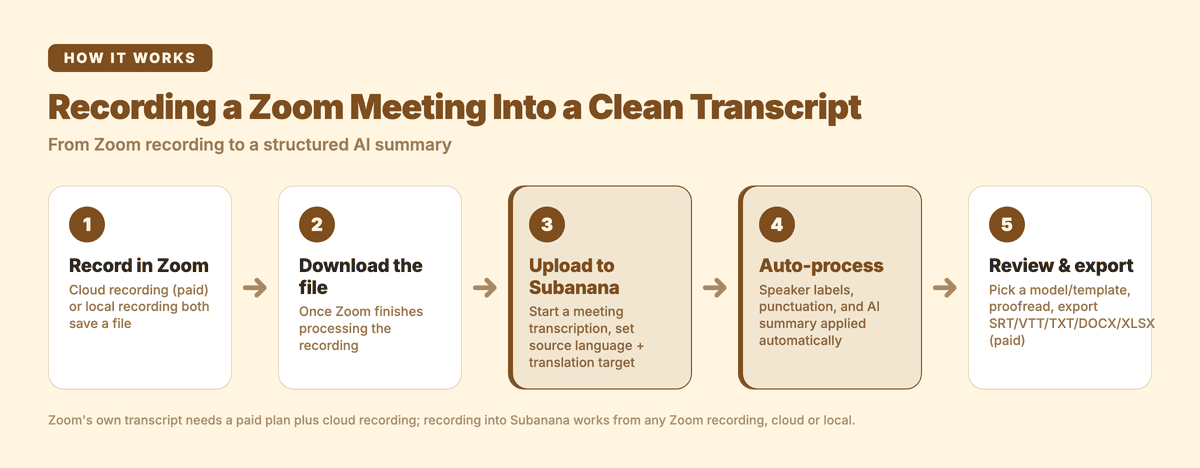
- In Zoom, record the meeting. Cloud recording (paid) or a local recording both save a file you can use afterward.
- Once the meeting ends and Zoom finishes processing, download the recording (audio or video) to your computer.
- Open Subanana, start a meeting transcription, and upload that file. Set the source language; add a translation target if your meeting needs one.
- Let it process, then review: speaker labels and punctuation are applied automatically, and the AI summary pulls out decisions and action items. Pick a different model or template if you want a different angle.
- Proofread, then export the transcript and summary in the format you need (export is a paid feature).
When is Zoom's own transcript enough?
If transcription and cloud recording are already on across your org, you pay for AI Companion to generate summaries, and your meetings are mostly single-language, stay with Zoom: it's the least friction. But the moment you hit any one of these (you don't pay for the tiers that unlock the transcript or summary, your meetings are held in languages outside Zoom's 19, or you want a clean paragraphed record with steerable summaries instead of a VTT caption file), recording the call and running it through Subanana's AI meeting transcription is usually the cleaner path. You can see the plans on the pricing page.
A meeting record is really two problems: can the tool capture the words, and can you actually use what comes out. Zoom captures the words well once you're on a paid plan. The second problem, turning that into a clean, translated, structured record you can hand off, is where recording into a dedicated transcription tool earns its place.
Frequently asked questions
Does Zoom automatically transcribe meetings?
Only if you cloud-record on a paid plan (Pro, Business, Education, or Enterprise) with cloud recording turned on — Zoom then auto-transcribes the recording into a VTT file. The free live captions you see during the call are not the same thing, and per Zoom's own May 2026 support FAQ they can no longer be saved as a post-meeting file.
Can I get a Zoom transcript for free?
Not from Zoom's own cloud-recording transcript — that specific feature requires a paid plan with cloud recording enabled; a free Basic account has neither. What you can do on any plan is record the meeting yourself (cloud or local recording) and upload the file to a separate transcription tool.
Does Subanana need to join my Zoom call like a bot?
No. Subanana doesn't put a bot inside your Zoom meeting. You either record with Subanana's Chrome extension so there's no separate download-and-upload step, or record in Zoom (cloud or local) and upload that file afterward — either way, the transcript and summary are generated from the recording, not from a bot sitting in the call.