
You ran a meeting on Google Meet, and now you want a usable record of it — what was decided, who owns which action item, a transcript you can actually search. The good news: Meet can do a lot of this natively now. The catch: it only does it in 8 languages, only on an eligible paid Google Workspace edition, and the AI notes feature handles one language at a time. So before you build a workflow on top of it, it's worth knowing exactly where the built-in path stops. I run Subanana, so I'll use it for the demo at the end — but most of this guide is just about what Google Meet does and doesn't do.
Can Google Meet save a transcript of my meeting?
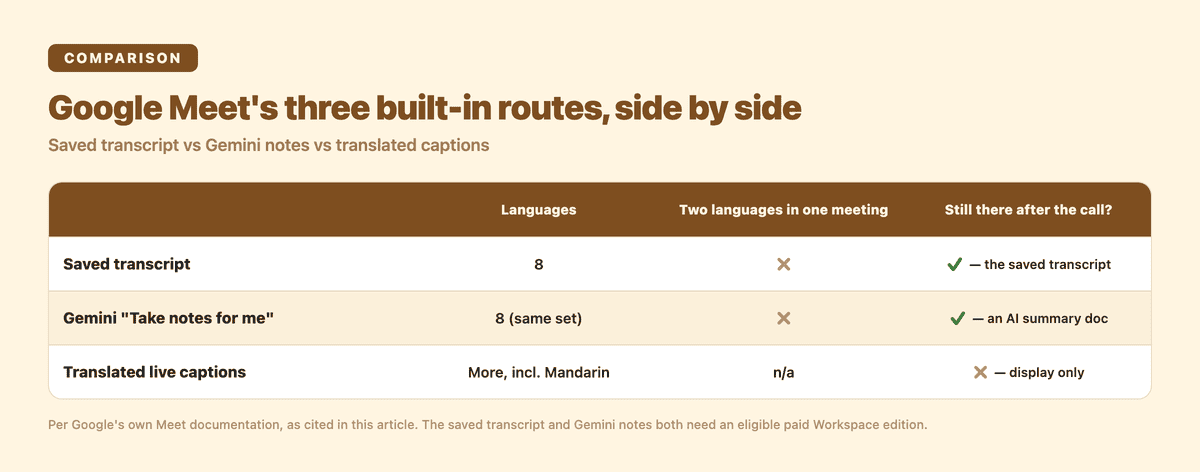
Short answer: yes, but with real conditions. Per Google's own support documentation, Meet's saved transcript (the written record that lands in Google Drive after the call, with timestamps and speaker attribution) supports exactly 8 spoken languages: English, French, German, Italian, Japanese, Korean, Portuguese, and Spanish.
Two conditions matter:
- It needs a paid Workspace edition. The saved transcript is available on editions like Business Standard, Business Plus, the Enterprise tiers, the education upgrades, and Workspace Individual — not on a free personal Google account or the base Business Starter tier.
- The language list is short. Eight languages is a real expansion (more on that below), but it's still 8 out of the dozens you might actually run a meeting in. If your team speaks Chinese, Dutch, Hindi, Arabic, Thai, Vietnamese, or anything outside that list, Meet's saved transcript won't capture it.
It's also worth being precise about the platform: the saved transcript works on desktop and Android, and it saves to the meeting organizer's Drive. If you weren't the organizer, you don't automatically get the file.
Wasn't Google Meet English-only? What changed?
This is worth correcting, because the "Meet only transcribes English" line is now out of date. According to Google Workspace Updates, the 7 non-English transcript languages (French, German, Italian, Japanese, Korean, Portuguese, Spanish) rolled out starting in March 2025. Before that, the saved transcript genuinely was English-only.
So the accurate statement today is: Meet's transcript has grown from 1 language to 8. What that expansion didn't add was Chinese — in any variant. As of now, the saved-transcript language list is still those 8, and Chinese (Mandarin or otherwise) isn't on it. Credit where it's due: the coverage is improving, and Google has been adding languages. It just hasn't reached every language a global team needs yet.
What about Gemini's "Take notes for me"? And the live captions?
A lot of people assume that switching from the plain transcript to Gemini's "Take notes for me" fills the gaps. It's a genuinely useful feature — it produces an AI summary doc of the meeting — but per Google's documentation, it has the same boundaries:
- Same 8 languages. "Take notes for me" supports English, French, German, Italian, Japanese, Korean, Portuguese, and Spanish — the same set as the transcript.
- One language at a time. Google's page states that multiple languages spoken in the same meeting aren't currently supported. If a meeting mixes two languages, that's a problem for any feature built on a single-language assumption.
- It needs an eligible Gemini-enabled Workspace plan. As with the transcript, this isn't a free-tier feature.
Then there are the live translated captions, which are a separate thing again. Per Google's documentation, translated captions do cover more languages, including Mandarin — but with two limits that matter for a meeting record:
- They are display-only. You can read them while you're in the meeting with captions on, but they are not written into the saved transcript.
- So even the languages Meet handles live disappear when the call ends, unless you separately record the meeting and burn the captions into the video.
The net of it: Meet's built-in path gives you a saved, structured record for 8 languages on a paid plan, a single-language AI summary on a Gemini plan, and live captions that vanish when the meeting does.
Where does Google Meet's built-in transcription fall short?
Pulling the limits into one place, here's what tends to bite teams in practice:
- Language coverage caps at 8 for the saved record. Anything outside that list won't produce a built-in transcript or AI notes.
- AI notes handle one language at a time. A meeting that mixes languages doesn't fit the single-language assumption.
- It's gated behind a paid Workspace edition. Free personal accounts and the base business tier don't get the saved transcript or the Gemini notes.
- Live captions aren't a record. The translated captions you see during the call aren't saved to the transcript, so they don't help you afterward.
To be fair, here's the honest other side: if your meetings are in English (or one of the other 7 supported languages) and your company already pays for an eligible Workspace plan, Meet's built-in transcript plus Gemini notes is a genuinely good fit — it's integrated, it's improving, and it's zero extra tools. For those teams, the built-in path is the path of least resistance, and I wouldn't bolt anything else on. The friction shows up only when your language isn't on the list, your meetings are multilingual, or you don't want a meeting record to depend on which Workspace edition your company bought.
How do you get a structured meeting record with Subanana?
Subanana's meeting mode includes a Google Meet bot that handles the part Meet's built-in path leaves out. It works as post-production, not live captioning: the bot is triggered by your calendar, it joins and records the meeting, and after the meeting ends it produces the record. There's no live-caption step here — the project is created once the call is over. A few things that matter for the cases above:
- Multilingual coverage. It transcribes across 95+ languages, including Chinese, with speaker identification (diarization) so you can see who said which line.
- A structured AI summary. On top of the transcript, it produces a summary — decisions, action items, owners — and you can choose which LLM generates that summary. (The model choice is for the summary; the transcription itself runs on the best-performing speech model for your language.)
- No Workspace edition required. Subanana is its own subscription, and the bot joins through the calendar you connect — so a meeting record doesn't depend on your company's Google Workspace tier or on an admin enabling a feature.
- One translation target when you need it. If the meeting is in one language but you need the record in another, meeting mode can output a single translation alongside the original.
One boundary worth being clear about: mid-sentence code-switching — a speaker flipping between two languages within a single sentence, detected in real time — is a strength of Subanana's live caption feature, not the meeting bot. What the meeting bot leans on is multilingual accuracy, speaker labels, and the structured summary. For accuracy and feature specifics, see AI meeting transcription.
The steps, end to end
- Connect your calendar so Subanana's Google Meet bot joins the meetings you choose.
- Run the meeting as normal — in whatever language (or languages) your team actually speaks.
- Get the record afterward. Once the meeting ends, the transcript appears in Subanana with speakers separated; the AI pulls out decisions and action items. If you want the summary framed differently, pick a different LLM and regenerate it.
- Proofread and export. Do one quick human pass on names and key numbers, then export the transcript and summary as DOCX, XLSX, TXT, VTT, SRT, or Markdown. (Exporting is a paid feature; the free tier lets you preview but not download usable files.)
When is Google Meet's built-in transcription enough?
If your meetings are in English (or one of the other 7 supported languages), and your company already pays for an eligible Workspace plan, Meet's built-in transcript plus Gemini notes is the simplest answer — keep it, it's good. But the moment one of these is true, it's usually less hassle to use a meeting bot built for the job:
- your meetings are in a language outside Meet's 8 (Chinese being the obvious one);
- your meetings are multilingual;
- you want a structured summary of decisions and action items, not just a raw transcript;
- or you don't want a meeting record to hinge on which Workspace edition your company bought.
To compare a few tools head to head, see the best AI meeting transcription tools for 2026.
A meeting record really comes down to two questions: can the tool turn the talking into text, and is that text usable afterward. Google Meet has gotten good at both — for 8 languages, on a paid plan. The teams it leaves behind are the ones whose language isn't on that list, whose meetings mix languages, or who just want the decisions and action items pulled out for them.