
There's a specific scenario that most meeting tools quietly don't solve: a conference, lecture, or panel where the speakers are in one language but the audience speaks several. Each attendee needs the captions in their own preferred language, on their own device, in real time.
Built-in Zoom / Google Meet / Teams captions handle the simpler case — one source language, one display, captions visible on the meeting screen. They generally don't handle multilingual audience display, audience-facing devices, or arbitrary language pairs without enterprise add-ons.
This post covers what multilingual live captioning actually entails, the three categories of solutions available, and how to set it up without committing to an enterprise contract.
When you need dedicated live captioning
Three scenarios where built-in meeting captions fall short:
1. Multilingual audience, single language source
A speaker presents in English; the audience includes attendees who'd prefer captions in Mandarin, Spanish, French, or Japanese. Built-in meeting captions are typically single-language — one display, one language. You'd need each viewer to translate the captions in their head.
2. Hybrid event with in-person + remote attendees
In-person attendees can't see the meeting screen captions. They need captions on their own devices — phones, tablets, laptops. This requires a shareable display that doesn't depend on being a meeting participant.
3. Conference, lecture, or church service (no formal "meeting" structure)
Talks delivered to an audience aren't structured as a Zoom meeting. There's no participant list, no per-attendee account; just a speaker, an audience, and a need to display real-time captions to that audience.
For all three scenarios, the question isn't "should I turn on captions" — it's "which tool gives my audience caption access in the languages they need."
Three categories of live captioning solutions
Category 1: Built-in meeting tool captions (Zoom / Google Meet / Teams)
Strengths: Free, zero setup, embedded in tools you already use.
Limits: Generally single-language display. Translation to arbitrary languages typically requires an Enterprise tier or third-party add-on. Captions appear inside the meeting client — there's no shareable display for attendees who aren't meeting participants. Mostly suited to internal meetings, not events.
When this fits: Internal team meetings where everyone is in the same meeting client and speaks the same language. Most knowledge-worker meetings end here, and that's fine.
Category 2: Enterprise event platforms (Wordly, Interprefy, KUDO)
Strengths: Built specifically for conferences, summits, board meetings. 50+ language support, audience-facing displays, sometimes hybrid AI + human interpreter workflows.
Limits: Enterprise pricing — typically thousands of dollars per event or per month. Setup involves sales calls, contracts, sometimes hardware. Not realistic for one-off events, university lectures, or smaller organisations.
When this fits: Large enterprise conferences, government / international summit settings, regulated industries with budget for enterprise contracts.
Category 3: Self-serve event captioning (Subanana, similar tools)
Strengths: No sales call, no enterprise contract, published subscription pricing. Audience-facing shareable display via web link or QR code; the host configures one source language plus up to five translation target languages in a single session, and each attendee opens the link on their own phone and reads the one language they picked from that set. One session, one operator laptop, several reading languages at once. Suited to mid-sized events: webinars, university lectures, church services, community panels, internal company all-hands.
Limits: Live captioning sits on the Max plan rather than on every paid tier. A session carries up to five translation targets, so an event needing more than five reading languages at the same moment sits outside its shape. Less polished than enterprise platforms for very large events (5,000+ attendees, simultaneous-interpretation requirements). May not have the same regulatory / SLA guarantees as enterprise platforms.
When this fits: Most events that aren't large enterprise summits. The vast majority of multilingual captioning needs — community talks, university classes, mid-size webinars, church services, hybrid team meetings — fall in this category.
How self-serve multilingual live captioning works (Subanana flow)
Subanana's live multilingual translation feature is purpose-built for this third category. The setup is straightforward:
1. Start a live session and configure languages
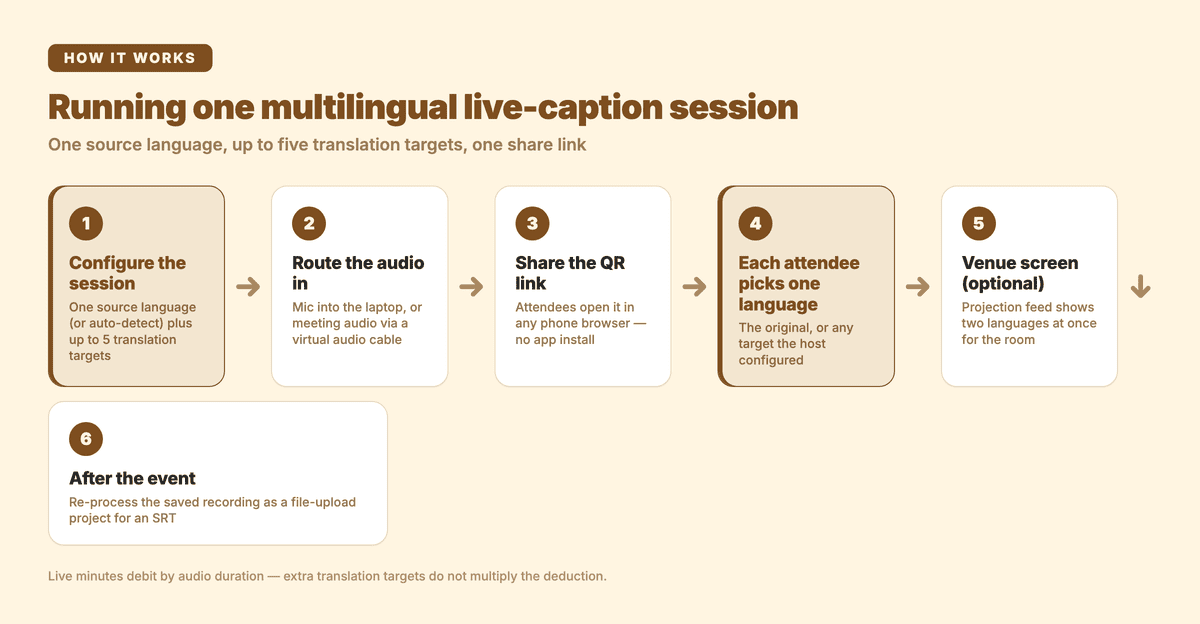
Open Subanana, create a live transcription session. As the host, you configure two things: the source language (what the speaker will use, or auto-detect for a multilingual speaker) and the translation target languages, up to five of them in that one session, or none at all if you only want a transcript in the source language. Subanana supports 95+ languages overall; for an English-source event you might pick Mandarin, Spanish, and French as the three targets.
Because the targets live inside the session, a multilingual audience is covered by one session on one operator laptop. Live minutes debit once by audio duration whatever the target count, so adding a fourth or fifth language doesn't multiply what the event costs you in minutes.
Important: the source and targets you configure are the languages available to attendees of that session. Attendees can't add their own language on the fly. If you have an audience that includes Korean speakers and you didn't configure Korean as a target, those attendees won't see Korean captions. Survey your audience's languages before the event and configure the session accordingly.
2. Connect the audio source
Live captioning takes direct audio input — typically a microphone or system audio routed into the browser running the live session. The host runs the session locally and the audio source is routed into Subanana:
- Speaker has a microphone connected to a laptop running Subanana — Subanana captures the microphone input and transcribes / translates in real time
- Hybrid event with Zoom / Google Meet bridge — run Subanana on the host's laptop and route the meeting's system audio into the browser tab (via a virtual audio cable: BlackHole on Mac, VB-Cable on Windows). Subanana then transcribes the audio it receives.
Note: Subanana's Google Meet / Teams meeting bot is a different feature — it records meetings for post-production transcription (the project is created after the meeting ends). The bot does not deliver live captions during the meeting. For live captions, you need direct audio input as described above.
3. Share the audience-facing link
Subanana generates a shareable URL — and a QR code — that displays the live captions to anyone who opens it. Attendees scan the QR code from their phones (no app install required) and pass a language gate: each person picks one display language for themselves, either the original or any of the targets you configured, with the language matching their phone's own locale marked as recommended. The choice is among the languages you (the host) configured at session setup; attendees can't add additional languages.
If the room also needs captions on a screen, that is the separate screen-caption projection: a plain browser-source URL you drop into OBS, vMix or ProPresenter to drive the venue's displays. That projection is where two languages appear together at once, as a dual feed showing exactly two. Personal phones stay on one language each.
4. During the event
The speaker talks. Subanana transcribes the source language in real time, translates into each of the session's target languages, and pushes the captions to every attendee device that's viewing the share link, each device rendering the one language its owner chose. Latency is typically 1-2 seconds.
5. After the event
Every live session records the event audio automatically and keeps it in the host's workspace, alongside the live transcript you can read back in the app. The live session itself is not a download surface. To turn the event into a caption or transcript file, re-process that recording through Subanana's file-upload transcription, the "create project from recording" flow. It runs as a fresh project charged in transcription minutes, with one source language chosen for the whole file. Its exports are the file-upload set: an SRT you can attach to the video archive or upload to YouTube as a CC track, or a DOCX, XLSX or Markdown transcript.
Try Subanana's live captioning →
Use cases where self-serve multilingual live captioning shines
University lectures with international students
A professor lectures in English to a class with Mandarin-, Korean-, and Spanish-speaking students. The professor (or department) sets up the live captioning ahead of class with English as the source and Mandarin, Korean and Spanish as the three translation targets of that one session. Each student scans the same QR code and picks their own language on their own phone. The professor lectures naturally; the platform handles the language stratification.
Church services with multilingual congregations
A pastor preaches in English; the congregation includes Cantonese, Mandarin, Tagalog, and Spanish speakers. The A/V team runs one live session with English as the source and those four languages as targets, on one laptop with one share link. Each congregant opens that link and reads the language they chose. No need for separate physical interpretation booths.
Hybrid company all-hands
The CEO presents in English from headquarters. In-person attendees in the room can't see the meeting captions. Remote teams across Mexico, Japan, and Germany want captions in their own languages. One Subanana session with Spanish, Japanese and German as targets covers all of them off a single share link, and the minutes it debits are the length of the all-hands, not three times over.
Conference panels and Q&A
A panel in English with Q&A from the audience. International attendees in the room follow along on their phones, each in the language they picked. Faster and cheaper than booking simultaneous-interpretation booths and wireless headsets.
Webinars with international audiences
A product webinar pitched to the US, UK, and EU markets. English source, with Spanish and French configured as targets in the same session. Attendees who prefer reading rather than listening open the one share link and read the language they chose, either the original English or one of the translations.
Comparison: when each category fits
| Built-in meeting captions | Enterprise event platform | Self-serve (Subanana) | |
|---|---|---|---|
| Cost | Free | Thousands per event / month | Subscription, signup-and-go (Max plan) |
| Setup | Zero | Sales call + contract | Self-serve signup |
| Language support | Limited; usually single source | 50+ languages, paid | 95+ languages; up to 5 targets per session |
| Audience-facing display | Inside meeting client | Custom event platform | Web link / QR code |
| Audience device | Meeting participant only | Custom event app | Any device with web browser |
| Best for | Internal meetings, single language | Large enterprise summits | Mid-size events, lectures, webinars |
| Hybrid in-person + remote | Limited | ✅ | ✅ |
| Translation to arbitrary languages | Mostly Enterprise add-on | ✅ | ✅ |
FAQ
Do attendees need to install an app?
No. The audience-facing display is a web link — anyone with a browser on their phone can scan the QR code and see live captions. No app, no signup, no friction.
How accurate are AI-generated live captions?
Accuracy depends on the language and audio quality. For clean speaker audio in a well-supported language, accuracy is typically strong, with most major languages performing comparably. For noisy environments, multiple overlapping speakers, or heavily accented audio, expect lower accuracy. Test with a representative recording before relying on a tool for a critical event.
Can I run live captions for an in-person event with no streaming setup?
Yes. The simplest setup is a laptop running Subanana with a microphone attached. The microphone picks up the speaker's audio; Subanana transcribes and translates; attendees scan a QR code from a slide and view captions on their phones. No streaming infrastructure required.
What about hybrid Zoom / Google Meet / Microsoft Teams events?
The practical pattern is to run Subanana on the host's laptop and route the meeting's system audio into the browser running the live session — using a virtual audio cable (BlackHole on Mac, VB-Cable on Windows). Subanana transcribes the audio it receives in real time and pushes captions to the audience-facing share link.
Important: Subanana also has a separate Google Meet / Teams meeting bot, but that bot is for post-production transcription only — it records the meeting and creates a project after the meeting ends. The meeting bot does not deliver live captions. For live captioning during a hybrid event, use the direct-audio-input pattern above.
How much does live captioning cost on Subanana?
Live captioning runs on the Max plan; pricing details are at Subanana's pricing page. Every workspace also gets a one-time 5-minute live-caption trial, on any plan including Free. That is enough for a rehearsal or a first look, not for running an event. Live minutes debit by audio duration and aren't multiplied by the number of translation targets, and a paused session streams no audio, so pauses are free.
Can I save the transcript after the event?
The live transcript is readable in the app afterwards, but a live session has no export or download of its transcript in any format. The route to a file runs through the recording: every session records the event audio automatically, and you re-process that recording through Subanana's file-upload transcription ("create project from recording"). That's a fresh transcription of the event, charged in transcription minutes and with one source language chosen for the whole file, and its exports are the usual file-upload set: an SRT you can attach to the video archive or upload to YouTube as a CC track, or a DOCX, XLSX or Markdown transcript.
Does it work for events with 5,000+ attendees?
Self-serve tools like Subanana are sized for the typical event range — webinars, lectures, mid-size conferences, church services. For very large enterprise summits with thousands of simultaneous viewers, an enterprise event platform (Wordly, KUDO, etc.) may be a better fit because of audience-scale infrastructure and SLA guarantees.
Can I get human-verified live captioning?
Subanana is AI-only for live transcription. For events with human-verified live captioning requirements (legal proceedings, broadcast, compliance contexts), Interprefy and similar enterprise platforms offer human + AI hybrid workflows.
Related reading
- Subanana's AI Real-time Transcription (product page) — feature details and pricing
- Best AI Meeting Transcription Tools 2026 — broader comparison hub including post-production transcription tools
Closing
Multilingual live captioning used to require enterprise contracts and event-specific hardware. The category has matured to the point where mid-size events — lectures, webinars, church services, hybrid meetings — can run real-time captions for an audience that spans multiple languages, off a self-serve subscription. The host configures one source language plus up to five translation targets in a single session; the audience-facing QR-code display means attendees don't install anything; they scan, pick the one language they read, and follow along on their own phone, while the room's screen, if there is one, carries the projection.
For events that don't need enterprise-scale SLAs, this is now a practical baseline.
Try Subanana for live event captioning →