
To transcribe a video, send it to a speech-to-text tool — either upload the video file or paste a public link — pick the spoken language, let the tool generate the transcript, then read through once to fix names and jargon before exporting. The output you want is usually a transcript (clean, punctuated, paragraphed text you can read and search), not subtitles (short on-screen caption lines). Picking the right one up front saves the most time, so this guide starts there and then walks the full workflow.
I run Subanana, an AI speech-to-text app, so I'll use its transcript mode for the worked steps. The workflow itself applies to any capable tool.
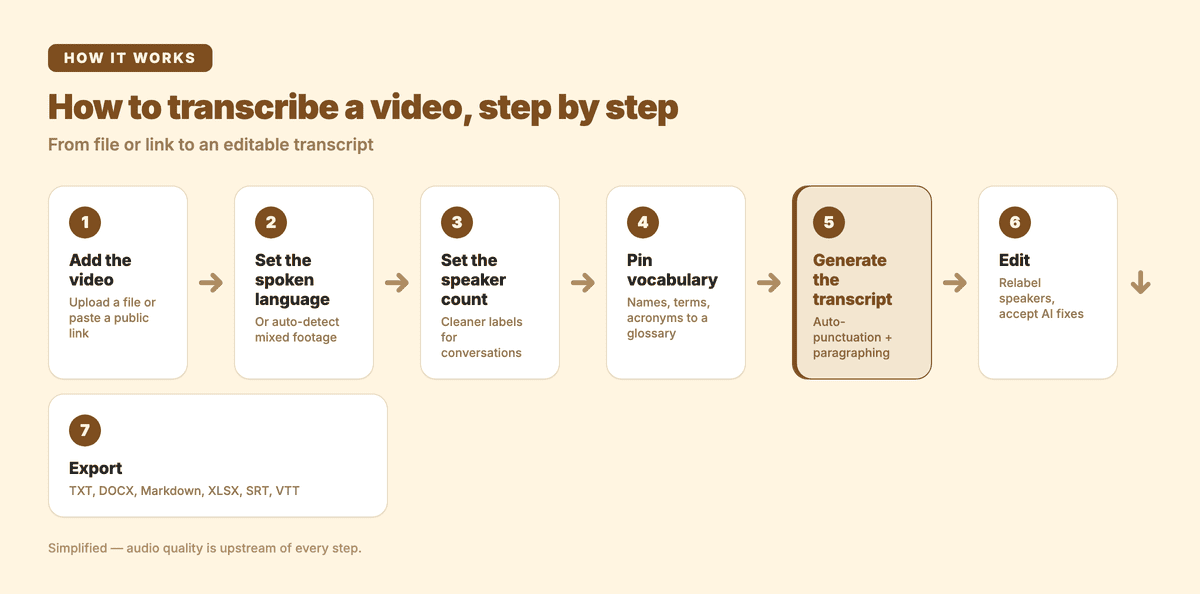
The full transcribe-a-video workflow at a glance — each step is broken down below.
Transcript or subtitles: which do you actually want?
These are two different outputs, and choosing the wrong one means redoing the work. The difference comes down to what you'll do with the text.
| Video transcript | Subtitles (captions) | |
|---|---|---|
| Output | Flowing, punctuated paragraphs | Short timed lines (often no end punctuation) |
| Read as a document | ✅ | ❌ (broken into caption-length fragments) |
| On-screen over the video | ❌ | ✅ |
| Best for | Notes, articles, research, search, repurposing | Accessibility, silent autoplay, social clips |
| File formats | TXT, DOCX, Markdown, XLSX | SRT, VTT |
If your goal is to read, quote, search, or repurpose what was said — show notes, a blog draft, meeting notes, research — you want a transcript. If your goal is text burned onto or layered over the video for viewers, you want subtitles. A good tool can produce both from the same upload, but the editing decisions differ, so decide first. (If captions are what you're after, see how to add subtitles to YouTube videos instead.)
How do you transcribe a video, step by step?
Here is the end-to-end flow, with the decision at each step that actually affects accuracy.
- Add the video. Upload the file (common video formats work directly) or paste a public YouTube, Instagram, or Facebook link so the tool fetches it for you — no need to download the source first.
- Set the spoken language. Pick the language, or use auto-detect for mixed-language footage. Getting this right is the single biggest accuracy lever.
- Set the speaker count (if it's a conversation). For an interview or a panel, telling the tool how many people are speaking produces cleaner speaker labels than leaving it fully automatic.
- Pin vocabulary. Add names, product terms, and acronyms to a glossary so the recognition layer treats them as expected vocabulary instead of re-misspelling them every time.
- Generate the transcript. A 10-minute video typically finishes in a couple of minutes. Turn on auto-punctuation and paragraphing so the raw stream becomes readable prose — that's a transcript-mode feature, since subtitles deliberately omit punctuation.
- Edit. Read through once. Relabel speakers, and accept or reject the AI auto-correct pass that flags likely misheard words. This is the human step — keep it focused on the parts that matter.
- Export to the format your next step needs (see below).
A few things make a real difference:
- Audio quality is upstream of everything. No model recovers detail that isn't in the recording. Feed the tool the original video, not a screen-recorded or heavily compressed copy.
- Pin vocabulary before you transcribe, not after. Subanana's glossary works across all 95+ languages and supports a workspace-wide list plus per-project lists, so a recurring series builds the glossary once and benefits every time.
- Use the correction layer instead of retyping. In the editor, an AI pass proposes fixes for likely misheard words that you approve or reject — it won't silently change anything.
What can transcribe a video, and where each falls short
| Method | Speaker labels | Punctuation & paragraphs | Editable correction | Best for |
|---|---|---|---|---|
| Platform auto-captions (e.g. a video site's built-in track) | ❌ | Limited | ❌ | A rough, free gist of a single-speaker clip |
| Manual transcription (type it yourself) | ✅ (you do it) | ✅ (you do it) | n/a | Short clips, or when you need certified-level accuracy |
| AI transcription tool | ✅ | ✅ | ✅ | Long-form, multi-speaker, or repurposing at volume |
Platform auto-captions are built for short, single-speaker clips and produce one undifferentiated block of text — usable as a gist, painful to turn into a document. Manual transcription is the most accurate but costs roughly 4× the runtime of the video in typing. An AI tool sits in the middle for most work: it does diarization, punctuation, and correction so your job becomes verifying a near-right draft rather than building one from scratch.
Subanana's transcript mode is built around exactly this. It benchmarks speech-to-text models per language and routes each job to the best performer, with automatic fallback to a second model on any segment that looks unreliable — so you're not locked to one engine that happens to be weak on your footage's accent or audio quality.
Which export format should you use?
Match the file to the job. Subanana exports TXT, DOCX, Markdown, XLSX, SRT, and VTT.
- DOCX — when you're editing the transcript into an article or handing it to a collaborator.
- TXT or Markdown — when you're feeding the transcript into another AI tool to draft notes or pull quotes.
- XLSX — when you want timestamps and segments in a spreadsheet for indexing a long archive.
- SRT or VTT — when the same video also needs on-screen captions for the published cut.
For repurposing specifically, there's an in-editor AI chat: ask "summarise the second half" or "what was said about pricing" and get answers grounded in the actual transcript, instead of re-skimming the whole thing for one line.
Frequently asked questions
Can I transcribe a video straight from a YouTube link?
Yes. Alongside file upload, paste a public YouTube, Instagram, or Facebook URL and the tool fetches and transcribes it. Link-imported videos share the same size and duration limits as uploads, and private or access-restricted content may not import.
Will the transcript show who said what?
Yes — that's speaker diarization. The tool separates and labels speakers; set the speaker count manually for tighter results, then rename the labels (Host, Guest, names) in the editor. For a worked multi-speaker example, see how to transcribe podcasts and interviews accurately.
How accurate is AI video transcription?
It depends on your audio quality, accents, and subject matter far more than on any headline percentage a tool markets. Clean studio audio with one or two speakers is often publish-ready after a quick skim; noisy, multi-speaker, or jargon-heavy footage needs a short verification pass. The honest test is to run a few representative minutes through a free preview and judge the output you actually get.
What's the difference between transcribing and translating a video?
Transcribing turns speech into text in the same language. Translating renders that text into another language. If you need a different language, see how to translate a video into another language — you transcribe first, then translate.
Getting a usable transcript, faster
Transcribing a video isn't about finding a magic model — it's a workflow: decide transcript versus subtitles, feed the tool good audio, set the language and vocabulary up front, let the AI do the bulk, then spend a focused few minutes verifying the parts that matter.
To try it on your own footage, start in the AI transcription tool or open the app directly. For research or team use across many recordings, the pricing page lays out where the limits sit.