
Wondershare Filmora is one of the most popular drop-in video editors for creators on Windows and Mac — friendly interface, large effects library, multitrack editing, and one-click YouTube export. For subtitles specifically, Filmora offers three paths, but each has a constraint worth knowing before you choose.
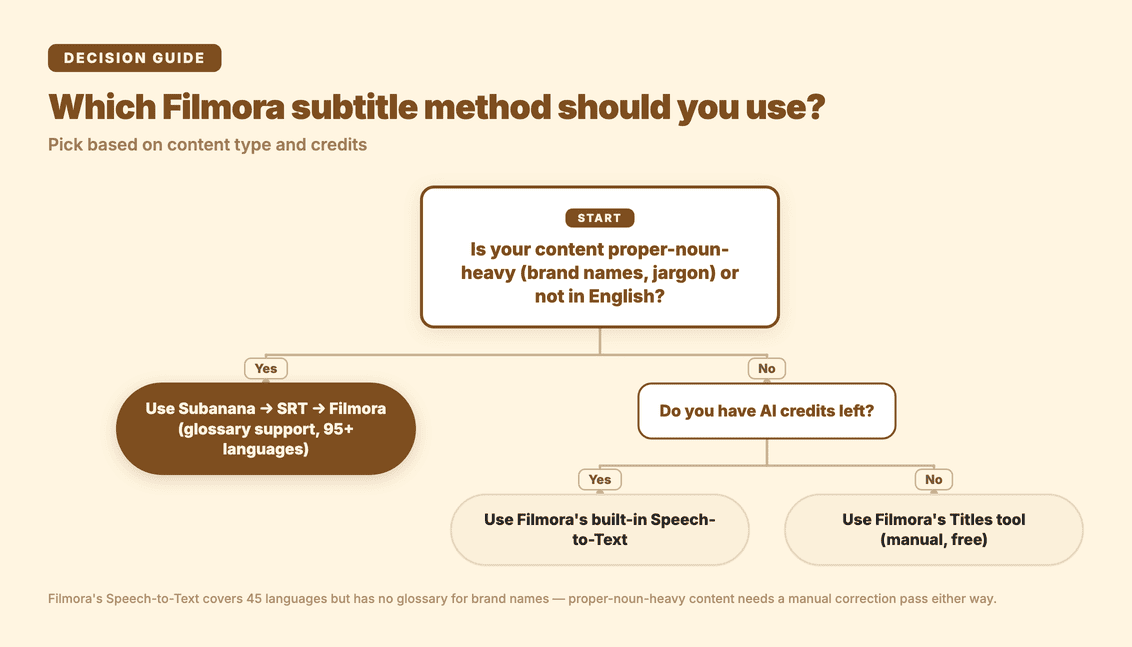
The short version: Filmora's built-in Speech-to-Text auto-caption is credit-metered, not a flat allowance — a small batch of AI credits comes free with signup, and steady use draws from a paid credit top-up. Language coverage is broader than most people assume — Wondershare's published Speech-to-Text page lists 45 languages and dialects. The constraint that actually bites is proper-noun-heavy material (brand names, product SKUs, technical jargon), which its published documentation describes no glossary or custom-vocabulary mechanism for. The faster workflow is to generate the caption track outside Filmora using a tool with glossary support and broader language coverage (like Subanana) and import the SRT.
This guide covers all three Filmora subtitle methods, plus the Subanana → Filmora round trip for multilingual content.
What Filmora's subtitle features can and can't do
Filmora has a more complete subtitle toolkit than many entry-level editors — but with a credit meter worth knowing about:
| Capability | Filmora |
|---|---|
| Manual text / Title overlays | ✅ (free) |
| Auto-caption from speech (Speech-to-Text) | ✅ (credit-metered; small free signup allowance) |
| Auto-caption language coverage | 45 languages and dialects (Wondershare's published list) |
| Import an external SRT file | ✅ |
| Subtitle styling (font / colour / position / animation) | ✅ (rich options) |
| Burn captions into exported video | ✅ |
Two things to flag before you start:
- Free signup credits run out fast. Speech-to-Text draws on AI credits — a small batch comes free with signup, but steady use needs a paid top-up or a standalone credit pack. Once they're gone, subtitles are added manually as Title overlays instead.
- Speech-to-Text is credit-metered, and there's no way to teach it your vocabulary. Per Wondershare's published page, it costs 4 AI credits per video minute for subtitles (5 with translation), with 1,000 credits a month on the Advanced Plan. Language coverage is wide (45 languages and dialects), but the documentation describes no glossary or custom-vocabulary mechanism — so proper-noun-heavy material (brand names, product SKUs, technical jargon) is where the manual correction time goes.
Method 1: Manual subtitles using Filmora's Titles tool (free)
Use this for short clips, scripted text overlays, or when you don't want to pay for STT.
- Open Filmora and import your video into the media panel
- Drop the video onto the timeline
- Go to the Titles tab in the top toolbar
- Pick a subtitle style (lower-third, plain caption, etc.) and drag it to the subtitle track above your clip
- Double-click the title and type your caption text
- Trim the title's edges on the timeline to set when it appears and disappears
- Repeat for every line; style once and copy-paste to keep formatting consistent
- Export as MP4 — captions are burned in by default
Where this stops working: anything longer than ~2 minutes, or any video where you'd want time-aligned captions per speech segment rather than ballpark timing.
Method 2: Filmora's built-in Speech-to-Text auto-caption (credit-based)
If you have AI credits available and your content is English, this is the fastest path:
- Drop your video onto the timeline
- Go to the Titles tab in the top toolbar, then choose Speech to Text — Filmora also offers a separate AI Captions → Dynamic Captions path under the same tab, per Wondershare's own how-to guide
- Select the source language and click Generate
- Wait for Filmora to process — it generates time-aligned captions as Title overlays on the subtitle track
- Review the captions and manually correct any mistranscriptions
- Style the captions as needed and export
Where this stops working: proper-noun-heavy material, and languages outside the published 45. Filmora's own documentation describes no glossary mechanism to lock brand names, product SKUs, and technical jargon — so on heavily branded content the correction pass can take longer than the caption generation saved. Long videos also burn credits fast at 4 per video minute.
Method 3 (recommended for proper-noun-heavy or multilingual content): Subanana → SRT → Filmora
For proper-noun-heavy content, non-English content, or any project where Filmora's STT isn't a good fit, the faster workflow is to generate the caption track outside Filmora and import it as SRT:
- Upload to Subanana. Drop your video into Subanana, or paste a YouTube / Instagram / Facebook URL — Subanana fetches and transcribes without a separate download.
- Review and edit captions. Subanana auto-generates time-aligned captions; the editor highlights likely mistranscriptions for one-click correction.
- Export as SRT. From the Subanana editor, download the caption file in SRT format.
- Import the SRT into Filmora. In Filmora, go to the media panel → Import → select the .srt file → drag it onto the subtitle track. Filmora auto-syncs the timing.
- Style and export. Adjust the font, size, colour, and position to match your video's brand. Export to MP4 with the subtitle track burned in (or as a separate track, depending on your export setting).
This is more steps than "click Speech-to-Text," but on branded or mixed-language material the glossary pass is what saves the correction time.
Subanana for branded or multilingual Filmora projects
What makes Subanana the natural pairing with Filmora for non-English or proper-noun-heavy content:
- Glossary support across all languages. Pre-load brand names, product SKUs, people's names, and technical vocabulary into the project — the recognition layer treats those terms as expected vocabulary. Workspace-wide and per-project lists, per-language tagging, and bulk XLSX/CSV import — the granularity is the difference, not the existence of a word list.
- AI auto-correct. Subanana's AI auto-correct pass flags likely misheard words and proposes a fix for each one — you approve or reject them as you review, which cuts review time meaningfully on branded content.
- 95+ language coverage with best-per-language model routing. The underlying STT layer continuously benchmarks multiple frontier models per source language and routes each transcription to the best-evaluated one — so accuracy on a given language tracks the best-performing model rather than being locked to a single vendor.
- URL import — paste a YouTube / Instagram / Facebook link instead of downloading the video first; Subanana fetches and transcribes directly.
- Burned-in video export option — if you don't need to keep editing in Filmora, Subanana can export an MP4 with captions baked in (single-language or bilingual), skipping the Filmora round-trip entirely.
→ Product: Subanana — multilingual transcription
Frequently asked questions
Does Filmora have free automatic captions?
Only a little. New accounts get a small batch of free AI credits usable on Speech-to-Text, but it's credit-metered rather than a flat free feature — once those run out, more credits come from a paid top-up. The free Title-overlay and SRT-import paths stay available without spending any credits.
What languages does Filmora's Speech-to-Text support?
Wondershare's published Speech-to-Text page lists 45 languages and dialects — including Arabic, Bengali, Chinese (Mandarin/Cantonese), Dutch, French, German, Hindi, Italian, Japanese, Korean, Portuguese, Spanish (across 14 countries and regions), Turkish and Urdu. Note Wondershare's own pages quote different counts in different places, so treat the Speech-to-Text page as the authoritative one and re-check it for your language before relying on it. The documentation describes no glossary mechanism, so proper nouns still need a manual correction pass.
Can I import an SRT file into Filmora?
Yes — Filmora accepts SRT imports. Drop the .srt file into the media panel, then drag it onto the subtitle track. This is the recommended path for any content where you want better caption quality than Filmora's built-in STT can produce.
What's the fastest way to subtitle a non-English video in Filmora?
Generate the caption track outside Filmora using a multilingual transcription tool (Subanana, Happy Scribe, etc.), export as SRT, and import the SRT into Filmora. Subanana covers 95+ source languages and lets you pre-load brand and technical terms via the glossary; for European-language breadth and human-verified accuracy, Happy Scribe is a reasonable alternative.
Can Filmora burn subtitles into the exported video?
Yes. Filmora's standard MP4 export bakes all Title overlays — including SRT-imported captions — into the video frames. Toggle the "embed subtitles" option at export time depending on whether you want a hard-burned video or a separate subtitle track.
Should I pay for Filmora's STT or use Subanana for SRT?
If your language is on Filmora's list and you're already paying for it, the built-in STT keeps everything in one tool — convenient. If your content is multilingual, non-English, or mixed-language, the Subanana → SRT → Filmora workflow produces better captions and works regardless of which Filmora plan you're on. The two aren't mutually exclusive; many creators use both, picking by content type.
Related guides
- How to add subtitles in iMovie
- How to add subtitles in Final Cut Pro
- How to add subtitles in DaVinci Resolve
- How to add subtitles in Premiere Pro