
Final Cut Pro adds subtitles two ways: its built-in Generate Captions feature (added in version 12.3, released June 2026) auto-transcribes spoken English-language audio on-device, or you import a caption file (SRT, ITT, or CEA-608) for any other language. For Cantonese, Mandarin, Japanese, or another non-English language, the practical workflow is to generate the transcript with an AI tool first, then import it into Final Cut Pro for styling and export — the two methods below walk each path step by step.
A Mac-based video editor friend pinged me last week: she'd just cut a 12-minute product walkthrough in Final Cut Pro and wanted to add Mandarin captions for an Asian market launch. Final Cut Pro 12.3's Generate Captions is impressive — for English; Apple's caption-creation guide explicitly limits the feature to spoken English-language audio. Her question: "What's the standard workflow now?"
This post walks Final Cut Pro's native subtitle features, where they work and where they fall short, and the AI-generated SRT workflow that fills the gap for non-English content.
Disclosure: I run Subanana, an AI subtitle and transcription tool. This guide cites Apple's published Final Cut Pro documentation (current through Final Cut Pro 12.3, released 2026-06-30) and Subanana's product capabilities. No fabricated head-to-head benchmarks; both Final Cut Pro and Subanana have free tiers/trials, so test on your own footage if you want claim-level accuracy comparisons.
Method 1 — Final Cut Pro's native caption workflow
Final Cut Pro 12.3 ships a competent caption editor plus on-device Generate Captions (Apple silicon) — the feature shipped in 12.3, released 2026-06-30. For spoken English-language audio you can auto-generate captions from the timeline. For other languages, you still need an external transcription tool — Apple's caption-creation guide limits Generate Captions to English audio.
- Open your project in Final Cut Pro.
- Add a caption track:
Edit→Closed Captions→Add Caption(or shortcut:Option+C). A new caption shows up over the playhead position. - Type the caption text into the caption inspector. Set the timing using the start/end controls.
- Choose caption format:
Roles Editor→Captionpanel → selectITT(iTunes Timed Text),CEA-608, orSRT. ITT is the Apple-native format; SRT is universal. - Style the captions: open the Closed Caption inspector (
Window→Show in Workspace→Inspector, orCommand-4) to set font, color, position, and background opacity. - Export with burned-in captions:
File→Share→Master File→ checkBurn in Captionsin the export options. Or export the SRT separately as a sidecar file.
Where this workflow shines: complete control over typography, color, position, and timing. The caption editor is well-integrated into Final Cut Pro's clip-level editing.
Where it falls short: Generate Captions is English-only (per Apple's user guide). For Cantonese, Mandarin, Japanese, Korean, or mixed-language audio you're still typing captions by hand — or importing them from an external tool.
Method 2 — Generate SRT with an AI tool, import into Final Cut Pro
The professional workflow for non-English or long-form content: outsource the transcription to an AI tool, then import the SRT into Final Cut Pro for styling.
Subanana was built for this gap. Multi-model evaluation across 95+ languages with best-per-language routing. Relevant for Final Cut Pro users:
- 95+ language coverage with automatic best-per-language routing — all major European languages, Mandarin, Japanese, Korean, Vietnamese, Thai, Cantonese, and many more.
- Glossary support across all languages — pre-load brand names, product SKUs, and technical vocabulary so the recognition layer treats them as expected vocabulary. The single biggest review-time saver for branded content.
- AI auto-correct suggests fixes you review and confirm before finalizing the transcript.
- Editable transcript before SRT export — fix names and terms before they hit the caption file.
- Direct SRT export in the format Final Cut Pro imports natively (VTT is also available, for platforms that prefer it).
Workflow:
- Open Subanana (plus.subanana.com). Upload your video file directly (MP4, MOV, M4V supported), or paste a public YouTube, Instagram, or Facebook URL if the source is online.
- Select source language. File uploads use one language per file — Subanana requires an explicit source-language choice on upload.
- Generate transcript. Processing is typically much faster than the length of your source video.
- Edit transcript inline: fix names, technical terms, brand-specific vocabulary in Subanana's editor before export.
- Optionally translate the transcript into target languages within Subanana — you'll get multiple SRT files, one per language.
- Export as SRT.
- In Final Cut Pro:
File→Import→Closed Captions→ select the SRT file. Final Cut Pro reads the timecodes and aligns automatically. - Style the captions in the Closed Caption inspector (
Window→Show in Workspace→Inspector, orCommand-4). The content came from Subanana; the look-and-feel stays under your Final Cut Pro control. - Export with burned-in captions or as a sidecar SRT for platforms that support separate caption tracks.
Limitations to know
Final Cut Pro's native caption tools:
- Built-in Generate Captions is English-only (FCP 12.3, Apple silicon). For non-English audio you type captions manually or import from elsewhere.
- Caption format options (ITT vs CEA-608 vs SRT) matter for downstream — Apple devices prefer ITT, web/social prefers SRT.
Subanana for Final Cut Pro workflow:
- Subanana exports SRT, which Final Cut Pro imports natively. If you need ITT or CEA-608 for downstream distribution, import the SRT into Final Cut Pro first, then use its native re-export to convert.
- Caption styling stays in Final Cut Pro. Subanana's role is generating accurate text + timecodes; the typographic look-and-feel is Final Cut Pro's strength and remains under your control.
FAQ
Can Final Cut Pro auto-generate captions from audio?
Yes for English — Final Cut Pro 12.3's Generate Captions (Apple silicon) handles spoken English-language audio on-device. For other languages including Mandarin, Cantonese, Japanese, Korean, and mixed-language audio, Apple's documentation does not list support — you need an external tool.
Which caption format should I use in Final Cut Pro?
- SRT for YouTube, Vimeo, and most social platforms. Universal compatibility.
- ITT for Apple TV+, iTunes, and other Apple ecosystem distribution.
- CEA-608 for broadcast distribution.
Final Cut Pro can export to all three. Generate SRT from Subanana, import into Final Cut Pro, then re-export to the format your distribution needs.
Does the AI-SRT workflow add much time?
The round-trip adds upload, processing, and import time on top of typing captions manually — but for non-English content, typing is the only native alternative, so the AI-SRT workflow is the faster path in practice.
How accurate is the AI on non-English audio?
Accuracy varies by language, audio quality, and content domain. The honest answer: better than typing from scratch, not perfect. Always review the transcript in Subanana's editor before export — fixing 5 terms is faster than typing 200 captions.
When to use which method
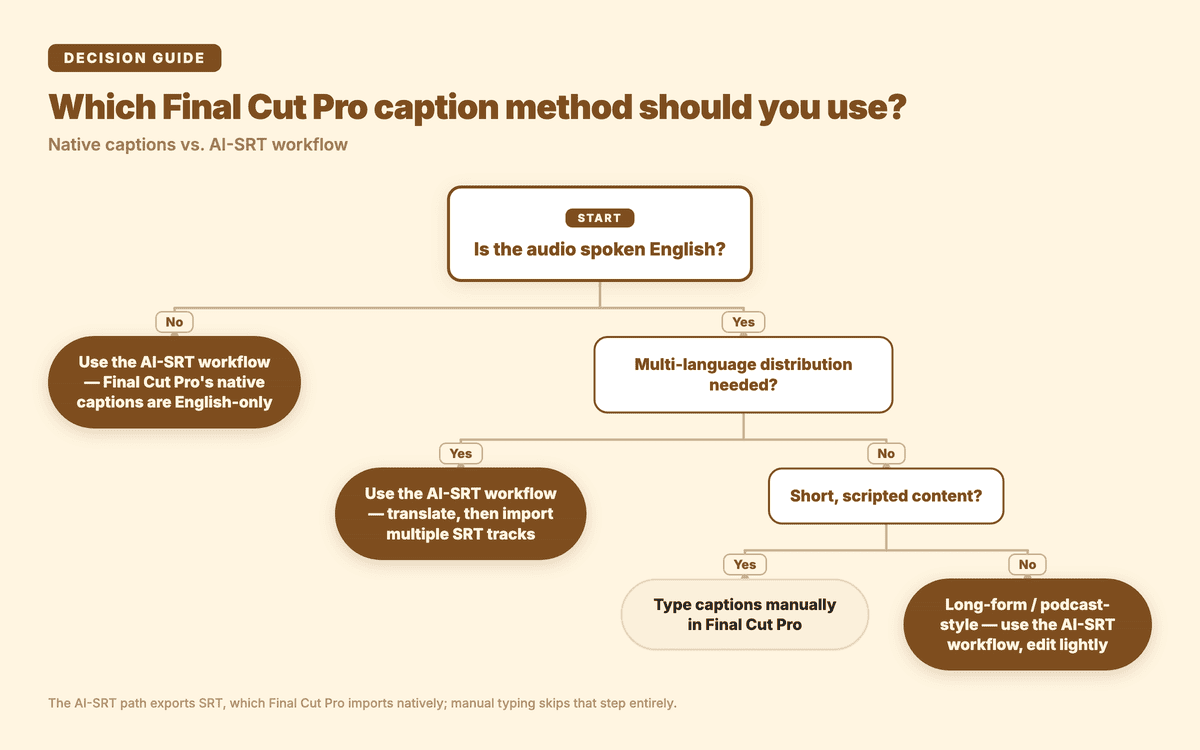
- Short English video, scripted content → type captions manually in Final Cut Pro. Fast and gives complete control.
- Long-form English video, podcast-style → AI-SRT workflow. Generate, edit lightly, import.
- Non-English video → AI-SRT workflow. Final Cut Pro has no equivalent built-in option.
- Multi-language distribution (one source, multiple language tracks) → AI-SRT workflow in Subanana, translate to target languages, import multiple SRT tracks to Final Cut Pro.
Related reading
- How to add subtitles to YouTube videos (2026)
- How to add subtitles in Premiere Pro (2026)
- How to add subtitles in iMovie (2026)
- How to add subtitles in DaVinci Resolve
- What is an SRT file?
Sources: Apple Final Cut Pro release notes and user guide (Final Cut Pro 12.3, released 2026-06-30), and Subanana product documentation. No fabricated head-to-head benchmarks.