
DaVinci Resolve gives you two ways to add subtitles: type them by hand on a subtitle track, or generate them from speech. The free edition has no built-in speech-to-text, so automatic captions need the paid Studio edition or an outside tool.
This guide walks you through adding subtitles in DaVinci Resolve, covers best practices, and answers common questions so your captions are accurate and easy to read.
Importance of Subtitles in Video Content
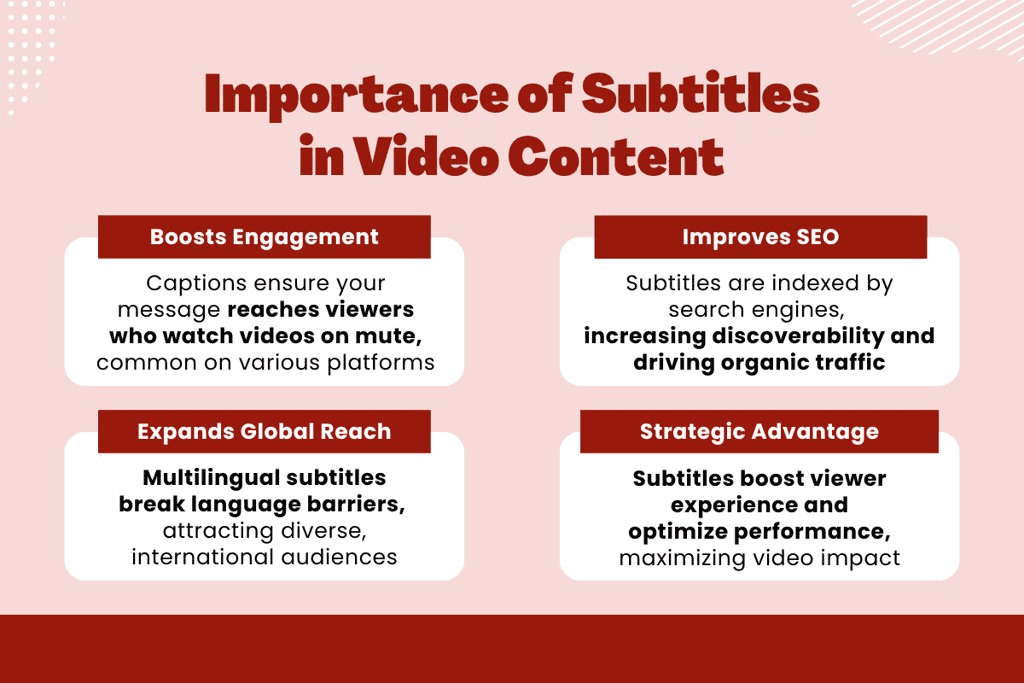 A lot of social video is watched with the sound off, so a clip without captions loses viewers who never turn the sound on. Captions also help viewers who are deaf or hard of hearing, and they help people watching in a second language.
There is a search benefit too: YouTube reads uploaded caption files, so a separate .srt gives the platform the words in your video.
DaVinci Resolve can deliver captions two ways, and the choice matters before you start:
- Burned in (open captions): the text becomes part of the picture. Use this for Instagram, TikTok, and other places that do not take a caption file.
- Separate file (closed captions): an .srt or .vtt that the viewer can switch off. Use this for YouTube and other players that accept caption uploads.
Does DaVinci Resolve Support Automatic Captions?
Only in the paid edition. DaVinci Resolve supports automatic captioning through a built-in speech-to-text feature in DaVinci Resolve Studio, the paid edition (US$295 list price). The current release is DaVinci Resolve 21.
This tool analyzes video audio to generate accurate transcriptions, which you can turn into a subtitle track without leaving the app. Out of the box it transcribes 14 languages, and the Extended AI Transcription Support Package (in the Extras Downloads Manager) adds many more; Cantonese is not supported in either list. For the full built-in workflow and language list, see our guide to DaVinci Resolve 21 subtitles.
On the free edition you either type subtitles by hand or use a third-party tool, both covered below.
How to Add Automatic Subtitles in DaVinci Resolve
Studio users can use the built-in speech-to-text. Without Studio, a common workaround is AutoSubs, an open-source app (MIT licence) that runs speech-to-text on your own computer and connects to DaVinci Resolve. It can send subtitles straight to your timeline or save an .srt file you import yourself. The steps below follow the Resolve connection. Menus change between releases, so check the project's GitHub page if a label below doesn't match.
Step 1: Install AutoSubs and Transcribe
Download the installer for your system from the AutoSubs GitHub releases page (.pkg on Mac, .exe on Windows, .deb or .rpm on Linux) and run it. Install DaVinci Resolve from blackmagicdesign.com rather than the Mac App Store, because AutoSubs does not support the App Store version.
Open your DaVinci Resolve project and go to Workspace > Scripts > AutoSubs.
Pick your timeline audio, a transcription model and the language, then click Transcribe.
Check the text in AutoSubs, then send the subtitles to Resolve. If you would rather work with a subtitle track, export an .srt from AutoSubs instead and import it in Step 2.
Step 2: Import and Fine-Tune Subtitles
If you exported an .srt, go to “File” > “Import” > “Subtitle” in DaVinci Resolve and select it.
A subtitle track will appear on your timeline; drag it to align with the video’s start for proper synchronization.
Review the subtitles for accuracy, as AI transcriptions may require minor adjustments.
Use the Subtitle panel or click subtitle blocks directly to edit text or shift timings by dragging them on the timeline.
Step 3: Style Your Subtitles
To give your subtitles a polished look, select a subtitle block and access the Track panel to customize font, size, color, position, or add a background.
These options are available in both free and Studio versions, allowing for professional-grade styling.
Save your custom design as a preset for consistent use across projects.
Step 4: Export the Video with Subtitles
On the Deliver page, finalize your export settings.
Choose to either bake the subtitles into the video (hardcoded) or export them as a separate .SRT or .VTT file for flexibility.
Hit “Render” to complete the process, producing a video with your subtitles included.
How to Add Manual Subtitles in DaVinci Resolve
Typing subtitles by hand is slow, but it works in the free edition and you decide every word and every cut. Use it for short clips, for translations you write yourself, or when the audio is too noisy for speech-to-text.
Step 1: Set Up a Subtitle Track
Navigate to the Edit tab in DaVinci Resolve. From the Timeline menu, select “Add Subtitle Track” to create a dedicated subtitle layer above your video timeline.
This track will house all your subtitle entries for easy management.
Step 2: Add and Edit Subtitles
In the Media Pool, go to the Effects Library, locate “Titles,” and select “Subtitles.”
Drag a subtitle clip onto the subtitle track.
In the Inspector panel, input your subtitle text. Adjust the clip’s duration and position on the timeline by dragging its edges to sync with the audio or video.
Step 3: Style Your Subtitles
Click a subtitle clip and use the Inspector panel to customize its appearance.
Modify the font, size, color, and position, or add a background for clarity.
Add a shadow or outline so the text stays readable over bright shots.
Step 4: Export Your Subtitled Video
On the Deliver page, access Subtitle Settings to choose your export method: either burn subtitles directly into the video (hardcoded) or export them as a separate .SRT file.
Render your project to finalize the output.
Best Practices for Subtitling in DaVinci Resolve
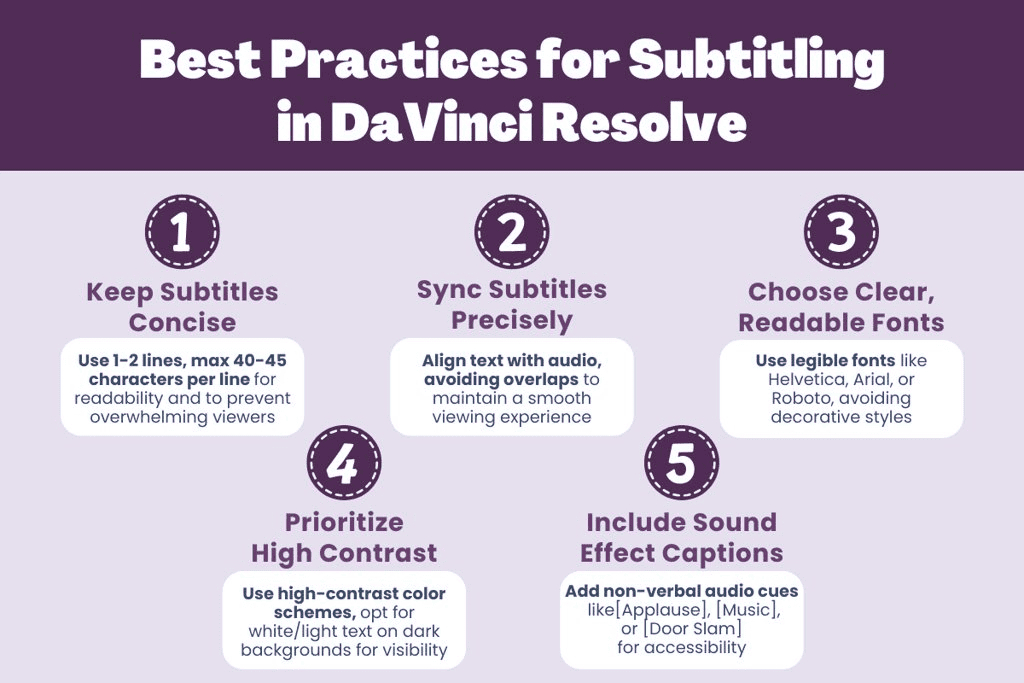 These rules apply whichever method you used to create the subtitles.
Keep Subtitles Concise
Keep each subtitle to one or two lines. If a line runs long, split it at a natural pause rather than mid-phrase; viewers read a short line in a glance and get back to the picture.
Sync Subtitles Precisely
Start each subtitle when the speaker starts and end it when they stop.
Don't let two subtitles overlap on the track; when they do, one of them flashes by too fast to read.
Choose Clear, Readable Fonts
Plain sans-serif fonts such as Helvetica, Arial, or Roboto read best at small sizes on a phone. Script and display fonts look good in a title card and become hard to read at subtitle size.
Prioritize High Contrast
White text with a dark outline or a semi-transparent black box survives both night scenes and bright skies.
Include Sound Effect Captions
For accessibility, add captions for non-verbal audio cues, such as [Applause], [Background Music], or [Door Slam].
Viewers who are deaf or hard of hearing rely on these to follow what the dialogue alone doesn't say.
An Alternative to Built-In Transcription: Subanana
While DaVinci Resolve Studio’s automatic captioning feature offers a convenient way to generate subtitles using built-in speech-to-text technology, it is limited to the paid Studio version and unavailable in the free edition.
If you edit in the free edition, or you also need the transcript outside DaVinci Resolve (as a Word file, a spreadsheet, or captions for another editor), a separate transcription tool such as Subanana fills that gap.
Subanana continuously benchmarks speech-to-text models and picks the best performer for each source language on every transcription, so you're not locked into one vendor.
This tool supports 95+ languages, making it ideal for creators and viewers worldwide who want quick, reliable transcriptions. (Try Subanana for free!)
Here’s how to add subtitles to your video using Subanana:
-
Upload your video.
Start by uploading the video you want to transcribe or paste its YouTube link. -
Transcribe your video with one click.
Click the “Generate subtitles now” button, and the AI will create an accurate transcript for your video. -
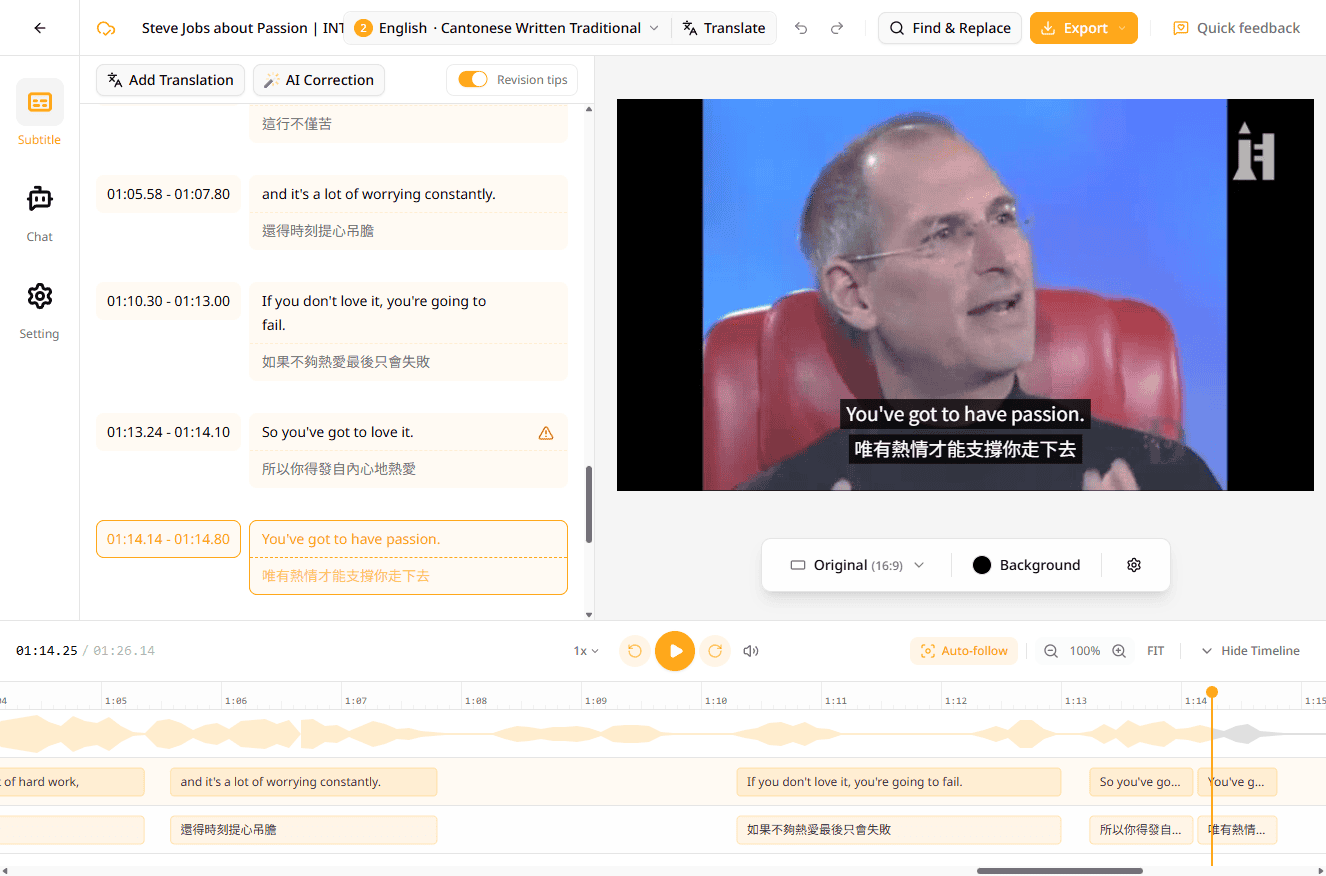
Edit your transcript.
Once the auto-transcription is complete, review and edit the transcript using Subanana’s online editor. Each subtitle is time-stamped and editable like a text document, making adjustments simple.
-
Download your transcription (optional).
On a paid plan, download the transcript or subtitles as .srt, .vtt, .txt, .docx, .xlsx, .md, or .fcpxml, then import the .srt into DaVinci Resolve with File > Import > Subtitle. The free plan lets you transcribe and preview, but it can't export subtitle or transcript files.
A practical split: let Subanana do the transcript, fix names and jargon in its editor, then bring the .srt into DaVinci Resolve for timing tweaks and styling. Imported .srt files arrive in the track's default style, so set the font, outline, and position on the subtitle track's Track tab in the Inspector after import. Try Subanana for free today!
How to Add Subtitles in DaVinci Resolve: Frequently Asked Questions
 Below are answers to common questions about adding and managing subtitles in DaVinci Resolve.
1. How do I add subtitles in DaVinci Resolve?
To create subtitles in DaVinci Resolve, navigate to the Edit tab and select Timeline > Add Subtitle Track to create a dedicated track.
Drag subtitle clips from the Effects Library (under Titles > Subtitles) onto the track, then use the Inspector panel to input text and set timing.
In DaVinci Resolve Studio you can skip the typing and generate the track from the audio instead.
2. How can I adjust subtitle timing in DaVinci Resolve?
To modify subtitle timing, click the subtitle clip in the timeline and drag its edges to adjust the duration.
For precise control, open the Inspector panel and edit the start and end times manually.
3. Why are my subtitles not visible in DaVinci Resolve?
If subtitles aren’t appearing, verify that the subtitle track is enabled by right-clicking the timeline and selecting “Enable Subtitle Track.”
Ensure the subtitle clips are correctly positioned on the timeline and not hidden or placed off-screen.
Check the Inspector panel to confirm the subtitle’s opacity and position settings are correct.
4. Is it possible to include subtitles in multiple languages in DaVinci Resolve?
Yes. Create one subtitle track per language.
Navigate to Timeline > Add Subtitle Track to add a new track for each language.
You can then populate each track with the respective subtitles and either export them as individual .SRT files or embed them into different video versions for distribution.
5. Can subtitles be animated in DaVinci Resolve?
Yes, you can animate subtitles to enhance their visual appeal.
Use the Fusion tab for advanced animations or the Inspector panel to apply keyframes for properties like position, scale, or opacity.
This enables dynamic subtitle transitions, such as fades or slides, tailored to your video’s style.
6. How do I remove the black background behind subtitles in DaVinci Resolve?
To eliminate or adjust the black background on subtitles, select the subtitle clip in the timeline, go to the Inspector panel, and locate the background settings.
Reduce the background opacity to make it transparent or customize the color and style to match your video’s aesthetic.