
Can DaVinci Resolve translate subtitles? This guide shows what DaVinci Resolve 21 offers for subtitle creation, how to import a translated SRT, and how to complete the translation step in a browser. You’ll see the workflow for generating, translating, refining, and importing subtitles. I run Subanana, and this article is sourced from Blackmagic Design’s public documentation rather than vendor marketing claims.
Does DaVinci Resolve 21 translate subtitles?
DaVinci Resolve 21 auto-generates subtitles by transcribing your video's own audio track (a DaVinci Resolve Studio feature; see the Free vs Studio note and step-by-step below), then gives you tools to refine that transcript: search-and-replace across the whole track, word-timing analysis for re-syncing externally imported captions, fade in/out controls, a font browser, and spell checking, as documented in Blackmagic's DaVinci Resolve 21 New Features Guide. Every one of those tools operates on text already in the source language, while the AI Speech Generator runs in the opposite direction (text → speech).
To put a second language on the timeline, import a subtitle file translated elsewhere, using the same import path as any externally sourced captions. The public beta opened in mid-April 2026, and the final release shipped in early June 2026 (Newsshooter); until Blackmagic ships a translation workflow, this round trip is short:
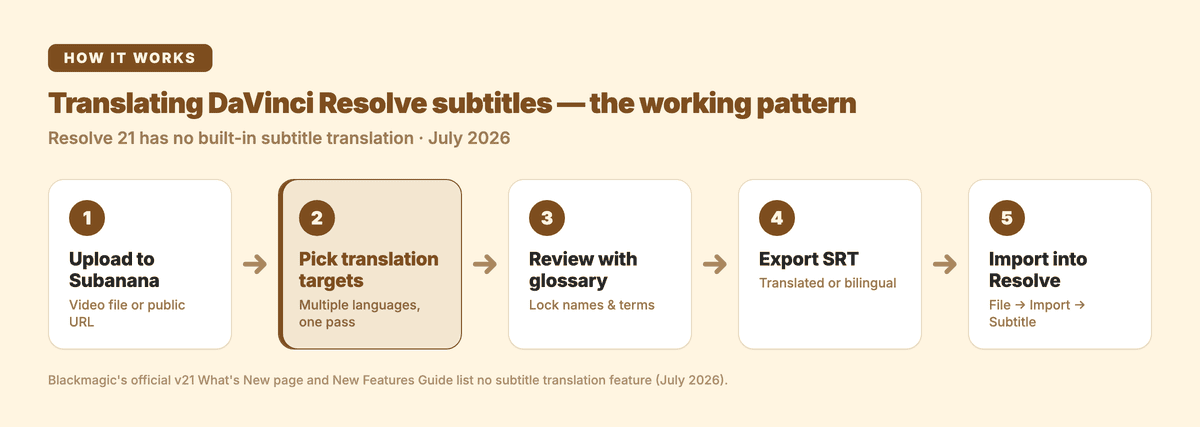
- Upload your source video to Subanana — or paste a public YouTube, Instagram, or Facebook link.
- Pick the source language and one or more translation targets. Subtitle projects support multiple translation languages in one pass, so a single upload can come back as, say, English + Spanish + Japanese subtitle tracks.
- Review in the editor. A per-project glossary keeps brand names and technical terms consistent, and translation currently doesn't consume extra minutes on top of the transcription itself.
- Export the translated SRT — or a bilingual SRT that stacks source + translation in each cue, the classic dual-language subtitle format.
- Import into Resolve: Edit page →
File→Import→Subtitle, then style the track in the Inspector and deliver as usual.
Don't need Resolve's styling for this deliverable? Subanana can also export the finished video with burned-in subtitles directly — single-language or bilingual.
Where DaVinci Resolve stands today
- Current release: DaVinci Resolve 21. After a public beta that opened in mid-April 2026, the final release shipped in early June 2026 — Newsshooter on the final release, CG Channel. The 21.0 update is free to existing users.
- What v21 changed for subtitle work, per Blackmagic's official DaVinci Resolve 21 New Features Guide: search-and-replace in the subtitle inspector, improved word-timing analysis for externally imported captions, subtitle fade in/out controls, a font browser for text and subtitle elements, and spell checking for text elements. (AI Animated Subtitles — "highlights or animates spoken words" — arrived in the v20 generation, per NoFilmSchool; v21 improves the word timing that drives it.)
- Free vs Studio: automatic subtitle generation (Audio Transcription, Create Subtitles from Audio, and Text-Based Editing) is a DaVinci Resolve Studio capability, priced as a US$295 one-time purchase. The free version handles manual subtitling: add a Subtitle Track, type captions per clip, and style them in the Inspector.
Languages supported
Per the DaVinci Resolve 21 Reference Manual (a DaVinci Resolve Studio feature; see Free vs Studio above), Audio Transcription and Text-Based Editing support these languages out of the box: Danish, Dutch, English, French, German, Italian, Japanese, Korean, Mandarin (Simplified and Traditional), Norwegian, Portuguese, Russian, Spanish, and Swedish.
The base list has 14 languages. The same manual documents a separate Extended AI Transcription Support Package, installed via the Extras Downloads Manager, which adds many more languages — including Vietnamese, Thai, Indonesian, Arabic, and Hindi. Cantonese is not in either list and remains a genuine gap.
On accuracy: there are no independent third-party benchmarks for DaVinci Resolve's transcription accuracy in any language. The high-percentage numbers floating around in vendor or SEO articles are self-reported or aggregated marketing claims, not measured data. This article deliberately does not quote accuracy percentages — the only reliable test is running your own typical source audio through it.
Step-by-step: automatic subtitles
- Open DaVinci Resolve Studio. Audio Transcription and Create Subtitles from Audio are Studio capabilities; the free version's subtitle tools are manual only (see Free vs Studio above).
- Switch to the Edit page.
- Right-click your audio clip and choose
Audio Transcription→Transcribe Audio(orSubtitle→Create Subtitles from Audio, depending on where your Resolve build surfaces the command). - Pick the source language (e.g.,
English). - Let the AI transcribe. Processing takes a few minutes for short clips and longer for full-length videos.
- Edit on the Subtitle track. The auto-generated subtitles land on a Subtitle track — use the Inspector panel to fix text, retime, and adjust font, size, and color.
- Export: on the Deliver page, choose
Burn in Subtitlesto bake them into the video, or export an independent SRT file.
Manual subtitling: add a Subtitle Track on the Edit page, type captions into each clip, and style them in the Inspector. For very short videos, manual is sometimes faster than auto + edit.
Mixed-language content
Talking-head content for global audiences often mixes English with another language — interviews, technical explainers, product demos with specialized terminology in a second tongue. DaVinci Resolve's auto-subtitler is designed around one primary language per pass, so the secondary language tends to come out poorly.
Options:
- Set the primary language to whichever is dominant → manually fix the secondary-language segments.
- Transcribe twice (once per language) → merge manually.
- For short videos, manual cleanup is usually fastest. For longer videos, DaVinci Resolve Studio's Text-Based Editing speeds up the cleanup pass.
When to use Subanana alongside DaVinci Resolve
Scenarios where DaVinci's built-in subtitler falls short:
- You need translated or bilingual subtitles: Resolve has no translation feature (see above).
- Proper nouns, brand names, and technical terms: DaVinci's subtitler transcribes what it hears from the audio track for each project. The Subtitle Inspector's search-and-replace tool works across the whole track, so once you catch a misheard brand name, you can fix every occurrence in one pass, a per-project, after-the-fact correction. Subanana's glossary works ahead of transcription instead (see below), at workspace and per-project granularity.
- Cantonese: it is not covered by DaVinci Resolve's base language list or the Extended AI Transcription Support Package.
- You want a browser workflow: DaVinci Resolve requires installation and is a heavy app.
- Hardware constraints: some DaVinci features are tuned for Apple Silicon.
Subanana is designed as a complementary tool for these cases. The relevant capabilities for video editors:
- Glossary support: register proper nouns, brand names, and technical vocabulary per project so the recognizer gets them right the first time — the single biggest review-time saver for branded content.
- AI auto-correct: AI cleanup pass on the transcript to reduce manual review time.
- 95+ languages: includes Cantonese and many others beyond DaVinci Resolve's base language list and Extended AI Transcription Support Package.
- Translation and bilingual SRT export: multiple translation targets per subtitle project, exported as translated SRTs or a single bilingual SRT.
- Browser-based: nothing to install, works on any machine regardless of Apple Silicon requirements.
The combined workflow:
- Open Subanana at plus.subanana.com. Upload a video file directly, or paste a public YouTube, Instagram, or Facebook URL.
- Pick the source language (English or any of 95+ supported languages).
- Generate the transcript.
- Edit: fix proper nouns, brand names, and technical terms inline in the editor.
- Translate if needed: export translated or bilingual SRT files.
- Export SRT (UTF-8).
- In DaVinci Resolve: Edit page →
File→Import→Subtitle→ select your SRT. - Style: use the Inspector panel to set font, size, color, and position.
- Export: Deliver page → burn-in or independent subtitle track.
FAQ
Does DaVinci Resolve support automatic English subtitles?
Yes. English is in DaVinci Resolve's base 14-language list for Audio Transcription and Text-Based Editing (see Languages supported above), a DaVinci Resolve Studio capability.
Does DaVinci Resolve 21 translate subtitles?
No. Neither the official What's New page nor the DaVinci Resolve 21 New Features Guide lists a subtitle translation feature. The working pattern: generate or export an SRT, translate it externally (Subanana translates into multiple languages at once and can export bilingual SRT), then re-import into Resolve.
Is DaVinci Resolve 21 stable now?
Yes. v21 moved from public beta (opened mid-April 2026) to final release in early June 2026 (Newsshooter, CG Channel). The 21.0 update is free to existing users.
How do I get subtitles for a language outside DaVinci's built-in list?
DaVinci Resolve's base 14-language list (see Languages supported above, sourced from the DaVinci Resolve 21 Reference Manual) covers Danish, Dutch, English, French, German, Italian, Japanese, Korean, Mandarin (Simplified and Traditional), Norwegian, Portuguese, Russian, Spanish, and Swedish. The Extended AI Transcription Support Package, installed via the Extras Downloads Manager, adds many more languages — including Vietnamese, Thai, Indonesian, Arabic, and Hindi. Cantonese sits outside both lists. For Cantonese, or any language beyond that combined coverage, the practical path is an external tool such as Subanana, which supports 95+ source languages, including Cantonese. Generate the SRT there and import it into Resolve.
How accurate is the English transcription?
There are no independently published benchmarks, so quoting a number wouldn't be responsible. The only meaningful test is running a representative sample of your own audio through it.
Which approach to pick
- English-only video, already editing in DaVinci Resolve Studio → use DaVinci's built-in auto-subtitler end-to-end.
- Translated or bilingual subtitles needed → external AI tool for translation → import SRT (or deliver a burned-in bilingual video directly).
- Heavy proper-noun or technical vocabulary → external AI tool with a glossary → import SRT into DaVinci.
- Content in Cantonese or another language outside DaVinci Resolve's base language list and Extended AI Transcription Support Package → an external AI tool is required.
- Want a browser-only workflow → Subanana or similar browser-based tools.
Related articles
- How to Add Subtitles in Final Cut Pro
- How to Add Subtitles in After Effects
- How to Add Subtitles on YouTube
Sources: Blackmagic Design DaVinci Resolve product page, official What's New page, DaVinci Resolve 21 New Features Guide, CineD on v21 public beta, Newsshooter on the v21 final release, CG Channel on the 21.0 release, NoFilmSchool on the v20 update, DaVinci Resolve Studio product page, Subanana product documentation, August 2026. No fabricated accuracy numbers, no competitor-sourced benchmarks, no unverified forum citations.