
No — iMovie has no automatic captions. Apple's free editor on Mac, iPhone and iPad offers no speech-to-text and no subtitle-file import, so every subtitle in iMovie is typed by hand as a Title overlay, one line at a time. That is fine for a 30-second clip and unreasonable for anything longer, especially non-English or mixed-language footage.
This guide covers what iMovie's subtitle tooling actually does on each device, the manual method step by step, and a faster workflow using Subanana to auto-generate an SRT file that you burn in via an SRT-capable editor.
Does iMovie have automatic captions?
No. As of August 2026, neither iMovie for Mac nor iMovie for iPhone and iPad generates captions from speech. Apple's iMovie User Guide documents Titles — text overlays — as the only way to put words on a clip: you drag the title to the timeline, above the clip where you want the title to appear. There is no caption track and no subtitle-file import anywhere in that workflow.
The behaviour is consistent across the iPhone, iPad, and Mac versions:
| Capability | iMovie (iPhone / iPad) | iMovie (Mac) |
|---|---|---|
| Auto-generate captions from speech | ❌ | ❌ |
| Manual text overlay (Titles) | ✅ | ✅ |
| Custom font, size, position | Limited (preset styles) | Limited (preset styles) |
| Import an external SRT file | ❌ | ❌ |
| Burn captions into the exported video | ✅ (via Title overlays) | ✅ (via Title overlays) |
The two consequences worth knowing before you start:
- There's no SRT import path. Even if you already have a caption file from another tool, iMovie can't load it. You'd need a Subanana → SRT-capable editor → MP4 → re-import to iMovie workflow, or just skip iMovie entirely for the captioning step.
- Every subtitle is a separate Title object. A 5-minute video with 60 captions = 60 Title overlays to position, time, and style by hand.
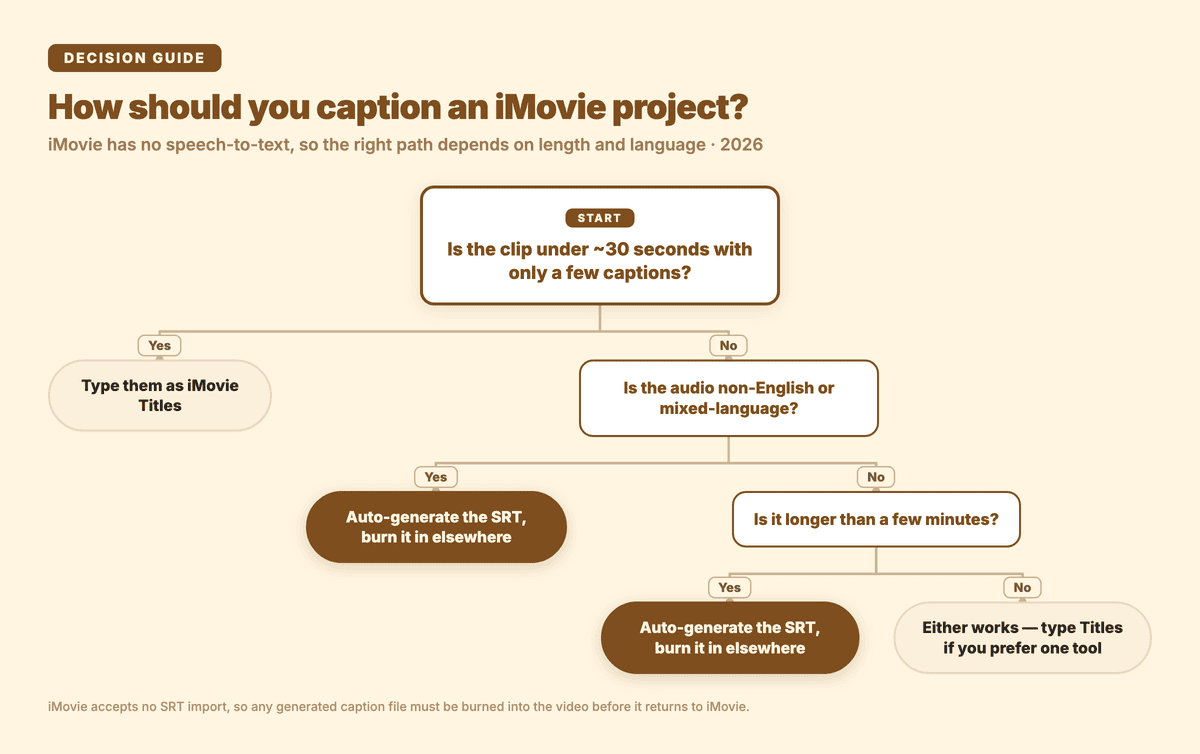
Which route makes sense depends on how long the video is and what language it's in:
How do you add subtitles to iMovie on iPhone or iPad?
Open the project, tap the clip, tap the T (Title) button, pick a title style, then type the caption over the video and drag the title's edges to set its timing. Repeat for every line — iMovie on iPhone and iPad has no bulk import, so each caption is a separate Title. Use this route for a short clip, roughly under 30 seconds, with only a handful of captions.
- Open iMovie, create a new project, choose Movie
- Import or record the footage, drop it into the timeline
- Tap the clip → tap the T (Title) button → choose a title style (e.g. "Lower", "Standard")
- Double-tap the sample text on the preview and type your caption
- Drag the Title's edges in the timeline to set when it appears and disappears
- Repeat for every caption
Tip: styles like "Lower" position the text at the bottom of the screen, which reads more like a real caption than the centred "Standard" style.
Where this stops working: anything over a minute, anything with more than ~10 captions, or any content where you'd want to time-align captions precisely to speech.
How do you add subtitles in iMovie on Mac?
The same way, with the desktop interface: pick a style from the Titles panel, drag it onto the subtitle track above your clip, double-click the placeholder text, type the caption, then drag the title's edges to set its in and out points. iMovie for Mac also accepts no SRT import, so a caption file made elsewhere still cannot be loaded directly into the project.
- Open iMovie, create a new project
- Import the footage to the timeline
- From the Titles panel, pick a style and drag it onto the subtitle track above your clip
- Double-click the placeholder text and type your caption
- Drag the title's edges in the timeline to set the in/out timing
That import gap is why method 3 exists.
Method 3 (recommended for longer or multilingual content): auto-generate with Subanana, burn in with an SRT-capable editor
iMovie's lack of auto-caption and SRT import means the realistic workflow for any longer or multilingual video is to generate captions outside iMovie and burn them in elsewhere:
- Upload to Subanana. Drop your video into Subanana or paste a YouTube / Instagram / Facebook URL — Subanana fetches and transcribes without a separate download.
- Review and edit captions. Subanana auto-generates time-aligned captions; the editor highlights likely mistranscriptions for one-click correction.
- Export SRT. From the editor, export the caption file as SRT.
- Burn the captions into your video. Use any SRT-capable editor: Final Cut Pro, DaVinci Resolve, Premiere Pro, or even a free option like HandBrake (with SRT track) — import the SRT, position it on the timeline, export the MP4 with burned-in subtitles.
- (Optional) Use the burned-in MP4 as iMovie's input. If your downstream workflow specifically needs iMovie for editing, you can import the captioned MP4 as the source clip — the captions are baked into the video frames at that point.
This is more steps than "type into iMovie," but for anything over a minute it's faster — Subanana's auto-caption + edit step is typically a few minutes for content where manual typing would take an hour.
Subanana for multilingual or non-English iMovie projects
Since iMovie has no STT regardless of language, Subanana's specific shape is:
- Glossary support across all languages — pre-load brand names, product SKUs, people's names, and technical vocabulary so the recognition layer treats them as expected vocabulary. The single biggest review-time saver for branded content.
- AI auto-correct pass cleans raw transcript output before you review it, reducing manual correction time.
- 95+ language coverage with best-per-language model routing — covers all major European languages, Mandarin, Japanese, Korean, Vietnamese, Thai, Cantonese, and many more. The underlying STT layer routes each transcription to the best-evaluated model per source language rather than locking to one vendor.
- Burned-in video export — if you don't want the SRT-then-editor round trip, Subanana can export an MP4 with captions already burned in, single-language or bilingual (source + translation stacked per cue), skipping the iMovie / SRT-editor step entirely.
→ Product: Subanana — multilingual transcription & live captioning
Frequently asked questions
Can iOS Live Captions caption my iMovie video?
No. Live Captions is a device-level accessibility feature, not an iMovie feature, and it shows a running transcription on screen rather than writing a caption file you can save. Apple's iPhone User Guide states that Live Captions is available on iPhone 11 or later, and that its accuracy "shouldn't be relied upon in high-risk or emergency situations" — as of August 2026. Nothing it transcribes lands in your iMovie project.
Can I import an SRT file into iMovie?
No. iMovie doesn't accept SRT or other external caption formats. The only way to get captions into an iMovie project is to type them as Title overlays manually, or to burn them into the video before importing it into iMovie.
What's the fastest way to subtitle a 10-minute video for iMovie?
Generate the SRT outside iMovie (using a transcription tool like Subanana), burn the captions into the video file using an SRT-capable editor, then either use that captioned video as your iMovie input or skip iMovie's editing step entirely. Manually typing 10 minutes of captions in iMovie typically takes longer than this round trip.
Does iMovie work for non-English captions?
iMovie's Title tool accepts any Unicode text, so typing captions in any language works fine. The bottleneck is generating those captions in the first place — iMovie has no auto-transcription regardless of language, so for non-English content the manual workflow is the same speed as English but with the added typing burden.
Can I export the iMovie project with burned-in subtitles?
Yes. iMovie's standard export produces an MP4 with all Title overlays baked into the video frames. Whether those overlays came from manual typing or from a captioned source clip, they're burned in by the time you export.
Is there a free alternative to iMovie that supports SRT import?
Yes — DaVinci Resolve (free version) and HandBrake (free) both accept SRT files for subtitle workflows. If subtitle support is the main reason you'd switch off iMovie, DaVinci Resolve is the closest Mac-friendly alternative.
Related guides
- How to add subtitles in Final Cut Pro
- How to add subtitles in DaVinci Resolve
- How to add subtitles in Premiere Pro