
If your webinar audience spans multiple language markets, single-language captions force a choice: either you caption in English and let non-native speakers struggle, or you record three separate language versions and lose the live interactivity. Live multilingual captions sidestep that. One webinar runs in English, and each attendee reads captions on their own device in the language they pick from the ones the host set up for the session. A Subanana live session carries one source language plus up to five translation targets, so several language groups are covered by that one session (walked through below).
This post walks through the full setup: pre-event configuration, day-of operation, and post-event archive. Platform-specific notes for Zoom, Google Meet, and Microsoft Teams included.
What you actually need
The minimum viable multilingual-webinar-caption setup is:
- A webinar platform for the call itself (Zoom, Google Meet, Teams, Riverside, StreamYard, etc.)
- A live captioning + translation service that handles real-time STT and translation
- An audience-facing display so attendees can view live captions outside the webinar client, each person reading one of the languages you configured for the session
Most webinar platforms cover step 1 well and step 2 reasonably (Zoom in particular has decent built-in captions). They generally don't cover step 3: there is no shareable, multilingual, audience-facing display in standard webinar tools.
The third item is where dedicated tools like Subanana's live captioning come in.
Pre-event setup
1. Identify your audience's languages
You need this before anything else. Check registration metadata, prior event analytics, or simply ask: "If captions were available in [X] languages, which would you choose?" One question survey before the webinar gives you the data.
If you can't survey, sensible defaults for a global B2B webinar are typically: English, Spanish, Mandarin, French, Japanese. For consumer or specific-market webinars, narrow accordingly. Because a Subanana live session carries up to five translation targets at once, this list also tells you whether a single session covers your audience: five reading languages alongside the original is the ceiling the session selector allows.
2. Pick the speaker's source language
Single source language is the simplest setup. Most live captioning tools handle source-language switching mid-event but it's friction; if you can pick one source language and stick with it, do.
Source language considerations:
- Use the language the speaker is most fluent in. STT accuracy drops sharply with non-native speakers
- For a panel with multiple speakers in different languages, agree on one source ahead of time, even if individual speakers occasionally switch
3. Choose a captioning + translation tool
Three categories matter here:
- Built-in webinar captions: Zoom / Teams Enterprise have multilingual options at higher tiers; Google Meet has live translation in some regions and tiers
- Enterprise event platforms (Wordly, Interprefy, KUDO): Built for events, robust at scale, but priced for enterprise contracts (typically thousands per event)
- Self-serve event captioning (Subanana and similar): Subscription-based, signup-and-go, audience-facing share link via QR code. Subanana's live captioning sits on the Max plan, and every workspace gets a one-time 5-minute live trial to try the setup before committing
For most webinars not in the enterprise-summit category, the third option is the practical baseline. The rest of this post assumes that path. (For broader context on the three categories, see Live Captions for Multilingual Events.)
4. Test the audio chain end-to-end before the event
Run a 5-minute dry test the day before:
- Speaker uses the same microphone, environment, and platform they'll use during the event
- Captioning service receives audio (system audio capture or webinar-platform integration, depending on your tool)
- Open the audience-facing display from a phone and confirm captions render in real time
- Open the attendee view, switch through each translation target you configured, and confirm every one of them renders
Discovering audio capture issues 5 minutes before going live is among the most common operational failure modes. A 5-minute pre-event test usually catches the typical problems (wrong microphone selected, captioning service not authorised on the meeting, browser extension conflicts).
Day-of setup with Subanana (concrete walkthrough)
For a Subanana-based setup, the flow is:
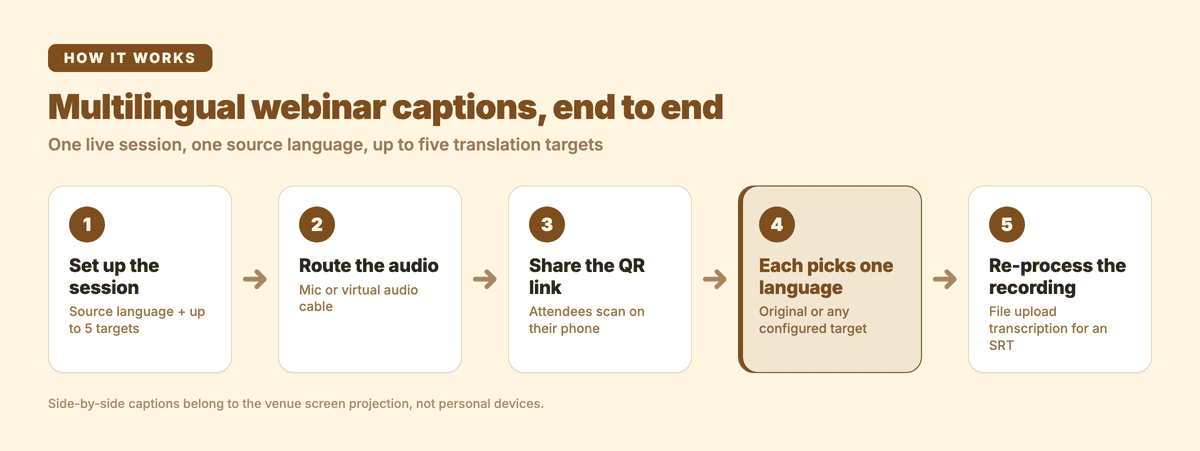
Step 1: Create a live transcription session
In Subanana, create a new live session. Set the source language to the speaker's language and add the translation targets your audience needs, up to five of them in that one session (the selector stops you at a sixth). Live minutes debit once by audio duration whatever the target count, so adding a fourth or fifth reading language doesn't multiply what the session costs you. Live captioning runs on the Max plan, with a one-time 5-minute live trial per workspace if you want to rehearse the setup first.
Step 2: Connect audio
Live captioning takes direct audio input, typically a microphone or system audio routed into the browser running the Subanana live session. The host runs the live session on their laptop and the audio source is fed in.
Common patterns depending on your webinar platform:
-
Zoom, Google Meet, Microsoft Teams, Riverside, StreamYard, or any other webinar platform: Run Subanana on the host's laptop alongside the webinar client. Route the webinar's audio output into Subanana via a virtual audio cable (BlackHole on Mac, VB-Cable on Windows). Subanana transcribes the captured audio in real time and pushes captions to the audience-facing share link.
-
In-person + remote hybrid: If the speaker is in a physical room, connect a microphone to the laptop running Subanana directly. That same laptop can also be a webinar participant streaming to remote attendees.
Important note about the meeting bot: Subanana also offers a Google Meet / Teams meeting bot via Calendar integration, but that bot is for post-production transcription only. It records the meeting and creates a project after the meeting ends; it does NOT deliver live captions during the meeting. For live captioning, always use the direct-audio-input pattern above.
Step 3: Generate the audience-facing share link
Subanana produces a URL and a QR code for the live session. Display the QR code on a slide before the webinar starts, in the registration confirmation email, or pinned in the webinar chat. Attendees scan the code on their phones and pass a language gate: each person picks one display language for themselves, from the languages you configured for the session. Personal devices show that one language at a time. Two languages together on the same screen belongs to the venue projection instead: a picture-in-picture caption window, or the plain browser-source URL you drop into OBS, vMix or ProPresenter to drive the room's screens, which offers a dual-language projection feed.
Step 4: Brief the speaker
Two operational notes the speaker should know:
- Speak clearly, at moderate pace, with natural pauses between sentences. Captioning accuracy drops with very fast or run-on speech. Pauses give the system time to render captions and the audience time to read them.
- Pre-announce technical terms or proper nouns that might be misheard (product names, brand names, person names). The speaker can briefly clarify on first mention; the audience reading captions appreciates the heads-up.
Step 5: During the event
Captions render in real time on each attendee's device, in the one language that attendee picked, with 1-2 seconds of latency. Subanana records the event audio automatically for the whole session. The speaker focuses on speaking; you focus on the webinar; the captioning runs in the background.
If captions stall or accuracy degrades:
- Check microphone signal first. Most live-captioning issues are upstream audio problems.
- Check the source language setting. If the speaker has moved to another language, the host can change the session's source language mid-event; it applies to the audio that follows, and earlier rows keep the language they were captioned in.
Post-event archive
After the webinar:
-
Get the transcript from the recording, not from the live view. Every session records the event audio automatically and keeps it in your workspace, and that recording is the route to a file: re-process it through Subanana's file-upload transcription, which runs as a fresh project, picks one source language for the whole file, and uses transcription minutes. That project exports SRT, the format you'd want for the webinar recording, dropped into your editor's subtitle track or uploaded to YouTube as a CC track. It also exports Word / Excel / Markdown versions of the transcript for documentation.
-
Burn captions into the recorded webinar. If you publish the recording on YouTube, LinkedIn, or your own site, the SRT can be uploaded directly to YouTube as a CC track or burned into the video via your editor (Premiere Pro, Final Cut Pro, DaVinci Resolve, CapCut). For Cantonese audio specifically, Subanana offers a spoken-to-written Chinese (口語→書面語) output option, which makes the burn-in subtitles read better.
-
Send the transcript to attendees. Many attendees want a written record. The re-processed project gives you the transcript in the file's source language, and you can add translation tracks to it there and export a version per language group for the post-event email. Translated transcripts are particularly appreciated by non-native-speaking attendees.
-
Use the transcript for content repurposing. A 60-minute webinar transcript is usually 8,000-10,000 words: material for 2-4 blog posts, 5-10 LinkedIn posts, a podcast script, or a long-form newsletter. The export-and-repurpose loop is part of why webinar ROI grows over time.
Common issues and fixes
| Issue | Likely cause | Fix |
|---|---|---|
| Captions arrive 5+ seconds late | Audio capture latency (especially with virtual audio cables) | Reduce buffer size on virtual audio cables; check for upstream lag in the webinar platform itself |
| Captions stop appearing mid-event | Audio source disconnected (USB mic unplugged, virtual cable reset) | Verify mic / cable physically connected; restart capture device |
| Translation produces nonsense | Source language setting wrong, or speaker switched languages | Update the session's source language mid-event; the change applies to the audio that follows, and rows already captioned keep the language they were captioned in |
| Some attendees don't see captions | They didn't scan the QR code, or their browser blocked the share link | Provide the URL alongside the QR code; pin in webinar chat for fallback access |
| Accuracy is poor on technical jargon | Industry-specific vocabulary not in the model's general training | Pre-announce key terms; load the speaker names, product names and technical terms into Subanana's glossary before the session |
Webinar platform notes
Zoom
Zoom's built-in captions handle the speaker's source language well. Translation to attendee languages requires Zoom's Enterprise tier (with limited language pairs) or a third-party integration. For a multilingual webinar without enterprise budget, capturing Zoom's audio output to a self-serve captioning tool is the practical path.
Google Meet
Google Meet has live translated captions in some tiers and regions. Coverage is patchy across all language pairs. For Meet-hosted webinars where you want multilingual live captions on attendee devices, route Meet's system audio into a Subanana live session via a virtual audio cable on the host's machine.
(Subanana also has a Google Meet bot via Calendar integration, but that bot is for post-production transcription. It records the meeting and creates a project after it ends. It does not deliver live captions during the meeting.)
Microsoft Teams
Teams supports captioning with translation in Teams Premium. For Teams webinars where you need multilingual live captions on attendee devices, the same pattern applies: run Subanana on the host's machine and route Teams' system audio into the live session.
(Subanana's Teams bot, like the Google Meet bot, handles post-production recording, not live captions.)
Riverside / StreamYard / other webinar tools
Most modern webinar platforms output the speaker's audio as a Zoom-like stream. Capture-via-virtual-audio-cable works with all of them. Some have direct webhook integrations to captioning services; check your tool's docs.
FAQ
Do my webinar attendees need to install anything?
No. The audience-facing display is a web link. Attendees scan the QR code (or click the URL) on whatever device they have and view live captions in their browser. Each person picks one display language for themselves, from the languages the host configured for the session, and reads that one on their own screen. No app, no signup.
How many languages can be active at once?
Subanana's underlying translation covers 95+ languages, and one live session carries one source language plus up to five translation targets, all configured by the host ahead of time. So a Mandarin reader, a Korean reader and a Spanish reader can be served by the same session at the same moment, each on their own phone, each reading one language. Attendees can't add their own language. They pick only from what the session already carries. If a Korean speaker joins your event and Korean wasn't one of the configured targets, they won't see Korean captions on that share link.
Two things follow from that. An audience needing more than five reading languages in the same moment sits outside the shape of a single session. And showing two languages together on one screen is a venue-projection feature, driven from the browser-source URL for the room's screen. It is not something an attendee sets up on their phone.
What if a speaker switches languages mid-webinar?
Multilingual speakers are common in international panels. Best practice: pre-agree on one source language. If the speaker switches mid-event, captions for the new language degrade until the source setting catches up. In a Subanana live caption session the host can change the source language during the event, and the change applies to the audio that follows, while rows already captioned keep the language they were captioned in. That works cleanly for an event split into language blocks (first half English, second half Cantonese): switch the source at the boundary. For a speaker who alternates unpredictably within a single answer, plan the agenda around language blocks rather than relying on a mid-answer switch.
Can attendees join the captions display before the webinar starts?
Yes. The share link is live as soon as you create the session. Attendees can open it before the webinar begins; once captions start, they appear in real time. Many event organisers display the QR code in the pre-event lobby slide for early-bird attendees.
How does this affect webinar performance / latency?
Audio capture and streaming to the captioning service adds 1-2 seconds of latency. The webinar itself runs at normal speed for attendees. Captions appear with ~1-2s lag from speaker to attendee device.
What about post-event accessibility for attendees who joined late or missed it?
The event audio is recorded automatically and stays in your workspace. The written record comes from that recording rather than the live session view: re-process it through file-upload transcription, then share the resulting transcript in your follow-up email and export that project's SRT for the recorded video, which you can upload to YouTube as a CC track or burn into the video via your editor.
Related reading
- Live Captions for Multilingual Events: broader guide covering the three categories of live-captioning solutions
- Subanana's AI Real-time Transcription product page: feature details + pricing
- How to Add Subtitles to YouTube Shorts: useful follow-on for webinar archive subtitles
Closing
Multilingual webinar captions used to require enterprise event platforms with 5-figure contracts. The category has matured to where mid-size webinars (community talks, B2B product demos, university lectures, internal company events) can run live multilingual captions self-serve. The setup is mostly upstream audio configuration; the captioning tool handles the language stratification.
Set it up once, run a 5-minute test, brief your speaker, and the rest is straightforward.
Set up Subanana for your next webinar →