
Use SRT when you want the simplest, most universally accepted subtitle file — the one almost every video editor, media player, and upload form takes. Use WebVTT (the .vtt file) when the subtitles will play on the web in an HTML5 <video> element, or when you need styling and positioning that plain SRT can't carry. The two formats are close cousins — both are plain-text files that pair lines of dialogue with start/end timecodes — but they diverge on one detail that matters a lot in practice: a browser's <track> element reads .vtt and not .srt. This guide explains the real differences, shows where each format is supported, helps you pick, and walks through exporting either.
Disclosure: I run Subanana, an AI subtitle and transcription tool that exports both SRT and VTT. The format facts below come from the W3C WebVTT specification, MDN's WebVTT documentation, and YouTube's supported-file-formats help page, re-verified September 2026 — no invented numbers.
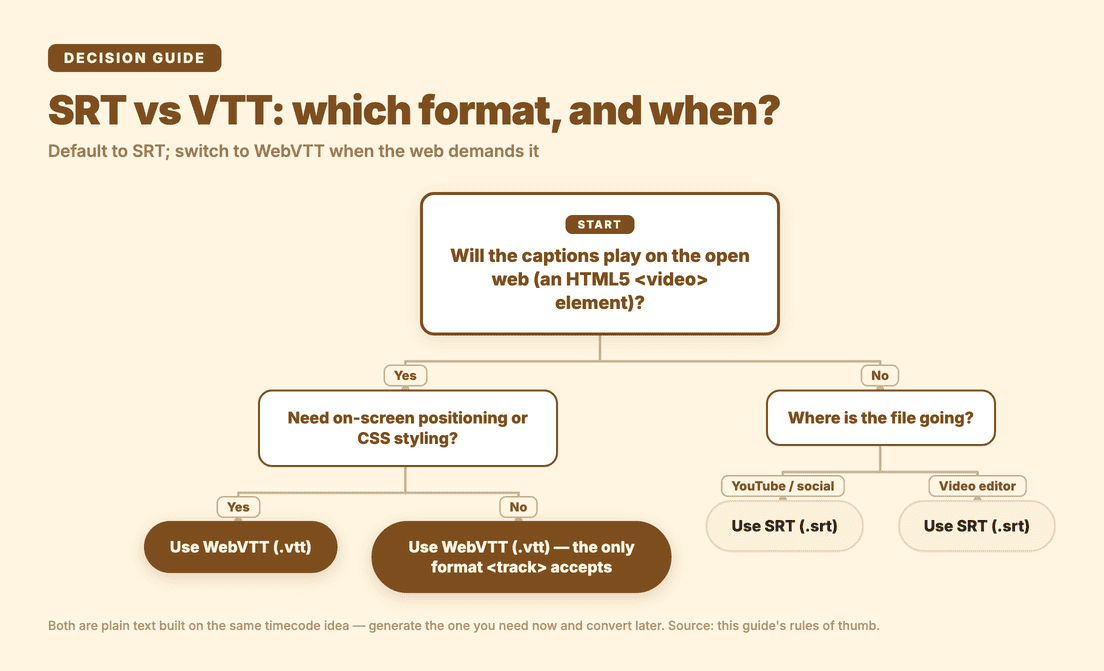 Decision tree: pick SRT or WebVTT by where the file is going.
What's the difference between SRT and VTT?
Both formats do the same core job: store lines of text, each stamped with a start time and an end time, so a player knows what caption to show and when. If you opened either in a text editor you'd recognise the other immediately. The differences are in the details.
SRT (SubRip, .srt) is the older, plainer format. Each entry has a sequence number, a timecode line, the caption text, and a blank line between entries. Its timecodes use a comma before the milliseconds:
1
00:00:00,599 --> 00:00:04,160
Hi, my name is Alice and this is John

2
00:00:04,160 --> 00:00:06,770
and we're the owners of Miller Bakery.
SRT has no official styling system. It's plain text, which is exactly why it's so portable — but it also means it can't natively carry colour, fonts, or precise on-screen positioning. (Some players honour ad-hoc HTML-like tags inside SRT, but that behaviour isn't standardised.)
WebVTT (Web Video Text Tracks, .vtt) is the modern web standard, defined by the W3C specifically for use with the HTML <track> element. A VTT file always begins with the signature line WEBVTT, drops the required sequence numbers, and uses a period before the milliseconds:
WEBVTT

00:00.599 --> 00:04.160
Hi, my name is Alice and this is John

00:04.160 --> 00:06.770
and we're the owners of Miller Bakery.
Beyond the basics, WebVTT can do things SRT can't: per-cue positioning and alignment (for example align:right size:50%), voice labels to mark who's speaking (<v Alice>), basic inline emphasis, and full styling through the CSS ::cue pseudo-element. The same spec also supports chapters and time-aligned metadata, not just captions. In short: SRT is the lowest-common-denominator format; WebVTT is the richer, web-native one.
SRT vs WebVTT at a glance
| SRT (.srt) | WebVTT (.vtt) | |
|---|---|---|
| Full name | SubRip | Web Video Text Tracks |
| Standardised by | De-facto convention | W3C specification |
| File header | None | Must start with WEBVTT |
| Cue numbers | Required | Optional |
| Milliseconds separator | Comma — 00:00:00,599 | Period — 00:00.599 |
| Styling | None (standardised) | CSS via ::cue, plus <b>/<i>/<u> |
| Positioning | Not supported | Supported (cue settings) |
| Speaker labels | Not standardised | Voice tags — <v Name> |
| Chapters / metadata | No | Yes |
HTML5 <track> element | Not accepted | Native format |
| Best for | Editors, players, uploads | Web video, styled captions |
What is a VTT file?
A .vtt file is a plain-text WebVTT caption file — a list of timecoded lines of text that a video player displays on screen at the right moment. The extension comes from the format's full name, WebVTT (Web Video Text Tracks), a caption and subtitle format standardised by the W3C for use on the web.
Structurally, a .vtt file is simple and reads top to bottom in order:
- A mandatory
WEBVTTsignature line as the very first line of the file. - A blank line must separate the
WEBVTTheader line from the first cue. - One or more cues, each made up of: an optional identifier (a name or number you can use to reference the cue), a timecode line using
-->to mark the start and end time, and one or more lines of caption text. - A blank line between each cue.
Timestamps use a period before the milliseconds, and can be written as MM:SS.mmm for short files or HH:MM:SS.mmm once the file runs past an hour. A minimal example, using the same lines as above:
WEBVTT

1
00:00.599 --> 00:04.160
Hi, my name is Alice and this is John

2
00:04.160 --> 00:06.770
and we're the owners of Miller Bakery.
You'll typically run into a .vtt file in one of a few places: as the caption track attached to an HTML5 <video> element on a website, inside a streaming setup like HLS, in the export menu of a transcription or subtitling tool, or behind a "download captions" option on a video platform.
What does "Download as VTT" mean?
When an app or platform offers "download as VTT," it's offering the caption track as a WebVTT text file — not the video itself. What you get is a small, timecoded text file: a list of lines with start and end times, ready to attach to a video player or import into a subtitle editor. It plays no video and holds no audio, just the caption data.
Because it's plain text, a .vtt file is human-readable and opens fine in any text editor — no special software required to look inside one.
Where is each subtitle format supported?
This is where the practical choice gets made. The two formats overlap a lot, but each has a place the other can't go.
SRT is the safe default almost everywhere off the web. Video editors (Premiere Pro, DaVinci Resolve, Final Cut Pro, CapCut, and most others), desktop media players like VLC and Windows Media Player, and the majority of upload forms accept .srt. If a tool takes "a subtitle file" without specifying, it almost certainly takes SRT. Its plain-text simplicity is the whole reason it travels so well.
WebVTT is the one format the web actually requires. The HTML5 <track> element — how you attach captions to a <video> on a web page — reads .vtt files and not .srt. Per MDN, the track's source must be a .vtt file. So if you're putting subtitles on video on your own site, in a learning-management system, or anywhere captions render through an HTML5 player, VTT is not optional. It's also the format used by streaming protocols like HLS.
On YouTube, both work — with a caveat. YouTube's own help page lists SubRip (.srt) among its recommended basic formats, noting that only basic versions are supported, no style markup is recognised, and the file must be plain UTF-8. WebVTT (.vtt) is listed too, but YouTube describes its VTT support as an initial implementation: positioning works, but styling is limited to bold, italic, and underline because CSS class names aren't yet standardised on their side. The takeaway: for a straightforward YouTube upload, plain SRT is the path of least resistance.
A few quick rules of thumb:
- Putting captions on web video yourself? → WebVTT (it's the only format
<track>accepts). - Uploading to YouTube or a social platform? → SRT is the simplest reliable choice.
- Importing into a video editor? → SRT (broadest editor support).
- Need styled or positioned captions on the web? → WebVTT.
Which subtitle format should you use, and when?
If you only remember one line: default to SRT, switch to WebVTT when the web demands it. SRT is the format that "just works" in the most places, so it's the right starting point for files you'll upload, import, or hand to someone else. Reach for WebVTT when the destination is an HTML5 <video> element, when you need on-screen positioning or CSS styling, or when you're working with web streaming.
The good news is this is rarely a one-way decision. Because both formats are plain text built around the same timecode-plus-text idea, converting between them is straightforward — the main mechanical changes are adding or removing the WEBVTT header, swapping the comma/period in the milliseconds, and dropping or keeping cue numbers. So you don't have to get it perfectly right up front: generate whichever you need now, and convert later if a different tool wants the other one. If you're new to reading these files at all, our explainer on how to open an SRT file covers the basics of viewing and editing one in a text editor or subtitle tool.
How to convert SRT to VTT (and back)
Here's what that conversion actually looks like, using the same Alice / Miller Bakery lines used throughout this guide.
SRT → VTT: add a WEBVTT line plus a blank line at the very top of the file, and change every comma before the milliseconds to a period. Cue numbers can stay or go — WebVTT treats them as optional identifiers, not a requirement.
Before, as SRT:
1
00:00:00,599 --> 00:00:04,160
Hi, my name is Alice and this is John

2
00:00:04,160 --> 00:00:06,770
and we're the owners of Miller Bakery.
After, as VTT:
WEBVTT

1
00:00.599 --> 00:04.160
Hi, my name is Alice and this is John

2
00:04.160 --> 00:06.770
and we're the owners of Miller Bakery.
VTT → SRT: remove the WEBVTT header line, and strip out anything SRT doesn't understand — styling and positioning settings on the timecode line, voice tags like <v Alice>, and any NOTE comments. Change the periods in the timecodes back to commas, and add sequential cue numbers, since SRT requires them.
Be aware that VTT → SRT conversion loses anything SRT simply has no way to represent — positioning, CSS styling, voice tags, chapters, and metadata all disappear. That loss only runs one way: converting back to VTT afterwards won't bring any of it back.
In practice, the easiest path is often to skip hand-editing altogether: if the tool that produced the file can also export the other format, just re-export in the format you need from the source.
How do you export an SRT or VTT file?
You have two broad routes: type the file by hand in a text editor (fine for a handful of lines, painful for anything real), or generate it automatically from your audio or video. For anything beyond a few cues, automatic generation is the sane choice — and it's exactly what a speech-to-text tool is for.
Subanana generates subtitles from your media and exports them in SRT, VTT, TXT, Word, Excel, or Markdown — so you can produce whichever format your next tool needs from the same job. In subtitle mode, the steps are:
- Add your media. Upload a video or audio file, or paste a public YouTube, Instagram, or Facebook link — no local download required for the link route.
- Let it transcribe. Subanana runs the audio through speech-to-text and time-aligns the result into subtitle cues. Rather than locking to a single engine, it benchmarks speech-to-text models and routes each job to the strongest performer for the source language — which helps on the hard cases like accented speech and Cantonese.
- Review and (optionally) translate. Check the cues in the editor and fix anything you want. If you need another language, you can translate into 95+ languages — and because subtitle mode supports multiple translation targets, you can output several language tracks from one source. You can also toggle a bilingual track (source plus translation in one file) on or off.
- Export your format. Download as SRT or VTT (or any of the other formats) — or grab a ZIP with all of them at once. If you'd rather skip the separate-file dance entirely, Subanana can also render the video with the subtitles burned in, no external editor needed.
A note on the free tier so there are no surprises: the free plan is a preview — it lets you see the result as a short watermarked clip, but exporting the actual SRT/VTT file (and copying the transcript) is a paid feature. You can still try the full workflow before deciding.
Frequently asked questions
Is VTT better than SRT?
Neither is universally "better" — they're built for different places. WebVTT is more capable (styling, positioning, speaker labels, chapters) and is the required format for HTML5 web video, so it's better when captions play on the web or need styling. SRT is simpler and more universally accepted by editors, players, and upload forms, so it's better as a portable default. Pick based on where the file is going.
Can I just rename a .srt file to .vtt?
No — renaming the extension doesn't make a valid WebVTT file. A real .vtt file must begin with the WEBVTT signature line, and its timecodes use a period before the milliseconds (00:00.599) rather than SRT's comma (00:00:00,599). Convert the contents properly — by hand for a short file, or by re-exporting from a tool that outputs VTT — rather than just changing the extension.
Does YouTube accept SRT or VTT files?
Both. YouTube's supported-formats list includes SubRip (.srt) among its recommended basic formats and also lists WebVTT (.vtt). It notes that SRT must be plain UTF-8 with no style markup, and that its WebVTT support is an initial implementation where styling is limited to bold, italic, and underline. For a simple upload, plain SRT is the path of least resistance.
What's the difference between WebVTT and VTT?
They're the same thing. "WebVTT" is the full name of the format (Web Video Text Tracks) defined by the W3C; .vtt is just the file extension those files use. People say "VTT file" as shorthand for a WebVTT file.
Which format should I use for subtitles on my own website?
WebVTT. The HTML5 <track> element — the standard way to attach captions to a <video> on a web page — reads .vtt files and does not accept .srt. If your captions will render through an HTML5 player, export VTT (and convert any SRT you already have).
How do I get an SRT or VTT file from a video?
Either write one by hand in a text editor (only practical for a few lines) or generate it automatically with a speech-to-text tool. A tool like Subanana transcribes your video or audio, time-aligns it into cues, and exports SRT, VTT, TXT, Word, Excel, or Markdown — so you can produce whichever format you need without typing timecodes yourself.
What does "download as VTT" mean?
It means the app is offering the caption track as a WebVTT text file, not a video. You get a small text file of timecoded caption lines, ready to attach to a player or import into a subtitle editor — no video or audio data is included.
Can a VTT file be opened in a text editor?
Yes. A .vtt file is plain text, so any text editor opens and displays it, cues and all. You can edit it by hand, but editing timecodes manually is error-prone — a single mistyped digit can throw a cue out of sync, so re-exporting from the source tool is usually safer for anything beyond a small tweak.
Wrapping up
SRT and WebVTT solve the same problem and look nearly the same on the page, but they aren't interchangeable in every destination. SRT is the universal, plain-text default — reach for it when you're uploading, importing into an editor, or just want the file most likely to be accepted. WebVTT is the web-native, styling-capable standard — reach for it when captions play in an HTML5 <video>, or when you need positioning and CSS. And because both are plain text built on the same timecode idea, you're never locked in: generate the one you need now and convert if a tool later wants the other one. When you'd rather not hand-author either, Subanana will transcribe your media and hand you SRT, VTT, or whichever format comes next.