
You want a recording of a Google Meet call — to rewatch it, share it with someone who missed it, or pull a transcript out of it later. The short version: Meet can record natively, but recording is a paid feature with real conditions, and a recording on its own is a video file, not a usable record of what was decided. This guide answers both halves of the job: how to actually record the call, and how to turn that recording into something searchable. I run Subanana, an AI speech-to-text tool, so I'll use it for the transcript-and-summary part at the end — but the recording mechanics below are pure Google Meet.
Can you record a Google Meet, and who is allowed to?
Yes, Google Meet has built-in recording — but two gates decide whether the Record button even appears for you: your plan and your role in the meeting.
On the plan side, recording is a premium feature. Per Google's own recording documentation, you can record on these Google Workspace editions: Business Standard, Business Plus, Essentials, Enterprise Essentials, Enterprise Standard, Enterprise Plus, Enterprise Starter, Education Plus, and the Teaching and Learning Upgrade — plus the Workspace Individual subscription and Google One subscribers with 2 TB or more of storage. A Google Workspace administrator also has to have turned recording on for the account first. Two things that follow from this: a free personal @gmail.com account cannot record a Meet, and even on a paid plan your admin can have it switched off.
On the role side, Google's documentation is specific about who can press Record:
- You're the meeting host.
- You're from outside the host's organization but were promoted to co-host.
- You're from the host's organization and "Host Management" is off.
- You're a teacher or co-teacher for a meeting created through Google Classroom.
The line that catches most non-hosts out: "Participants can only record a meeting if the host has permission to record." In Google's words, "even if you have the necessary permissions, you can't record a meeting if the host doesn't have them." So recording is ultimately gated by the host's account, not just yours. One more gotcha worth knowing: per Google, "you can't record a meeting if you join only to present" — you have to join the meeting first, then start presenting, then record.
How do you record a Google Meet as the host?
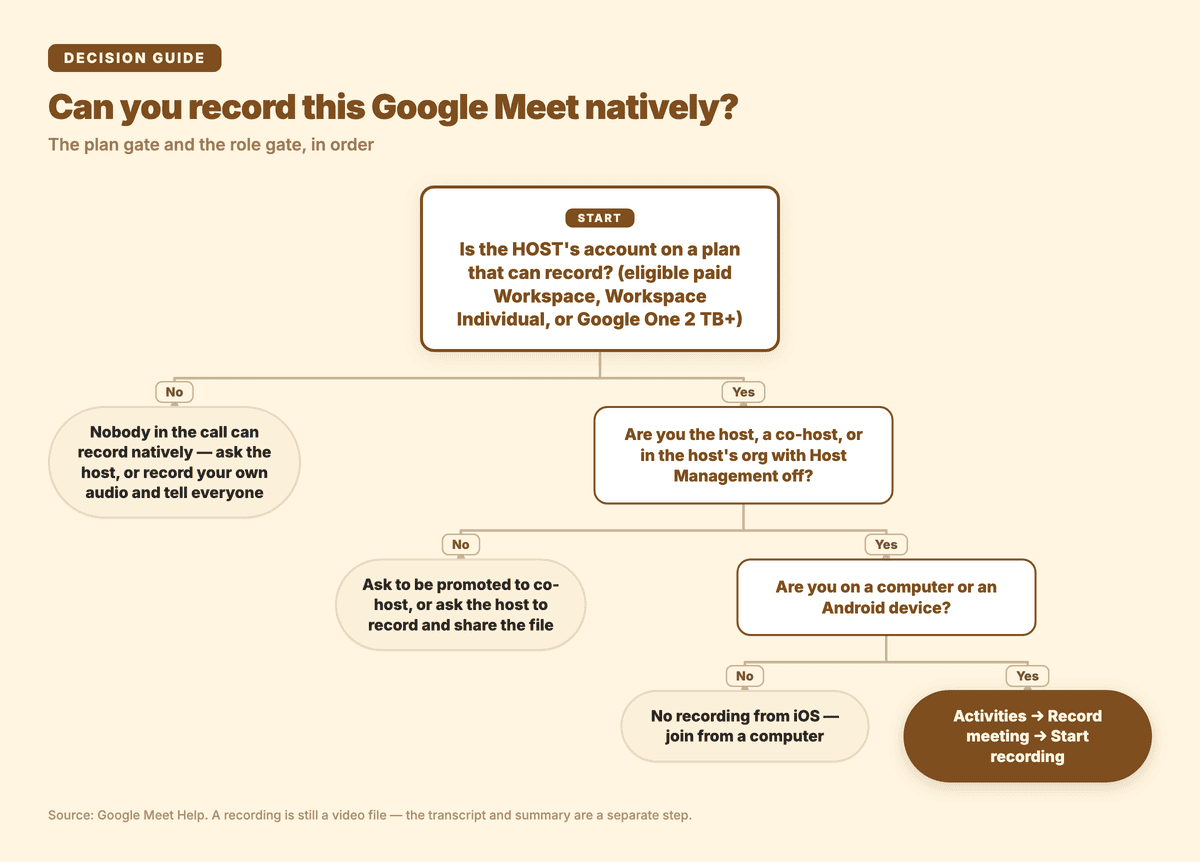
If you're the host on an eligible plan, recording is a few clicks. Note up front that, per Google, you can only record on a computer or an Android device — there's no recording from the iOS app or a phone browser.
- Start or join the meeting on a computer (or Android). Recording isn't available before you're actually in the call.
- Open the Activities or Meeting-tools menu and choose Record meeting, then Start recording. Confirm in the dialog that appears. Everyone in the call gets a clear on-screen notification that recording has started — Google notifies all participants when a recording starts or stops, and people outside your organization or on mobile are notified but can't control it.
- Optional: turn on "Record captions." If you select this, Meet embeds captions into the recorded clip so they play back as subtitles.
- Stop recording from the same menu when you're done, or it stops automatically when everyone leaves.
Where does it go? Per Google's documentation, the recording saves to the meeting organizer's "Meet Recordings" folder in My Drive, and an email with the link is sent to the organizer and the person who started the recording — the link is also added to the Calendar event. The video captures the active speaker and anything presented, up to 1080p for shared screens. If you weren't the organizer, the file doesn't automatically land in your Drive.
How do you record a Google Meet if you're not the host?
This is where most people get stuck, so it's worth being precise. If you're a participant, your ability to record depends on the host, in this order:
- First, the host's account must be able to record at all. If the host is on a free account or a plan without recording, nobody in that call can record natively — full stop.
- Then you need the right role. If you're inside the host's organization and "Host Management" is off, you can record. If you're external, the host has to promote you to co-host first.
- If neither is true, the native Record button simply won't be available to you.
What if you genuinely can't get recording rights — the host's on a free account, or you're an external guest who wasn't made a co-host? You have two honest options, and it's worth saying plainly that you should get consent before recording anyone, regardless of method:
- Ask the host to record and share the file from their Drive. This is the cleanest path and keeps you inside Google's own consent notifications.
- Capture the audio on your own machine with your operating system's screen/audio recording, then process that file separately for a transcript. This works when native recording is off the table, but the host's built-in notification won't fire — so you're responsible for telling people you're recording.
That second option is also the bridge to the part most people actually care about: turning the recording into text.
A recording isn't a record: getting a transcript and summary
Here's the gap that the native flow leaves. A Meet recording is an .mp4 in someone's Drive. To get a searchable record — who said what, what was decided, what the action items are — you need a transcript on top of it. Google Meet does offer that natively, with the same plan gate and a narrower language list:
| Capability | Native Google Meet | Notes |
|---|---|---|
| Video recording | Paid Workspace / Workspace Individual / Google One 2 TB+ | Computer or Android only; saves to organizer's Drive |
| Saved transcript | Paid Workspace / Workspace Individual | 8 languages: English, French, German, Italian, Japanese, Korean, Portuguese, Spanish |
| "Take notes for me" AI summary | Eligible Gemini-enabled Workspace plan | Same 8 languages; one language at a time |
| Works on a free account | No | Recording, transcript, and AI notes are all paid |
So if your meetings are in English (or one of the other seven supported languages) and your team is already on an eligible Workspace plan, Meet's own transcript plus "Take notes for me" is a genuinely good, zero-extra-tools answer — and I'd just use it. We cover that built-in path in depth in our Google Meet transcription guide.
The friction shows up when one of these is true: your meetings are in a language outside Meet's eight (Chinese being the obvious one), your meetings mix languages, you want a structured summary rather than a raw transcript, or you simply don't want a meeting record to hinge on which Workspace edition your company bought. That's the case the rest of this guide is for.
How do you record and transcribe a Google Meet with Subanana?
Subanana's meeting mode includes a Google Meet bot that handles recording and the transcript-plus-summary in one pass. The important boundary first: it works as post-production, not live captioning. The bot is triggered by your calendar, joins the meeting, records it, and only after the meeting ends creates the project with the transcript and summary. There's no real-time caption display during the call — it's a recording-and-record tool, not a live-caption tool.
What that gets you, for the cases the native path leaves behind:
- Multilingual coverage with speaker labels. It transcribes across 95+ languages, including Chinese, with speaker identification so you can see who said which line — not just a wall of text.
- A structured AI summary. On top of the transcript, it produces a summary with decisions and action items. The summary is the one place you can pick which LLM generates it; the transcription itself runs on the speech model that benchmarks best for your language, chosen automatically.
- No Workspace edition required. Subanana is its own subscription, and the bot joins through the calendar you connect — so a meeting record doesn't depend on your company's Google plan or on an admin enabling recording.
- One translation target when you need it. If a meeting is in one language but you want the record in another, meeting mode can output a single translated version alongside the original. (Multiple translation targets at once are a subtitle-mode feature, not a meeting one.)
- Internal re-runs don't cost you extra. If the system detects a transcription problem and re-runs a segment on a different model to clean it up, you're not billed for the retry — you pay for the meeting once.
One thing to be clear about: detecting a speaker flipping between two languages mid-sentence in real time is a strength of Subanana's separate live-caption feature, not the meeting bot. What the bot leans on is multilingual accuracy, speaker labels, and the structured summary. For the feature specifics, see AI meeting transcription.
The steps, end to end
- Connect your calendar so Subanana's Google Meet bot joins the meetings you choose.
- Run the meeting as normal — in whatever language, or mix of languages, your team actually speaks. (Let attendees know it's being recorded.)
- Get the record afterward. Once the meeting ends, the transcript appears with speakers separated, and the AI pulls out decisions and action items. Want the summary framed differently? Pick a different LLM and regenerate it.
- Proofread and export. Do one quick human pass on names and key numbers, then export the transcript and summary as DOCX, XLSX, TXT, VTT, SRT, or Markdown. (Export is a paid feature; the free tier lets you preview the result but not download a usable file.)
For a side-by-side of the main meeting tools, see our roundup of the best AI meeting transcription tools for 2026.
Frequently asked questions
Can I record a Google Meet for free?
Not with Meet's built-in recording. Per Google's documentation, native recording requires an eligible paid Workspace edition, a Workspace Individual subscription, or a Google One plan with 2 TB or more of storage — a free personal Google account can't record. Your alternatives are to ask a host who can record, or to capture the call with your own screen-recording software and transcribe that file separately (with everyone's consent).
Where do Google Meet recordings get saved?
To the meeting organizer's Meet Recordings folder in My Drive. Google emails the recording link to the organizer and to whoever started the recording, and adds the link to the Calendar event. If you started the recording but weren't the organizer, you'll get the email link but the file lives in the organizer's Drive.
Can a participant record a Google Meet without being the host?
Only if the host's account has recording permission and your role allows it — you're inside the host's organization with "Host Management" off, or you've been promoted to co-host. If the host can't record, no participant can record natively either.
Does Google Meet record a transcript automatically?
No — recording (the video) and transcribing (the text) are separate features. You can turn on Transcripts, but they cover 8 languages on a paid plan and are saved to the organizer's Drive. For languages outside that list, multilingual meetings, or a structured summary, you'd transcribe the recording with a dedicated tool.
Do other people know when I'm recording a Google Meet?
Yes. Google notifies everyone in the call when a recording starts or stops. People outside your organization or on a mobile device are notified too, though they can't control the recording. If you record outside Meet (e.g. with your own screen recorder), that automatic notification won't fire — so you're responsible for telling participants.
Can I record a Google Meet on my phone?
Native Meet recording works on a computer or an Android device only — not on iOS. If you're on an iPhone, the practical options are to have someone record on a computer, or to record the device's audio and transcribe it afterward.
A recording really comes down to two questions: can you capture the call, and is what you captured usable afterward. Google Meet has gotten good at the first — for paid plans, on a computer or Android, with the host's permission. The second question is where a dedicated transcription tool earns its place: when your language isn't on Meet's list, your meetings mix languages, or you want the decisions and action items pulled out for you rather than a raw recording to rewatch.
Sources: Record a video meeting, Use Transcripts with Google Meet, and Take notes for me in Google Meet — Google Meet Help, accessed 2026-06-04.