
To transcribe a video to text, you do four things: import the video, transcribe it, edit the result, and export it in the format you need. The whole job takes minutes rather than the hours it would take to type it out by hand. The part most people get wrong isn't any of those steps — it's deciding what kind of text they actually want, because "video to text" can mean a clean, readable transcript you paste into a document, or it can mean a timed SRT subtitle file that displays on screen over the video. Those are two different outputs, and picking the wrong one means redoing the work.
I run Subanana, an AI speech-to-text app, so I'll use it to walk through the flow. But the steps and the decisions are the same whichever tool you reach for. The short version up front: pick the right output first, then let the AI do the transcription grind, then do one human proofreading pass before you rely on the text.
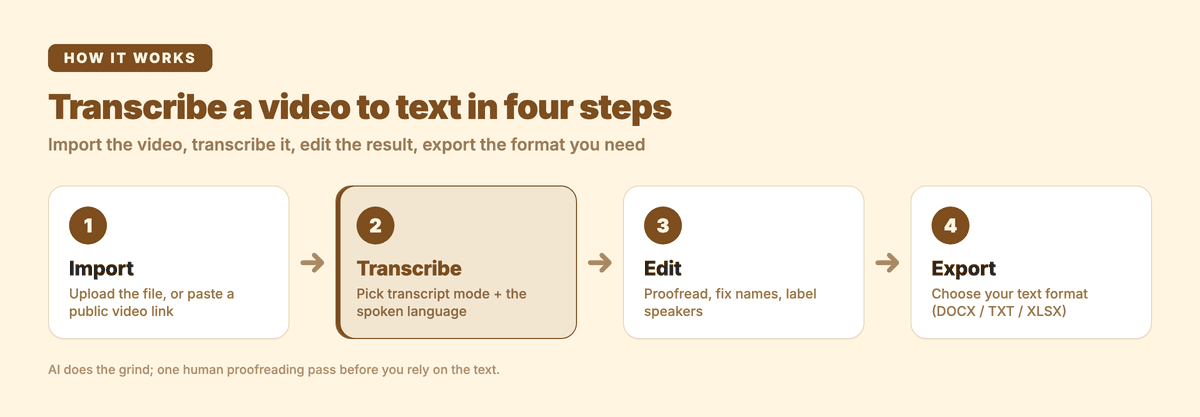
The four steps at a glance: import, transcribe, edit, export.
Transcript or subtitles: which kind of text do you actually want?
Before you transcribe anything, decide on the deliverable. A transcript and a subtitle file are made for different jobs:
- A transcript is text made to be read by a person. It has punctuation, paragraph breaks, and speaker labels, so you can read it top to bottom, search it, annotate it, and pull quotes. You export it as DOCX, TXT, or a spreadsheet.
- Subtitles are text made to be read on screen over a video. They're cut into short timed lines that sync to the audio, conventionally written without punctuation (the standard caption convention, not a flaw), and exported as SRT or VTT so a video player can display them.
Here's the practical difference side by side:
| Transcript | SRT subtitle file | |
|---|---|---|
| Made for | Reading, searching, quoting | Displaying on screen over video |
| Punctuation & paragraphs | Yes | No (caption convention) |
| Timecodes | Optional (per cue, in a table export) | Yes — every line is time-synced |
| Speaker labels | Yes (Speaker 1, Speaker 2…) | No |
| Typical export | DOCX, TXT, XLSX | SRT, VTT |
| Use it for | Interviews, podcasts, lectures, meeting notes, repurposing into articles | YouTube captions, course videos, social clips |
If you want to read or repurpose the content — turn a webinar into a blog post, quote an interview, study a lecture — you want a transcript, and you should run the video through transcript mode. If you want captions burned onto or displayed over the video, you want subtitles, and you'd use a subtitle workflow instead. The rest of this guide is about the transcript path, because that's what "transcribe a video to text" almost always means.
One more distinction worth getting straight: transcription is not translation. Transcribing turns the spoken words in a video into text in the same language they were spoken. Translating takes that text into a different language. They're separate steps — you can transcribe a Japanese video into Japanese text, and then, if you need it, translate that into English as a second pass. Don't assume "transcribe" gives you English output if the speaker wasn't speaking English.
How do you transcribe a video to text, step by step?
Here's the end-to-end flow. In Subanana it looks like this, and the shape is similar in most AI transcription tools:
| Step | What you do | What you get |
|---|---|---|
| 1. Import | Upload the file, or paste a public video link | The video queued for transcription |
| 2. Transcribe | Pick transcript mode + the spoken language | A draft transcript with speakers and punctuation |
| 3. Edit | Proofread, fix names, label speakers | A clean, accurate transcript |
| 4. Export | Choose your text format | A usable file (DOCX / TXT / XLSX…) |
Step 1 — Import the video
You have two ways in:
- Upload a file. Drop in an .mp4, .mov, .webm, or .ogg. On every plan, including free, files can be up to 30 GB or 8 hours (on the free plan, only the first 15 minutes of each file is transcribed), which covers most long recordings — a full lecture, a webinar, a two-hour interview.
- Paste a public link. Instead of downloading first, you can paste a public YouTube or Instagram URL and the tool fetches and transcribes it for you. This works for standard videos and short-form posts (YouTube Shorts, IG Reels) alike. If the content is private, age-restricted, members-only, or otherwise behind a login, the link import may fail — in that case, download the file and upload it instead.
This URL import is genuinely handy when the video already lives on a platform: see the AI video-to-text tool for the link-based flow.
Step 2 — Choose transcript mode and the spoken language
This is the step that decides whether you get readable text or a wall of caption fragments. Subanana has a subtitle mode, a transcript mode, and a meeting mode. For a readable transcript, choose transcript mode — it adds punctuation, breaks the text into paragraphs by meaning, and tidies the prose. (Subtitle mode would instead give you short, unpunctuated timed lines.)
Then set:
- Source language — the language actually spoken in the video. Subanana covers 95+ languages, so most recordings are in range, and it picks the best-performing speech model for that specific language rather than locking to one provider.
- Number of speakers — set it to auto-detect, or type the count if you already know it. This drives speaker identification (diarization).
- Auto-punctuation and paragraphing — turn this on for transcript output. It's the feature that makes the result actually readable.
Step 3 — Edit and proofread
When transcription finishes you land in the editor with a draft that already has speakers split out, filler words ("um," "you know") removed, and punctuation in place. Now you do the human pass:
- Label the speakers. Rename Speaker 1 to "Host," Speaker 2 to "Guest," and the whole transcript updates in sync — useful for quoting later.
- Fix misheard words. Click any word and edit it. For the words most likely to trip up any speech model — people's names, brand names, jargon — set up a Glossary first (a workspace-wide list or a per-project one, with bulk import from XLSX/CSV), and the system will prefer your spellings while it transcribes.
- Chat with the transcript. Inside the editor you can ask the AI questions about the content — "where do they discuss pricing?" or "summarise the second half" — which saves time on a long video.
A note on expectations: AI transcription does the overwhelming majority of the work, but it does not remove the final proofread. Before you quote anyone or publish the text, check names, proper nouns, and key numbers yourself. High accuracy is not zero errors.
Step 4 — Export the text
Pick the format that matches what you're doing next:
- DOCX — a Word file ready to edit, format, and hand off.
- TXT — plain text to drop into Obsidian, Notion, or any notes tool.
- XLSX — a spreadsheet laying out timecode, speaker, and text as a table, ideal for coding interviews or building searchable records.
- VTT / SRT / Markdown — also available if you need them.
That's the full loop. For the model and accuracy details behind it, see how Subanana's transcription works, or the dedicated video transcription tool page.
What about accuracy, accents, and other languages?
This is where general-purpose tools tend to be weakest, so it's worth knowing what to look for:
- Per-language accuracy. Accuracy varies a lot by language and by how clean the audio is. Subanana continuously benchmarks the available speech-recognition models and routes each transcription to the best performer for that source language, rather than using one model for everything. If a transcription comes out poorly, it automatically re-runs the affected parts on a different model — and that re-run doesn't cost you any extra minutes.
- Accented or noisy audio. No tool is immune to a bad recording. The cleaner the audio in, the cleaner the text out — so a decent microphone and low background noise do more for accuracy than any setting.
- Multiple speakers. Speaker identification separates voices automatically, but it's a best-effort step; in a heated multi-person discussion with people talking over each other, expect to fix a few attributions by hand in the editor.
If your video is a recorded meeting rather than a single talk, Subanana's AI meeting transcription adds a structured summary on top — decisions, action items, owners — which is often what you actually want from a meeting recording.
When should you use an SRT subtitle file instead of a transcript?
Reach for subtitles (SRT/VTT), not a transcript, when the text needs to appear on the video rather than be read on its own:
- You're publishing the video on YouTube or a course platform and want captions viewers can toggle on.
- You're posting short-form clips to social and want on-screen captions for sound-off viewing.
- You need timed, synced lines that a video player can display, not paragraphs.
In those cases you'd use the subtitle workflow, which outputs time-aligned SRT or VTT. And if the captions need to be in a different language from the speech, that's transcription plus translation — transcribe the audio, then add a translation target. (Note that real-time, in-the-moment captioning at a live event is a separate feature again — see AI real-time transcription — and isn't part of transcribing an existing video file.)
The simplest rule: if a human will read the text, make a transcript; if a video player will display the text, make subtitles.
Frequently asked questions
Is transcribing a video the same as adding subtitles to it? No. Transcribing produces readable text (a transcript) you export as a document; adding subtitles produces timed caption lines (SRT/VTT) that display over the video. Same source, different outputs — decide which you need before you start. The comparison table earlier in this guide lays out the differences.
Can the free tier transcribe a whole video and let me download the text? You can run a video and preview the result, but exporting is a paid step. The free tier doesn't support transcript or subtitle file downloads, and you can't select-and-copy the text in the editor either — its only output is a watermarked 15-second video clip, at 720p. Every plan, including free, accepts files up to 30 GB or 8 hours; on the free plan, only the first 15 minutes of each file is transcribed. To export usable text files (DOCX / TXT / XLSX), you need a paid plan. See pricing for the details.
What video formats and lengths are supported? You can upload .mp4, .mov, .webm, and .ogg files, or paste a public YouTube / Instagram link. On every plan, including free, the ceiling is 30 GB or 8 hours per file (on the free plan, only the first 15 minutes of each file is transcribed), which covers most long recordings. Private or access-restricted links may not import, so use file upload for those.
Will it transcribe a video in a language other than English? Yes. Subanana supports 95+ languages and transcribes in the language that's actually spoken. If you also need the text in another language, that's a separate translation step — transcript mode supports a single translation target alongside the original. Tools like the AI transcription tool and AI speech-to-text tool start from the same multilingual engine.
How accurate is AI video transcription? Accuracy depends heavily on the language and audio quality, and it's high enough that the bulk of the work is done for you — but it isn't perfect. Always do one proofreading pass on names, proper nouns, and numbers before relying on or publishing the text. For a structured walkthrough of the editing steps, see how to transcribe an interview.
Can I transcribe a recorded meeting and get a summary too? Yes — that's meeting mode rather than plain transcript mode. It produces the transcript plus a structured summary of decisions and action items. See the Google Meet transcription guide for how that works end to end.