
Best AI Video Editors for Auto Captions and Subtitles: 6 Tools Ranked
Most modern video editors now bundle an "auto-caption" button. On marketing landing pages, they all sound identical: upload a video, click a button, and get timed subtitles in seconds.
Put them to work on real-world footage and the differences show up fast. A tool that produces clean English captions might fail on multi-speaker dialogue, mangle a non-Latin script entirely, or lock your subtitle file behind an awkward timeline editor that won't export a plain .srt.
If subtitles are the actual deliverable, not just a nice-to-have on top of an edit, you need to know how these editors actually handle speech recognition, language coverage, and export. Below is a fact-checked comparison of six popular AI video editing tools, ranked specifically on auto-captioning, plus a note on when it's worth skipping the timeline editor entirely and using a dedicated subtitling tool instead.
Quick Comparison: AI Video Editors Ranked by Subtitle Quality
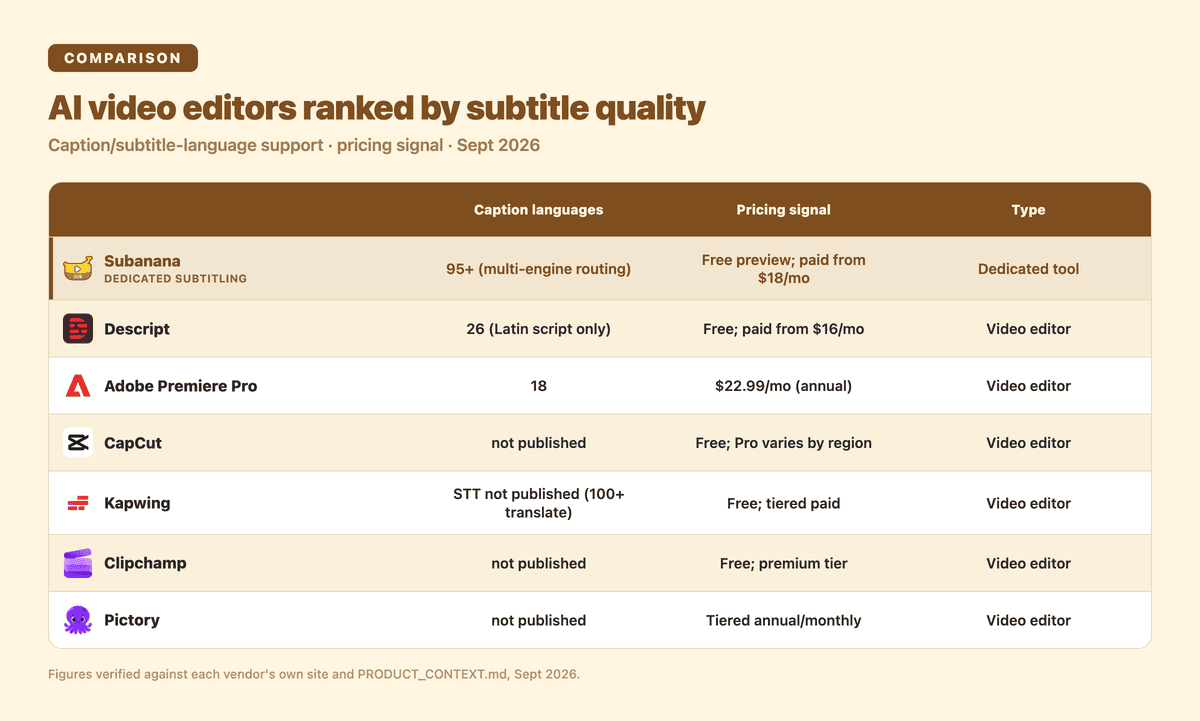
| Tool | Best For | Caption Language Support | Pricing Signal | Captioning Verdict |
|---|---|---|---|---|
| 1. Descript | Text-based editing and podcast workflows | 26 languages (Latin script only; no Chinese, Japanese, Cantonese, Russian) | Free tier available; paid plans from $16/mo (Hobbyist, monthly billing) | Best-in-class text-to-timeline editing for English, but severely restricted for global or Asian-language creators. |
| 2. Adobe Premiere Pro | High-end production timelines requiring deep NLE integration | 18 languages (per Adobe's own announcement) | US$22.99/mo (annual commitment) or US$34.49/mo (month-to-month) | Industrial-grade timeline sync, but narrow language breadth and no spoken-to-written conversion for dialects like Cantonese. |
| 3. CapCut | Quick short-form social video captions with pre-made animated presets | Not officially published | Free tier; Pro pricing varies by region and device (check in-app) | Fast, stylish social templates, but no published language list and no fixed global price. |
| 4. Kapwing | Browser-based collaborative video editing teams | STT list not published (separate text translation supports 100+) | Free tier available; tiered paid plans | Solid web editor with automated sizing, but no transparency on its core speech recognition engine. |
| 5. Clipchamp | Everyday Windows users needing basic captions without learning an NLE | Not officially published | Free tier included with Windows; paid premium tier | Functional for quick internal presentations, but thin styling and clunky handoff to other editors. |
| 6. Pictory | Turning long-form webinars and scripts into captioned highlights | Not officially published | Tiered annual and monthly plans | Convenient for automated text-to-video snippets, but a restrictive manual-timing interface. |
| Alternative: Subanana | Multilingual subtitle workflows, dialect accuracy, and versatile exports | 95+ languages (multi-engine STT routing) | Free tier (watermarked preview); paid plans start at Lite $18/mo | Dedicated subtitling engine for creators who need broad STT language coverage and raw subtitle exports, not just a bolt-on video-editor feature. |
1. Descript: text-based editing's biggest name, with a hard language ceiling
┌─────────────────────────────────────────────────────────┐
│ DESCRIPT                                                │
│ STT Coverage: 26 Languages (Latin-script only)          │
│ Core Advantage: Edit video by deleting transcript words  │
│ Critical Limit: Zero Chinese, Japanese, Russian support │
└─────────────────────────────────────────────────────────┘
Descript popularized document-style video editing: upload a video, Descript builds a transcript, and deleting a sentence in that transcript cuts the matching video frames.
Where it wins on captions: correcting a typo or trimming filler words ("um," "uh") updates the timeline cut points at the same time, the kinetic-typography templates for reels and shorts are genuinely polished, and export is flexible: plain text, Markdown, VTT, or SRT, with adjustable line lengths.
Where it falls short: Descript's own supported-languages documentation (fetched 2026-09-21) lists 26 languages, and every one of them uses a Latin-alphabet script (English, Spanish, French, German, Italian, and similar). Chinese (Mandarin and Cantonese), Japanese, Korean, and Russian are not supported by its speech-to-text engine at all. If your footage has non-Latin audio, Descript simply can't transcribe it. On price, Descript's pricing page (fetched 2026-09-21) starts the paid tiers at $16/month (Hobbyist, billed monthly) and runs to $50/month (Business).
2. Adobe Premiere Pro: broadcast-grade timelines, narrow language list
Adobe built speech recognition directly into Premiere Pro's Text-Based Editing workspace, so professional editors already inside Creative Cloud don't have to round-trip audio through a separate transcription tool. Captions live on a dedicated subtitle track in the main sequence, which means frame-level adjustment, Essential Graphics styling, motion-graphics templates (.mogrt), and reliable timecode sync, without the drift you sometimes get from web-based editors.
The catch is coverage. Premiere Pro's Speech-to-Text engine supports only 18 languages, per Adobe's own March 2026 community announcement (verified 2026-04-21, re-confirmed 2026-09-21). It also has no spoken-to-written conversion for regional dialects, Cantonese being one concrete example, so an editor working with colloquial Cantonese audio has to manually rewrite spoken phrasing into standard written Chinese, line by line. And at US$22.99/month on an annual plan (or US$34.49/month month-to-month, per Adobe's product page, fetched 2026-09-21), it's a real recurring cost if subtitles are the only reason you're there.
3. CapCut: fast, viral-ready, but opaque on both language and price
CapCut is one of the most-used editors for TikTok, Reels, and YouTube Shorts, and its auto-captioning is built for speed and immediate visual polish: one tap applies a trending animated style (bouncing text, karaoke fills, glowing outlines), and the recognition model runs quickly on short clips.
Two things are worth knowing before you build a workflow around it. First, CapCut does not publish a supported-language list for its speech-to-text engine on any first-party page found this session, so there's no way to verify language coverage before committing to it for commercial work. Second, CapCut's own help center (fetched 2026-09-21) states that CapCut Pro pricing varies by device, platform, and region and has to be checked in-app — there is no fixed global price to quote. Exporting a raw .srt without rendering the full video can also require a workaround depending on your app version.
For creators focused specifically on short-form, how to add subtitles to TikTok videos covers the formatting details CapCut's own docs skip.
4. Kapwing: a clean team editor that keeps its STT engine a black box
Kapwing is built for marketing teams who want to edit collaboratively in a browser, no desktop install required. Timestamped comments on subtitle blocks, automatic safe-zone framing that flags when captions collide with platform UI overlays, and a translation feature that pushes an existing subtitle track into 100+ languages are all genuinely useful for a team workflow.
That translation number is worth pausing on, because it's easy to mistake it for a speech-recognition claim. It isn't. Kapwing's subtitles page (fetched 2026-09-21) documents the 100+ figure for text translation of a subtitle track that already exists. It says nothing about which languages Kapwing's speech-to-text engine can actually recognize from raw audio, and that list isn't published anywhere. Treat the two numbers as unrelated until Kapwing says otherwise.
5. Clipchamp: the captioner that's already on your Windows PC
Microsoft folded Clipchamp into Windows 11, so it's zero-install for a huge number of casual creators, corporate communicators, and educators: launch straight from the OS, projects sync to the cloud, captions land in a readable sidebar editor automatically.
What you don't get: any first-party breakdown of which languages Clipchamp's auto-captions actually recognize. Clipchamp's own pricing page and its auto-captioning feature post (both fetched 2026-09-21) describe the free tier and premium subscription and confirm the feature exists, but neither publishes a language list. Styling options are thin next to a dedicated graphics tool, and moving captions into another NLE (DaVinci Resolve, Final Cut Pro) takes more friction than it should.
6. Pictory: strong for repurposing, restrictive for hands-on subtitle work
Pictory comes at this from a different angle than the other five: feed it a webinar, a long recording, or even a script, and it automatically finds the highlight moments and builds a short, captioned video around them. Stock b-roll gets matched to the transcript automatically, and captions burn straight onto the clip without keyframe work.
If your job is surgical subtitle editing (fine-tuning entry/exit timing to the millisecond, controlling punctuation density, exporting a broadcast-grade caption package), Pictory's interface will feel restrictive; that's not its design target. Pictory's pricing page (fetched 2026-09-21) lists tiered annual and monthly plans and names "Subtitles & Captions" as a feature, but doesn't publish a caption-language list.
When a video editor's built-in caption tool isn't enough
Most timeline editors treat auto-captioning as a bolt-on: license a generic speech-to-text API, wire it into the timeline, done. That produces three predictable failure points for anyone whose real deliverable is the subtitle file:
┌───────────────────────────────────────────────────────────────────────────┐
│              WHY TIMELINE EDITORS STRUGGLE WITH CAPTIONS                  │
├──────────────────────────┬────────────────────────────────────────────────┤
│ 1. Narrow Language Lists │ Descript caps at 26 Latin-script languages.    │
│                          │ Premiere caps at 18, total, any script.        │
├──────────────────────────┼────────────────────────────────────────────────┤
│ 2. Dialect Blind Spots   │ Regional and colloquial speech (Cantonese,    │
│                          │ Singlish, Indian English and similar) gets    │
│                          │ flattened by generalist STT models built for  │
│                          │ "standard" spoken forms.                      │
├──────────────────────────┼────────────────────────────────────────────────┤
│ 3. Export Lock-In        │ Many web editors force burned-in captions or  │
│                          │ gate a plain .SRT export behind a paid tier.  │
└──────────────────────────┴────────────────────────────────────────────────┘
When subtitles across multiple languages are the actual job, not a side feature, a dedicated tool like Subanana is built around that job differently:
- 95+ languages, multi-engine routing. Subanana doesn't lean on one fixed STT engine. It continuously benchmarks multiple speech-to-text models and routes each language to whichever performs best, rather than shipping one generalist model and calling it done.
- Cantonese spoken-to-written conversion. One concrete piece of dialect handling the video editors above don't have: Subanana converts casual spoken Cantonese (口語) into standard written Chinese (書面語) automatically, instead of leaving you to rewrite it line by line.
- Exports built for handoff, not lock-in.
.srt,.vtt,.txt,.docx,.xlsx, or.md, with no watermark on paid plans (from Lite, $18/month). - Free tools to test the fit first. Try the AI Subtitle Generator tool or the Add Subtitles To Video tool before committing to a plan.
More on the full subtitling engine: the AI Subtitling platform page.
How to choose, based on what you're actually producing
- English-only podcasts or interviews, editing by cutting text: Descript. Its document-style editing is still unmatched, as long as you never need non-Latin transcription.
- Complex multi-cam TV or film projects: Adobe Premiere Pro, for the broadcast-standard sequence tools, provided your dialogue fits inside its 18 supported languages.
- Rapid vertical video with viral kinetic text: CapCut. The animated presets save real keyframing time; just don't expect a published language list or a fixed price up front.
- Multilingual footage, regional dialects, or you need clean exports into whatever editor you already use: Subanana, built around the 95+ language breadth and dedicated subtitle export rather than a bolted-on captioner.
More on formatting captions for readability once you've picked a tool: 4 often-overlooked tips for creating video subtitles to improve video quality.
Frequently Asked Questions
Can I export an SRT file from all of these AI video editors?
Not always, and not always for free. Adobe Premiere Pro and Descript both support SRT/VTT export on their standard plans, but several browser-based editors restrict subtitle-file downloads to paid tiers or only offer a "burned-in" (hardcoded) video export. Subanana exports subtitle files directly (.srt, .vtt, .docx, .xlsx, .md) on every paid tier starting at Lite ($18/mo); the free tier is watermarked-video-only and does not export subtitle files.
Why do some editors advertise 100+ translation languages but a much smaller speech-recognition list?
Speech-to-text and text translation are different technologies solving different problems. Speech-to-text has to turn raw audio into words, acoustic-phonetic modeling that gets noticeably harder for tonal languages and non-standardized dialects. Translation starts from text that's already been transcribed and converts it with standard machine-translation models, which is a much easier problem and scales to far more languages. When you're evaluating an editor for captioning, check its speech-recognition language count specifically — not the translation count on the same page.
Does Descript support Chinese or Japanese subtitles?
No. Per Descript's own help documentation, its auto-transcription engine covers 26 languages, all Latin-script. Chinese (Mandarin or Cantonese), Japanese, Korean, and Russian are not supported.
Do any of these tools handle regional accents and dialects well, not just "standard" pronunciation?
Unevenly. The video editors in this comparison run one generalist STT model against everything, so colloquial or regional speech (Cantonese being the clearest example, since none of the editors above convert it to standard written form) tends to come out garbled or has to be manually cleaned up. Subanana's routing approach (picking the best-performing engine per language) plus its dedicated Cantonese spoken-to-written conversion is built specifically to close that gap for the languages and dialects it supports; it isn't a claim that every dialect in every language works flawlessly.