
Transcribing in Premiere Pro starts in one place: Window > Text. Open the Transcript tab, launch the transcription dialog, pick your language, and select Transcribe. The audio on your sequence comes back as text. That's the whole happy path.
When it doesn't work, it's almost always the language. Premiere ships with English only; every other language is a separate pack you download. The supported list also has a hard edge: 18 languages, per Adobe's own list (checked 2026-08-28). Audio outside that list can't be transcribed inside Premiere at all.
This guide walks the steps from Adobe's docs, the four things to check when transcription fails, and the cases where doing the transcript outside Premiere and importing an SRT is the faster route, with specifics on where each side wins. Subanana is an AI transcription tool that lives on that outside route.
How to transcribe in Premiere Pro
Adobe's help page "Auto transcribe video using Speech to Text" (last updated June 2026) lays out the flow:
- Build your sequence first. Transcription reads the sequence audio, not loose clips in the bin.
- Select Window > Text. The Text panel opens.
- In the Transcript tab, select the icon to open the "Generate static transcript" dialog.
- Configure the options. The table below covers what each one decides.
- Select Transcribe. When analysis finishes, the transcript appears in the Text panel.
| Setting | What it decides |
|---|---|
| Language | The language of the video; download its language pack here if needed |
| Speaker labeling | Whether to separate speakers in the video |
| Audio analysis | Transcribe clips tagged as Dialogue, or a specific audio track |
| Transcribe In point to Out point only | Restrict transcription to the marked In/Out range |
| Merge output with existing transcription | Insert the new result into an existing transcript for continuity |
Source: Adobe's help page, checked 2026-08-28. Dialog names and option order can shift between versions.
What you have at this point is text. Turning it into captions on the timeline is a separate step; that half of the workflow is covered in How to Add Subtitles in Premiere Pro.
Transcription won't run? Check these four things
1. The language pack isn't installed
The most common cause by far. Per Adobe, only English ships with the install; everything else is a downloadable pack. Two ways to get one:
- From inside Premiere (Adobe's steps): in the Transcript tab's transcription dialog, scroll the language dropdown to your language and click the download icon next to it. When the icon disappears, the pack is installed.
- From the Creative Cloud app (Adobe's steps): Apps → All apps → the ⋯ icon on Premiere → Get add-ons, then add the packs you need. Adobe lists more than 15 language packs there.
2. Your language isn't on the list
Adobe's supported-languages page names 18 languages: English, English (UK), Spanish, French, German, Italian, Dutch, Danish, Swedish, Norwegian, Portuguese (European), Russian, Hindi, Japanese, Korean, Simplified Chinese (Mandarin), Traditional Chinese (Mandarin), and Traditional Cantonese. If your audio is in any other language, Premiere's built-in Speech to Text can't process it. That's the real ceiling, and the reason multilingual teams end up on the export-import route below. The list can change, so check Adobe's page for your language.
3. Audio analysis points at the wrong track
If the Audio analysis setting is reading a music or SFX track, you'll get nothing useful. Point it at the track or Dialogue-tagged clips that actually carry speech.
4. The In/Out range is too narrow
With "Transcribe In point to Out point only" enabled and your In and Out points a few seconds apart, that's all you'll get. Clear the option to transcribe the whole sequence.
When staying inside Premiere is the right call
The built-in route has real strengths:
- You're already editing there. The transcript is tied to your sequence timecode, so captions land in sync with no re-alignment pass.
- Text-based editing. Select transcript text to select clips. For interviews and lectures where you're reordering what was said, this is the killer feature.
- No extra cost. It's built in; there's no plugin to buy and no third-party service to subscribe to.
- Broadcast caption formats. Per Adobe's caption formats page, Premiere handles sidecar formats including SCC, MCC, STL, and SRT. If your delivery spec says SCC or STL, export from Premiere.
Clear audio, a language on the 18-language list, and a video as the end product mean the built-in tool is usually enough.
When transcribing outside and importing an SRT is faster
Premiere imports SRT files like any other media. Per Adobe's import guide, you drag the SRT from the Project panel into the sequence, drop it where you want it, and a new caption track is created with the captions placed. The round trip is a supported, documented workflow, not a hack. It earns its place when:
- Your audio is outside the 18 languages. There's no in-Premiere option; an external tool is the only route.
- You need a readable document, not just captions. Interview write-ups, meeting notes, article drafts. Premiere's Text panel is an editing surface, while a transcript mode that adds punctuation and paragraphs gives you something you can hand to a person.
- You're fixing the same names every time. Product names, people, jargon: a tool with a glossary applies your spellings up front instead of you patching them per project.
- You want translated subtitles under your control. Per Adobe's caption translation page, Premiere's translation runs on cloud services and third-party translation models (Google Translate and Microsoft Translator), creating a track per language. If you'd rather control terminology in one place, translating outside and importing the result is a legitimate alternative.
The Subanana version of that outside route
Subanana's AI transcription tool is built for exactly this hand-off: produce the SRT for Premiere, or the readable transcript, and give the editing back to Premiere.
- 95+ languages. Every transcription routes to the best-benchmarked speech-to-text model for that language, so you're not locked to one vendor, and bad segments re-run on another model automatically at no extra charge.
- Speaker labels. Auto-detect the speaker count or set it manually, which helps for interviews; see how speaker labels work for the details.
- Punctuation and paragraphs. Transcript mode restores both automatically, so the output reads as prose. (Subtitle mode skips punctuation, as subtitle convention expects.)
- A real glossary. Workspace-wide and per-project term lists with bulk XLSX/CSV import, so names come out spelled your way from the first pass.
- Seven export formats. SRT, VTT, TXT, DOCX, XLSX, Markdown, FCPXML. SRT goes back to Premiere; DOCX or TXT goes to whoever asked for the transcript.
- Big files, or just a link. Up to 30 GB / 8 hours per file, and public YouTube or Instagram URLs can be imported directly.
The free plan previews the first 15 minutes of each file; exporting is paid (Lite is US$9/month billed annually — see pricing). Run your own footage through it before deciding.
Where Subanana is the wrong fit: caption styling, timing adjustments, and burn-in are Premiere's territory, and broadcast formats like SCC and STL should be exported from Premiere. If you're already editing in Premiere and the audio is clean English, the built-in tool is often all you need.
The return trip is three moves: import the exported SRT into Premiere's Project panel, drag it onto the sequence, then style and fine-tune on the new caption track — same finishing steps as in the subtitles guide.
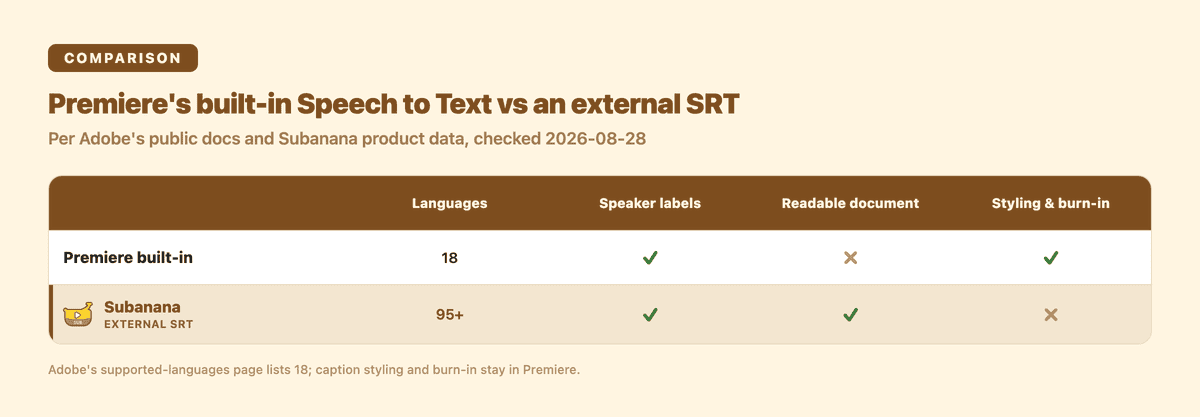
Built-in vs. outside-and-import
| Premiere's built-in Speech to Text | Transcribe outside, import SRT | |
|---|---|---|
| Languages | 18 (Adobe's supported list) | Subanana: 95+ |
| Speaker labels | In the dialog settings | Yes — auto or manual count |
| Main output | Captions on the timeline, sidecar formats | SRT, VTT, TXT, DOCX, XLSX, Markdown |
| Caption styling & burn-in | Its strength | Round-trip back to Premiere |
| Extra cost | Included | Separate tool |
| Workflow | Never leave Premiere | One file round trip |
This is a documentation-based comparison (checked 2026-08-28), not a benchmark of the same audio through both — results depend heavily on your recording, so test with your own material.
FAQ
How do I get Premiere Pro to transcribe audio?
Select Window > Text, open the Transcript tab, and launch the Generate static transcript dialog. Pick the language (downloading its language pack if needed), set speaker labeling and audio analysis, then select Transcribe. The transcript appears in the Text panel.
Is there a transcription plugin for Premiere Pro?
You don't need one for supported languages; Speech to Text is built in. Where a separate tool earns its place is outside the 18 supported languages, or when you need a readable document, glossary-enforced spelling, or multiple translated subtitle tracks produced in one pass.
Why can't I transcribe my audio in Premiere Pro?
Four usual suspects, in order: the language pack isn't installed (only English ships with Premiere); the language isn't on Adobe's 18-language supported list; Audio analysis is pointed at a track without speech; or "Transcribe In point to Out point only" is limiting the range.
Can Premiere Pro transcribe to a document?
The Text panel is built for editing, not document delivery. For a hand-off transcript, transcribe the audio in a transcript-mode tool that adds punctuation and paragraphs, export DOCX or TXT, and keep the SRT export for the timeline.