
Can Copilot Transcribe Audio to Text? Here's Which Microsoft Tool You Need
If you are asking whether you can open Microsoft Copilot, upload an arbitrary audio file, and receive a full transcript, the answer is generally no.
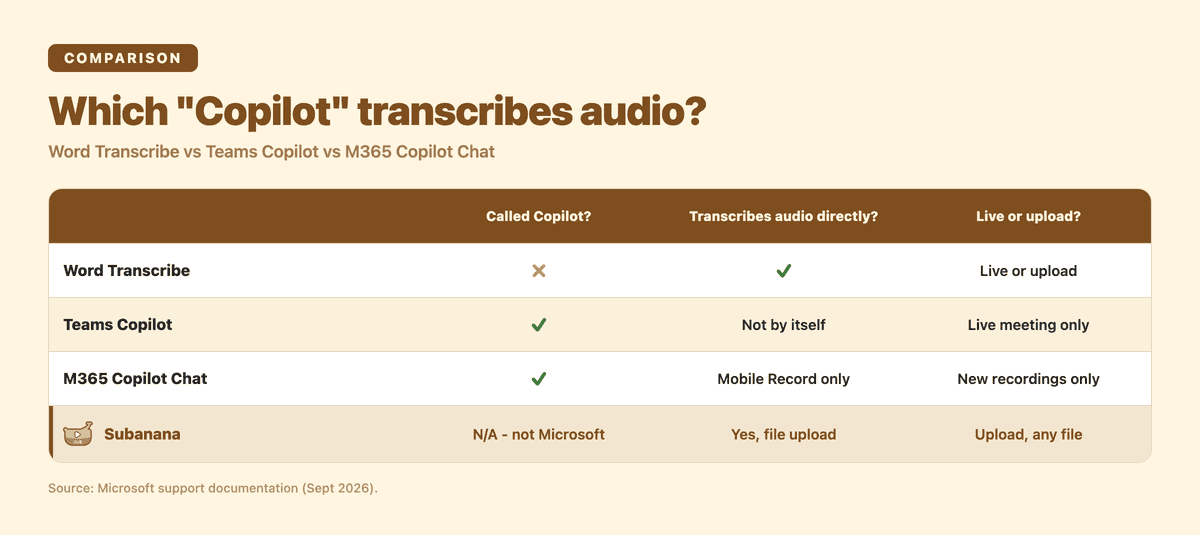
The confusion comes from the fact that Microsoft uses “Copilot” for several different products. Word has its own Transcribe feature. Teams Copilot can work with live meeting audio. Microsoft 365 Copilot Chat has a newer mobile Record feature for voice notes and in-person conversations.
Those are different workflows with different requirements.
Here is the practical breakdown.
The three Microsoft features people call “Copilot”
| Microsoft feature | Is it called Copilot? | Does it transcribe audio directly? | Live or upload? | Main limits |
|---|---|---|---|---|
| Word Transcribe | No. It lives inside Word. | Yes. It can record or accept an audio upload. | Live recording or file upload. | 300 minutes of uploaded audio per month for Microsoft 365 subscribers. Copilot license holders get 30,000 minutes. |
| Teams Copilot | Yes. | Not by itself. It uses meeting audio for live assistance. | Live Teams meeting or call. | Transcription or recording must be enabled separately if you need access after the meeting. |
| Microsoft 365 Copilot Chat | Yes. | Not as a general audio-file upload tool. | Mobile Record feature for new voice notes and in-person conversations. | Requires the latest mobile app, a work or school account, a Microsoft 365 Copilot license, microphone permission, and an internet connection. |
1. Word Transcribe
Word’s Transcribe feature is the Microsoft option that actually accepts a prerecorded audio file.
It is not branded as Copilot. You access it from Word through Home > Dictate > Transcribe. From there, you can either record directly in Word or choose Upload audio.
Microsoft says Word Transcribe supports .wav, .mp4, .m4a, and .mp3 files. It separates speakers, adds timestamps, and lets you edit the transcript before adding all or part of it to a Word document.
The current limits are important:
- Microsoft 365 subscribers can transcribe up to 300 minutes of uploaded audio per month.
- Users with a Microsoft Copilot license can transcribe up to 30,000 minutes of uploaded audio per month.
- The feature supports more than 80 locales.
- It requires an internet connection.
- It works in the new Microsoft Edge or Chrome.
You can follow Microsoft’s Word Transcribe documentation. For a longer walkthrough, see our guide to transcribing audio with Microsoft Word.
So, if someone says “Copilot transcribed my interview,” they may actually be describing Word Transcribe.
2. Teams Copilot and intelligent recap
Teams Copilot is a different product from Word Transcribe, and it is not the only way to get an AI recap of a Teams meeting.
During a live Teams meeting or call, Copilot can use meeting audio and other context to answer questions, create notes, and identify tasks. This does not mean that Copilot has created a durable audio transcript. Microsoft's support documentation explains that Copilot can work during a meeting even when transcription is off.
After the meeting ends, Teams can show an AI-generated recap in the meeting's Recap tab: notes, recommended tasks, and topic/speaker highlights. Microsoft's own admin documentation is specific about licensing here, because it is easy to assume this recap is a Copilot-only feature: you need a Teams Premium license OR a Microsoft Copilot license to get it — either one unlocks intelligent recap, not just Copilot. The narrower audio-recap feature (a podcast-style summary of several meetings) is the exception: that one does require a Microsoft Copilot license specifically. Teams Premium is also the far cheaper of the two ways in, since it is a Teams add-on rather than a full Microsoft 365 Copilot license.
That distinction is easy to miss:
- Copilot can help during the live meeting regardless of your Recap licensing.
- Teams transcription creates the persistent speech-to-text record the Recap tab is built from.
- Either Teams Premium or Microsoft Copilot licensing unlocks the Recap tab's AI notes and tasks afterward.
- Turning on Copilot for the live meeting does not automatically mean a transcript or recap will be saved.
To get a Recap you can return to later, you need transcription (and, for the full experience, recording) turned on in the Teams meeting settings, plus one of the two qualifying licenses, subject to your organization's policies.
Our guide to Microsoft Teams meeting transcription covers the built-in transcription and licensing details. If your real need is an ongoing meeting-notes workflow rather than a one-off audio file, see our comparison of AI note-takers for Microsoft Teams.
3. Microsoft 365 Copilot Chat audio upload
Microsoft 365 Copilot Chat is the feature most people usually mean when they ask this question.
At the time of writing, it is not a general-purpose audio transcription inbox. Microsoft Q&A threads show users asking for the ability to upload an audio file and receive a transcript or meeting report. Those requests should not be confused with Word’s separate Transcribe feature.
Microsoft is also rolling out a narrower audio feature called Record in the Microsoft 365 Copilot mobile app.
Record is designed for:
- Voice notes.
- In-person conversations.
- Short offline moments when Teams is not practical.
After recording, Copilot can produce a transcript and summary in Copilot Chat. Microsoft says the feature requires the latest Copilot mobile app, a work or school account, a Microsoft 365 Copilot license, microphone permission, and an internet connection.
Per Microsoft's own rollout communication, it is reportedly rolling out from late August 2026, but availability can still depend on your tenant, administrator, account, device, and rollout status. It is not the same as uploading an existing interview, call export, or podcast recording from your computer.
For the latest details, see Microsoft’s Copilot Record documentation.
How to transcribe audio with the Microsoft tools that work
If you already have an audio file, Word is the straightforward Microsoft route.
Upload an audio file to Word Transcribe
- Open Word for Microsoft 365 in the new Microsoft Edge or Chrome.
- Sign in with the Microsoft 365 account that includes the required subscription or license.
- Open a document.
- Go to Home > Dictate > Transcribe.
- Select Upload audio.
- Choose a
.wav,.mp4,.m4a, or.mp3file. - Wait for Word to process the recording.
- Review speaker labels and correct any errors.
- Select Add all to document or add only the sections you need.
The uploaded recording is stored in OneDrive’s Transcribed Files folder. Word also lets you play the recording alongside the timestamped transcript.
Remember the monthly cap. The standard Microsoft 365 limit is 300 minutes of uploaded audio. A Microsoft Copilot license raises that limit to 30,000 minutes.
Enable Teams transcription for Copilot
For a Teams meeting, the process is different.
- Join or organize the Teams meeting.
- Open the meeting controls.
- Choose the option to start transcription or recording.
- Confirm that your organization allows the feature.
- Turn on Copilot during the meeting if it is not already active.
- After the meeting, open the meeting’s Recap tab.
- Use the saved transcript and Copilot together to review questions, decisions, and tasks.
Transcription is not retroactive. If you enable it halfway through the meeting, only the content from that point onward is available in the transcript.
Teams is the right fit when the meeting is happening inside Teams and your organization already has the necessary settings. It is less convenient when you simply have an audio file sitting on your computer.
If your case does not fit
Microsoft’s tools work well when your use case already lives inside Microsoft 365.
Word Transcribe is reasonable for an English interview or meeting that fits within the monthly limit. Teams transcription is reasonable for a Teams meeting where recording and transcription are permitted. If you already use Microsoft 365 Copilot for meeting notes, there may be no reason to change tools.
The mismatch appears when you have a file and want a direct transcription workflow.
You may need something else if:
- You have an interview recording, phone-call export, podcast, lecture, or voice memo.
- You need more than Word’s monthly upload allowance.
- You do not have a Microsoft 365 or Copilot license.
- You want to upload files without involving a meeting bot or administrator.
- You need speaker identification across a multi-person recording.
- Your recording is multilingual.
Subanana’s audio-to-text tool is built for that file-first workflow. Upload the recording directly, select the source language, and receive a transcript with speaker identification.
Subanana supports more than 95 languages through multi-model speech-to-text routing. It continuously benchmarks speech-to-text models and selects the best performer for each source language. No meeting bot or admin-enabled Copilot license is required.
There is one important limitation to understand. File uploads use one source language per file. They do not preserve mixed-language code-switching verbatim on a segment-by-segment basis. If a recording switches repeatedly between languages, choose the dominant source language and expect to review the transcript.
If the recording came from a Microsoft Teams meeting, Subanana also has a Teams meeting bot for post-production transcription. It does not provide live captioning. For a meeting-specific workflow, start with AI meeting transcription.
FAQ
How do I turn on transcription on Copilot?
It depends on which Microsoft product you mean.
In Word, open Home > Dictate > Transcribe, then record or upload audio. In Teams, turn on transcription or recording separately from Copilot during the meeting. Microsoft 365 Copilot’s mobile Record feature creates a transcript after you record a voice note or in-person conversation.
Copilot itself is not one universal transcription switch.
Can Copilot do transcribe?
Yes, but the answer depends on the product.
Teams Copilot can use live meeting audio for in-the-moment assistance, but it does not automatically create a persistent transcript. Word has a separate Transcribe feature that can upload audio files. Microsoft 365 Copilot mobile Record can transcribe new voice notes and in-person recordings for eligible accounts.
How to transcribe an audio file to text?
If you want to stay inside Microsoft 365, use Word Transcribe:
- Open Word in Edge or Chrome.
- Select Home > Dictate > Transcribe.
- Choose Upload audio.
- Select your
.wav,.mp4,.m4a, or.mp3file. - Review and export the transcript.
For a file-first workflow without the Word upload allowance or Microsoft 365 licensing requirements, upload the recording to Subanana’s audio-to-text tool.
Can AI transcribe audio to text?
Yes. Artificial intelligence can convert speech in an audio file into a searchable text transcript.
The important question is which tool fits the recording. Word Transcribe is useful for Microsoft 365 users. Teams Copilot is useful for live Teams meetings. A direct transcription tool is usually simpler for interviews, multilingual recordings, call exports, and standalone audio files.
If you have the recording already, upload it directly to Subanana and turn it into a transcript without setting up a meeting workflow.
Microsoft Copilot can help with audio, but “Copilot” does not describe one single transcription product. Choose Word for uploaded files, Teams for live meeting context, or a direct file-upload tool when the audio already exists.