
Microsoft Word can transcribe audio directly inside a document, no third-party app required. It ships as part of Microsoft 365, and comes with a handful of platform, format, and language limits that catch people off guard.
This guide covers what Word's Transcribe feature can and can't do, how to use it for both live and pre-recorded audio, and what to reach for when you hit its limits.
Can Microsoft Word Transcribe Audio to Text?
Yes. Word's built-in Transcribe feature converts speech, live or pre-recorded, into an editable, speaker-labeled transcript right inside the app.
Transcribe ships with Microsoft 365. It runs in Word for Windows on a Commercial Tenant, and in Word for the web (Edge or Chrome) for everyone else, including Government Tenants, who can only use the web version.
What You Need Before You Start Word Transcription
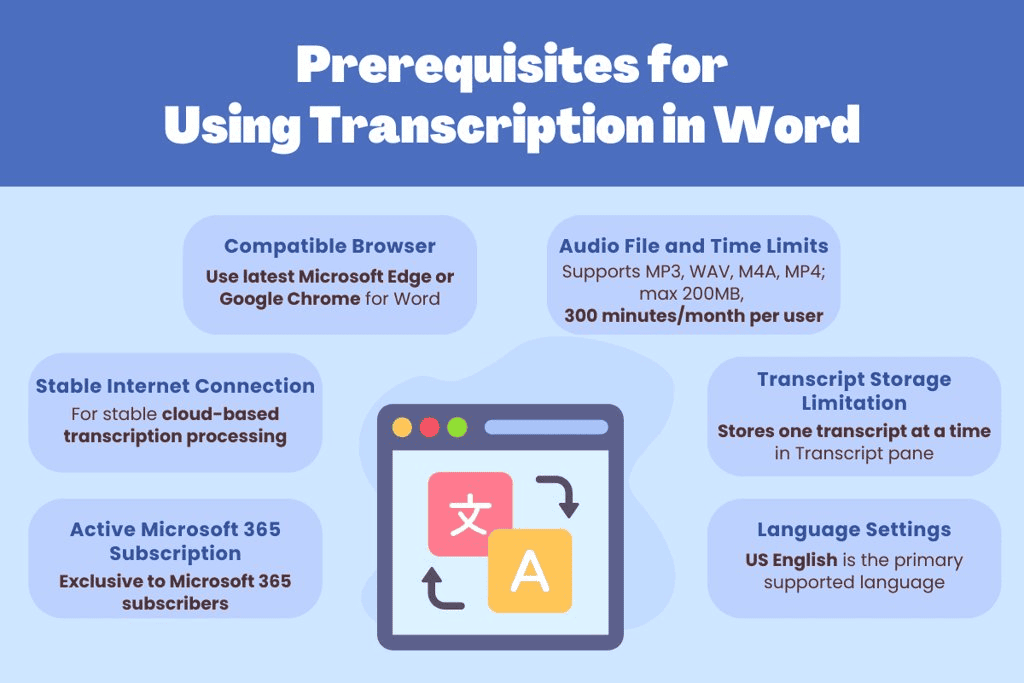
Before you open the Transcribe pane, confirm you have the following.
1. An active Microsoft 365 subscription
Transcribe ships with Microsoft 365, in:
- Word for Windows, Commercial Tenants
- Word for the web (Edge or Chrome) — the only option for Government Tenants, and open to everyone else too
Have your Microsoft 365 sign-in ready before you start.
2. A stable internet connection
Transcription runs in the cloud. Word needs an internet connection to process both live and uploaded audio.
3. A supported browser, if you're using Word for the web
Word for the web only runs Transcribe in the new Microsoft Edge or Chrome.
4. The right editing language
Transcribe covers more languages than Word's old "US English" reputation suggests: Microsoft's own Transcribe documentation lists support across 80+ locales, spanning multiple regional variants of English, Spanish, Arabic, Chinese, and dozens of other languages. Pick the spoken language at the top of the Transcribe pane before you start recording — it defaults to your Office language, and Transcribe won't correct itself mid-recording if the audio is actually in a different one.
5. Awareness of the format and time limits
For uploaded audio files:
- Supported formats: .wav, .mp3, .m4a, .mp4
- Microsoft 365 subscribers get 300 minutes (5 hours) of uploaded-audio transcription per month; users with a Microsoft Copilot license get a much larger 30,000-minute monthly allowance instead
- Microsoft's current documentation doesn't state a file-size ceiling
Live recording has no stated time limit, though longer sessions are more exposed to audio-quality issues.
6. One transcript slot per document
Word's Transcribe pane holds one transcript at a time. Start a new transcription and the previous one is gone, though any text you've already inserted into the document stays put. Insert or save what you need before uploading the next file.
Quick tips: record with minimal background noise, keep Word and your browser updated, and track your monthly minutes if you're transcribing more than one file a month.
If the subscription requirement, the 300-minute cap, or the Edge/Chrome-only browser restriction rules you out, skip ahead to the Subanana section below.
How to Transcribe Live Speech in Word
Word can transcribe a live conversation, meeting, or lecture in real time, with automatic speaker separation.
Step 1: Open Word
Launch Word for Windows, or open Word for the web in Edge or Chrome and sign in with your Microsoft 365 account.
Step 2: Open or start a document
Use a new document or an existing one, wherever you want the transcript to land.
Step 3: Open Transcribe
On the Home tab, click the dropdown next to Dictate and select Transcribe. The Transcribe pane opens on the right side of the screen.
Step 4: Allow microphone access
Word asks for microphone permission the first time you use Transcribe. Click Allow.
Step 5: Start Recording
Select Start Recording in the Transcribe pane. A timer confirms Word is capturing audio. Begin speaking.
Step 6: Pause or resume as needed
Select the microphone button to pause mid-session, and select it again to resume. Keep the Transcribe pane open throughout.
Step 7: Save and Transcribe Now
When you're done, click Save and Transcribe Now. Word processes the transcript; expect a few minutes, depending on length.
Step 8: Review and edit the transcript
The transcript appears with timestamps and speaker labels ("Speaker 1," "Speaker 2"). You can edit the text, rename speakers, play back sections by timestamp, and insert the full transcript or specific parts into your document with the + icon.
How to Transcribe Audio to Text in Word (Pre-Recorded Files)
This is the flow for turning an existing recording (a Zoom call, a lecture, a podcast, an interview) into text.
Step 1: Sign in to Microsoft 365
Open Word for Windows, or Word for the web via Edge or Chrome, and sign in.
Step 2: Open a document
Create or open the document that should receive the transcript.
Step 3: Open Transcribe
Same path as above: Home tab > Dictate dropdown > Transcribe.
Step 4: Upload your audio file
Click Upload Audio in the Transcribe pane, then select a .wav, .mp3, .m4a, or .mp4 file.
Step 5: Wait for transcription
Word uploads and transcribes the file. Expect a few minutes, longer for bigger files.
Step 6: Review and edit the transcript
The transcript appears with timestamps and speaker labels. Edit the text, rename speakers, verify sections by timestamp, and insert the transcript, in full or in parts, into your document.
Step 7: Save your work
Insert or export what you need before uploading another file. Remember: the Transcribe pane only holds one transcript at a time, so a new upload overwrites the current one.
When Word's Transcription Isn't Enough
Word's Transcribe feature covers the basics well, but the constraints are real: a Microsoft 365 subscription, a 300-minute monthly cap on uploaded audio, and a web version locked to Edge or Chrome. If you're capturing audio notes, voice memos, interviews, or content meant for publishing rather than a Word document, those limits show up fast.
Subanana is a standalone speech-to-text platform built for that gap. It continuously benchmarks multiple AI speech models and routes each transcription to the best performer for that source language, so you're not locked into one vendor's accuracy for every language. It supports 95+ languages, needs no Microsoft 365 subscription, and handles files up to 30 GB or 8 hours long.
Here's the workflow:
-
Upload your audio or video, or paste a link. Drop in a file directly, or paste a public YouTube or Instagram link. No local download needed.
-
Let the AI transcribe it. Subanana routes your audio to the best-benched speech model for its language and produces a transcript automatically.
-
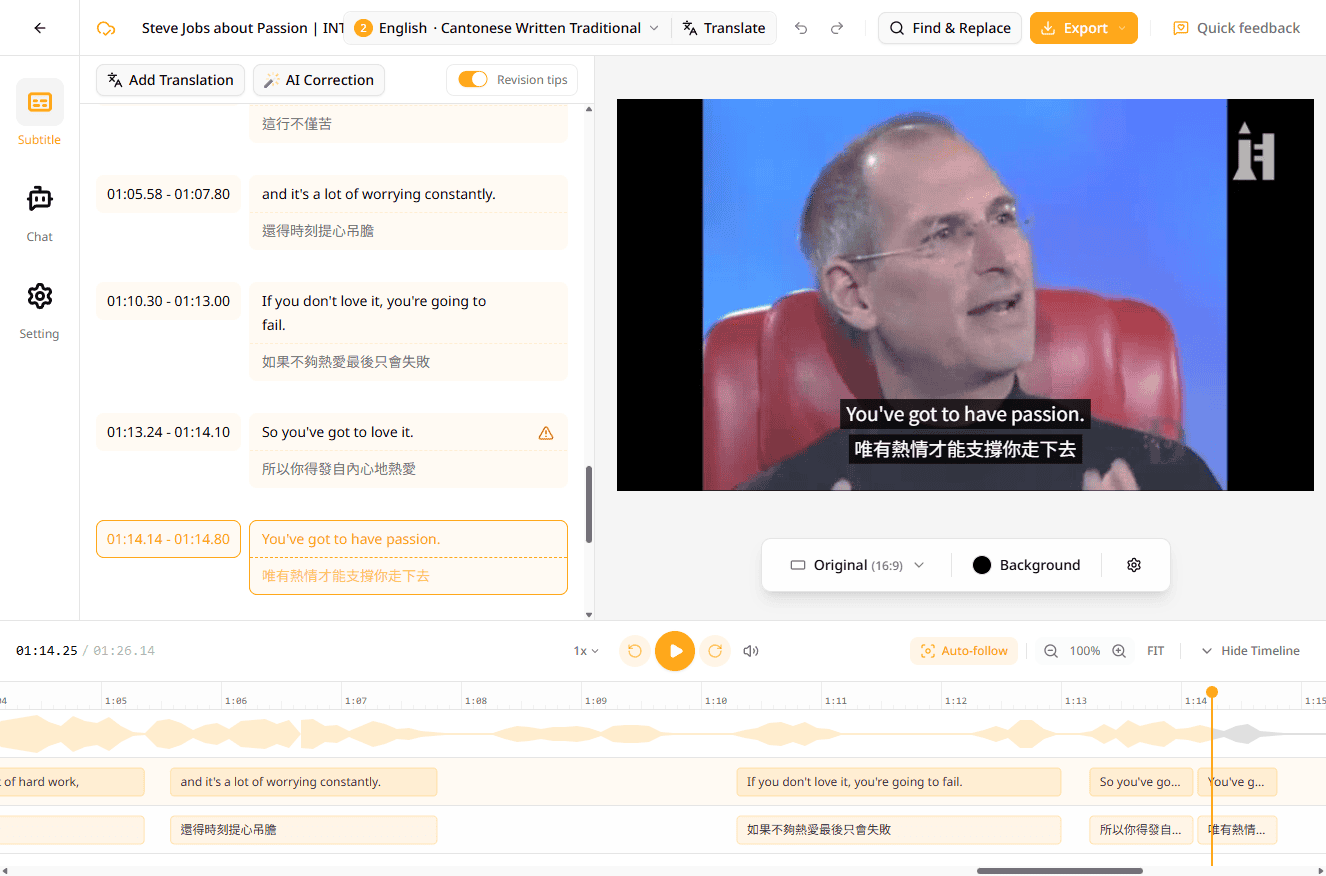
Edit the transcript. Fix anything the AI got wrong right in the browser editor. Each line is time-stamped and editable like a text document.
-
Export it. Download the finished transcript as SRT, VTT, TXT, DOCX, XLSX, or Markdown.
No Microsoft 365 subscription, no browser restriction to navigate, and 95+ supported languages. Try Subanana for free.
Microsoft Word Transcription: Frequently Asked Questions
Why can't I find the Transcribe option in Microsoft Word? Transcribe ships with Microsoft 365, in Word for Windows (Commercial Tenants) or Word for the web via Edge or Chrome. Government Tenants can only use the Word for the web version; everyone else can use either.
Is Microsoft Word's transcription feature free? It comes with an active Microsoft 365 subscription. Uploaded-audio transcription is capped at 300 minutes a month per user; users with a Microsoft Copilot license get a 30,000-minute monthly allowance.
What languages does Word's Transcribe feature support? More than its "US English only" reputation suggests. Microsoft's documentation lists Transcribe support across 80+ locales, including multiple variants of English, Spanish, Arabic, and Chinese, among others. Set your Word editing language to match what you're recording in before you start.
Can I use Word's Transcribe feature for audio notes or voice memos? Yes. Transcribe doesn't distinguish between a meeting recording and a short voice memo — both go through the same pipeline, subject to the same Microsoft 365 subscription and platform requirements. The 300-minute monthly cap and the .wav/.mp3/.m4a/.mp4 format list apply specifically to uploaded files; live recording has no stated time limit.
What's the best alternative to Word for transcription? If the Microsoft 365 requirement, the 300-minute cap, or the browser restriction don't fit how you work, Subanana is a browser-based alternative: no Microsoft 365 requirement, 95+ supported languages, and export to SRT, VTT, TXT, DOCX, XLSX, or Markdown.
How accurate is Microsoft Word's transcription? It depends on audio quality, speaker clarity, and language. Word's Transcribe is built to produce a workable first draft, not a publish-ready final transcript. Expect to spend some editing time, especially with background noise, multiple speakers, or less common language variants.
Microsoft Word's Transcribe feature turns speech into editable text without leaving the app, as long as you're on Microsoft 365, on a supported platform, and inside its format and time limits. When those limits get in the way, Subanana handles the same job as a standalone tool.