
WhatsApp transcribes voice messages itself. Turn it on under Settings → Chats → Voice message transcripts, then long-press any voice message and tap Transcribe. The transcript appears inside the chat, in a limited set of languages, and it cannot be translated, exported as a file, or split by speaker. When you need the text as a deliverable rather than a quick read, save the audio out of WhatsApp and run it through a transcription tool.
This post covers what the built-in feature does, exactly where it stops, and how to turn a voice message into a transcript you can edit, translate, label by speaker, and export.
Quick answer: WhatsApp's own transcript stays inside the chat bubble, with no export, no translation, and no speaker labels. To get a version you can actually use elsewhere: save the voice note as an audio file, upload it to a transcription tool, set the spoken language, review the result, then export. That's the whole workflow, and it takes about as long as reading this paragraph twice.
Can WhatsApp transcribe voice messages by itself?
Yes. WhatsApp's own transcription runs locally on your phone — its launch announcement states that transcripts are "generated on your device so that no one else, not even WhatsApp, can hear or read your personal messages". You enable it under Settings → Chats → Voice message transcripts, pick a transcript language, then long-press a voice message and tap Transcribe. The text renders inside the chat bubble and stays there.
Where it stops:
- Limited languages. WhatsApp's own announcement (November 2024) said transcripts were rolling out "with a few select languages to start though we plan to add more over the coming months". If your language isn't covered, or your transcript-language setting doesn't match the audio, you get "Transcript unavailable." Check the current list in WhatsApp's Help Center before you rely on it.
- On-device only. Good for privacy, but it also means quality is bounded by your phone, and there's no way to route a tricky recording to a stronger model.
- No export or copy-out as a file. The text lives inside the chat bubble. There's no "save as TXT/DOCX," no clean file to drop into meeting notes or a research folder.
- No translation. A voice note in a language you don't speak gets transcribed in that language — WhatsApp won't translate it for you.
- No speaker labels, one message at a time. For a back-and-forth or a long forwarded note, you're transcribing bubbles individually with no "who said what."
For a quick "what did they say" while your hands are full, the built-in feature is perfect. The moment you need the text as a deliverable, you've outgrown it.
When is WhatsApp's built-in transcript not enough?
When you need the text to leave the chat. WhatsApp's transcript is a read-in-place convenience, so any job that ends in a file, a translation, or a named speaker falls outside it. The common cases:
- A foreign-language voice note you need to actually understand — you want the translation, not just the original words.
- Interviews, briefs, or client instructions sent as voice notes that need to become written notes you can act on and archive.
- Long voice messages (the five-minute monologue) you want to skim and pull quotes from.
- Group voice notes where several people talk and you need speaker labels.
- Anything you'll paste elsewhere — a doc, a ticket, an email — where you need a real file, not a screenshot of a chat bubble.
For those, the workflow is: get the audio out of WhatsApp, then run it through a transcription tool.
How do you transcribe a WhatsApp voice message as a file?
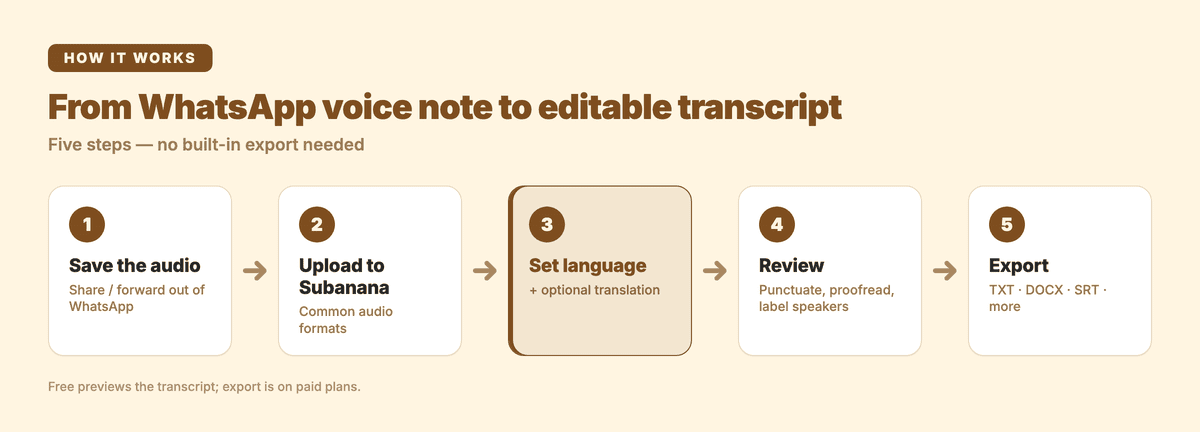
Save the voice note as an audio file, upload it to a transcription tool, set the spoken language, review the result, then export. WhatsApp voice notes are ordinary audio files once they leave the chat, so no conversion step is needed. The five steps below take a couple of minutes for a typical note.
1. Save the voice message as an audio file
- iPhone: tap the voice message, use Share, and save it to Files (or forward it to yourself / your email).
- Android: forward the message to yourself, or find the file directly — received voice notes live in your WhatsApp → Media → Voice Notes folder in internal storage.
- Whole conversation: Export chat → Attach media bundles the voice notes as audio files you can pull off your phone.
Menu labels shift between app versions, but every route ends the same way: an audio file on your device.
2. Upload it to a transcription tool
Open Subanana's transcription tool and upload the file — it takes common audio and video formats, so you don't need to convert the voice note first. Choose Transcript mode for a clean, readable write-up.
3. Set the source language (and a translation target, if you need one)
Pick the language spoken in the note. If it's a language you don't read, add a translation target and Subanana returns the transcript in your language alongside the original. Under the hood it continuously benchmarks speech-to-text models and routes each job to the best performer for that source language, so you're not stuck with whatever a single vendor does on, say, accented or code-switched audio.
4. Review in the editor
The transcript comes back punctuated and paragraphed, with filler words tidied out — much closer to something you'd paste into notes than a raw wall of speech. A few things to lean on:
- Speaker labels for group voice notes — turn on speaker identification so the back-and-forth reads as a dialogue.
- LLM-assisted proofreading flags likely misheard or same-sounding words and proposes a fix you approve or reject — nothing is changed silently.
- A glossary lets you pin names, brands, or jargon up front so they're spelled right instead of guessed.
5. Export or copy the text
Once it looks right, export TXT, DOCX, SRT, VTT, XLSX, or Markdown, or copy it straight into whatever you're writing. The free tier lets you preview the transcript on screen so you can check accuracy first; copying it out or exporting a file is on the paid plans, which start at US$9/month billed annually — see pricing.
Tips for a clean transcript
- Cleaner audio in, cleaner text out. A voice note recorded in a quiet room transcribes far better than one from a windy street. You can't re-record someone else's message, but for your own, find a quiet corner.
- Pin the hard words. If a note is full of product names, people, or acronyms, add them to the glossary before you transcribe — that's where automatic transcription usually slips.
- Translate once, not line by line. For a foreign-language note, set the translation target and get the whole thing in your language in one pass, rather than copy-pasting sentences into a separate translator.
FAQ
Can I translate a WhatsApp voice note? Not with the built-in transcript. Save the audio file, upload it to a transcription tool, set your language as the translation target, and you'll get the transcript in your language alongside the original.
How do I save a WhatsApp voice message as a file? On iPhone, tap the message → Share → save to Files. On Android, forward it to yourself or open it from the WhatsApp Voice Notes media folder. Exporting the chat with media attached also gives you the audio files.
Can you transcribe a forwarded voice message? Yes. A forwarded voice note behaves like any other voice message, so WhatsApp's built-in transcript works on it, and it can be saved out as an audio file the same way. Forwarding a note to yourself is in fact the simplest way to get the file onto a device you can upload from.
Does it work for a group voice note with several speakers? The built-in feature doesn't separate speakers. A dedicated transcription tool with speaker identification labels who said what, which makes multi-person notes readable.
Do I need to convert the file before uploading it? No. Once a voice note is saved out of WhatsApp it's an ordinary audio file, and Subanana's tool takes common audio and video formats directly — there's no separate conversion step.
What file formats can I export the transcript in? TXT, DOCX, SRT, VTT, XLSX, or Markdown — pick whichever fits where the text is going next, whether that's notes, subtitles, or a spreadsheet.
Is transcribing a voice message private? WhatsApp's on-device transcripts stay on your phone. With any separate tool you upload to, check its data-handling policy first — especially for anything sensitive.
Related reading
- How to transcribe a voice memo
- How to transcribe an interview
- Transcribe podcasts and interviews accurately
WhatsApp's built-in transcripts finally make voice notes readable at a glance. But when you need the text as something you can edit, translate, or file away, save the audio and run it through Subanana — you'll get a punctuated, speaker-labelled transcript you can export in a couple of minutes.