
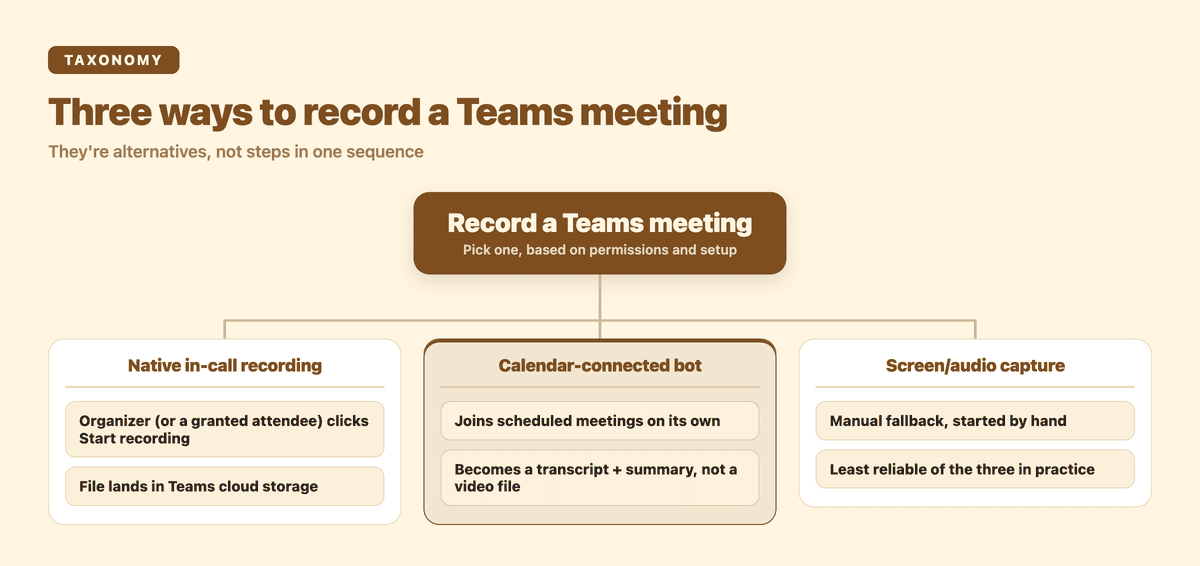
Here's how to record a Microsoft Teams meeting: use Teams' built-in in-call recording if you have permission, connect a calendar bot so it joins and records scheduled meetings automatically, or fall back to a screen recorder that captures system audio when neither of those is available to you.
- Native in-call recording: built into Teams, works if you or the organizer has recording permission.
- Calendar-connected bot: joins scheduled meetings on its own, no one has to click "Start recording."
- Screen or system-audio capture: a manual fallback, least reliable of the three.
This guide walks through all three, plus the two things people usually get stuck on afterward: who's actually allowed to record, and what to do with the recording once you have it.
Native Teams in-call recording
This is the built-in option and the one most people try first. During a live meeting, the organizer, or anyone the organizer has given recording permission to, opens the "More actions" menu (the "..." icon) in the meeting controls and selects "Start recording." Teams immediately shows a visible notification to every participant that the meeting is being recorded. There's no way to start a recording that people in the call don't see.
Recording availability isn't guaranteed to be there for you, though. Whether you, or anyone else in a given meeting, can even see the "Start recording" option depends on your organization's Teams meeting policy, which an IT admin controls at the tenant level. Some organizations enable recording for everyone, some restrict it to specific roles, and some disable it outright for compliance reasons. If you don't see the option, that's usually a policy setting, not something wrong with your account.
The calendar-connected bot method
Connect your calendar to a meeting bot and it can detect meetings scheduled on Teams, then join them automatically at the start time. Nobody has to remember to open a menu or click "Start recording" in the moment.
The other difference is what you get afterward. Native recording gives you a video file sitting in Teams. A calendar-connected bot is usually built to go straight into a transcript and summary once the meeting ends, instead of leaving you with raw video you still have to do something with. That matters most for recurring meetings: standups, client calls, weekly syncs, the kind of meeting where manually starting a recording every single time is exactly the small friction that causes people to just stop bothering.
Screen or system-audio capture as a fallback
If you don't have recording permission and your organization hasn't set up a calendar bot, there's a manual fallback: a screen recorder that also captures system audio. You start it yourself, right before the meeting, and stop it when the meeting ends.
This works, but it's the least reliable of the three options in practice. There's no built-in participant notification the way Teams gives you with native recording, so you're responsible for telling people yourself. You're also on the hook for making sure audio actually gets captured (not just the video), that your machine doesn't sleep or update mid-call, and that the file doesn't quietly die if your laptop runs out of storage. Treat this as a last resort, not a habit. If recording matters to you regularly, it's worth getting either recording permission or a calendar bot set up instead.
Where the recording ends up, and what to do with it
When you use Teams' native recording, the finished file lands in Teams' cloud recording storage, and participants typically get a link to it after the meeting. If your organization doesn't allow that, whoever recorded it may need to check the meeting policy or with an admin to see where it's routed.
Finding the file is the easy part. A raw recording is a video you have to scrub through to find the one thing you needed: what was agreed fifteen minutes in, or who owns the follow-up. Having the video and having a usable record of the meeting are two different things. The transcript, with the discussion points, decisions, and action items pulled out separately, is what people actually reopen later; the recording itself rarely gets a second watch.
Doing it with Subanana
Subanana's AI meeting transcription connects to your calendar and detects meetings scheduled on Microsoft Teams (and Google Meet, through a separate bot for that platform). When a meeting starts, the bot joins as a visible participant, the same way any other recording bot or attendee would. There's no covert or hidden recording; it shows up in the call like anyone else. It records the meeting, and only after the meeting ends does it create a project and run the transcription and summary.
That's post-production, not live: no real-time captioning during the call, no on-screen transcript for the audience while the meeting is happening. The useful output shows up once the meeting is over.
What you get from that is Meeting Summary mode: an auto-punctuated, paragraphed transcript with speakers labeled separately, so you can tell who said what, plus a summary that splits the meeting into key discussion points, decisions, and action items. If someone said "Sarah, can you have the deck ready by Friday" during the call, that shows up as action-item text in the summary. It's plain text you read, not a task pushed into a tracker or synced anywhere automatically.
Two features are worth knowing about if you have recurring meetings with the same people or the same project names. A workspace-level glossary lets you pin names that come up often (client names, internal project codenames, acronyms your team uses) so they get transcribed consistently instead of coming out garbled meeting to meeting. And once a transcript exists, you can ask the AI questions directly inside the editor, things like "what did we decide about the pricing page" or "who owns the follow-up with the vendor," and get an answer grounded in that specific meeting instead of re-reading the whole thing.
If you're setting this up for the first time, connect your calendar from your Subanana workspace and it will start detecting your scheduled Teams meetings from there. If you already have a recording sitting in Teams and just need the transcript and summary side of this without the auto-join piece, our guide to Teams meeting transcription covers that path specifically. If your meetings run on Google Meet instead, the Google Meet equivalent of this guide walks through the same three options for that platform.
FAQ
Why can't I record my Teams meeting?
Most often it's a permissions issue, not a bug. Recording availability in Teams is controlled by your organization's Teams meeting policy, which an admin sets at the tenant level. If recording is disabled for your role or your whole organization, the "Start recording" option won't appear for you, even though it works fine for someone at a different company.
Can I record a team meeting if I am not the host?
Sometimes. By default, the organizer and co-organizers can record, but organizers can usually grant recording permission to specific attendees or presenters too. Whether that's possible for a given meeting depends on how the organizer set roles and how the organization's policy is configured. There's no universal answer, so if you need to record and aren't the organizer, ask them to enable it for you.
Can you record a meeting by yourself in Teams?
Yes, if you're in the meeting and have recording permission, you don't need anyone else's participation to start it. The recording still applies to the whole meeting, and everyone in it still sees the notification that recording has started. It isn't a way to record just your own side of the call quietly.
Can I record a Teams meeting without people knowing?
No. This isn't something Teams supports, and it isn't something worth trying to work around even if it were technically possible. Teams shows a visible recording indicator to every participant when native recording starts, and a calendar-connected recording bot joins the call as a visible participant everyone can see, the same as any other bot or attendee. Whether recording a call requires consent, and what kind, depends on where you and the other participants are located, since local and regional laws on this vary. Check your organization's policy and applicable law rather than treating this as a purely technical question.
Recording a Teams meeting is the easy part. Connect your calendar to Subanana's AI meeting transcription and let it handle the recording, transcript, and summary automatically from your next scheduled Teams meeting on.