
If you edit short-form videos for TikTok, Instagram Reels, or YouTube Shorts on your phone, you have almost certainly used InShot. It is quick, intuitive, and handles standard vertical cuts without forcing you to sit at a desktop. But as soon as you need clean, synced subtitles, the process gets tricky. InShot's built-in auto-captions handle clear, standard English reasonably well, but accuracy drops quickly when your audio contains background noise, regional accents, brand names, or code-switching (like alternating between English and Spanish, Japanese, or Cantonese).
Disclosure: We build Subanana, an AI speech-to-text and subtitle platform. This guide is based on InShot’s current public features and our own workflow testing as of October 2026. We aim to be completely transparent about what InShot can do on its own—and where an external AI engine saves you hours.
What Is InShot?
InShot is a mobile video and photo editor available on iOS and Android. It packs essential editing tools into a streamlined mobile interface: trimming, splitting, canvas resizing (9:16, 1:1, 16:9), color filters, transitions, background music, and text overlays.
The app operates on a freemium model: InShot's own App Store listing describes "Generate subtitles and captions with AI speech-to-text tool" and bilingual-subtitle support as part of the app, while InShot Pro (subscription or one-time purchase) is pitched around removing watermarks and unlocking premium transitions, effects, and extra content.
How to Add Subtitles Directly in InShot
InShot offers two native routes for adding subtitles: manual entry or its built-in auto-captions tool. Here is how both workflows work inside the app:
Method A: Manual Text Entry
- Import your clip: Open InShot, tap Video > New, and select your footage.
- Open the Text tool: Tap the Text icon on the bottom toolbar.
- Type your caption: Type out the first line of dialogue.
- Style your text: Use the color palette and font menu to choose text color, borders, shadows, and background labels. Pick a legible font that contrasts well against your footage.
- Adjust timing: On the timeline, drag the start and end handles of the text block so it matches the speaker's audio.
- Repeat for every line: Tap Duplicate or add a new text box for each subsequent sentence, retyping the dialogue and adjusting timestamps manually.
Verdict: Completely free, but labor-intensive for any video longer than 15 seconds.
Method B: Using InShot’s Built-in Auto-Captions
- Import your video into a new project.
- Select Captions: On the main editing bar, look for the Captions / Auto Captions tool.
- Select your audio source and language: Choose whether to transcribe the original video audio or a voiceover, then select your primary language.
- Generate and review: InShot processes the audio and generates caption blocks on your timeline.
- Manually correct errors: Tap through the generated text blocks to fix misheard words, timing drift, or punctuation mistakes.
- Export: Tap the export icon in the top right to render your final video.
The limitation: InShot’s speech recognition relies on single-language models geared toward mainstream, clean audio. If your creator content features multi-speaker chatter, outdoor wind noise, slang, or mixed languages, you will find yourself manually rewriting a significant portion of the generated text.
The Catch: Getting an Outside Subtitle File Onto Your InShot Timeline
A common question creators ask is: "Can I just import an external subtitle file (.srt) into InShot?"
Inside the app, captions only ever come from two places: the text boxes you type yourself, or the built-in auto-caption tool. There's no menu item for loading an outside .srt or .vtt file straight onto the timeline — if you're holding a transcript from another platform, you'll be retyping or re-pasting it into InShot's own text layer by hand. If you need the superior transcription accuracy of a dedicated speech-to-text platform, you have two practical workflows to get that transcript onto your clip faster.
How to Get Accurate Subtitles Using Subanana
When your audio is noisy, fast-paced, or non-standard, using an external AI engine like Subanana gets the transcription right on the first pass. Subanana evaluates multiple speech-recognition models and routes audio to the best performer across 95+ languages, and handles heavy accents and brand terminology well. If your clip switches between languages mid-recording (English/Japanese, Cantonese-English, and so on), paid plans offer Multiple-languages mode, which lets you pick up to 10 languages for a single file instead of forcing one language across the whole clip — it won't promise word-perfect accuracy on every switch, but it's built for exactly this case, which InShot's single-language auto-captions are not.
Here are the two honest ways to integrate Subanana with your mobile editing workflow:
Option 1: Use Subanana's SRT as a Fast Reference Guide
If you still want your subtitles to remain native, editable InShot text elements (so you can animate them using InShot's specific text presets):
- Generate the transcript in Subanana: Upload your video or audio file to Subanana on desktop or mobile browser. Select your spoken language and run transcription.
- Review & export: Proofread in Subanana’s web editor (or translate to a secondary language if needed). On a paid plan, export your
.srtor.txt. - Populate InShot: Open the
.srton your phone or split-screen. Because Subanana gives you exact start and end timestamps alongside flawless spelling, you can paste the text into InShot’s timeline blocks without having to scrub, pause, and guess the audio yourself.
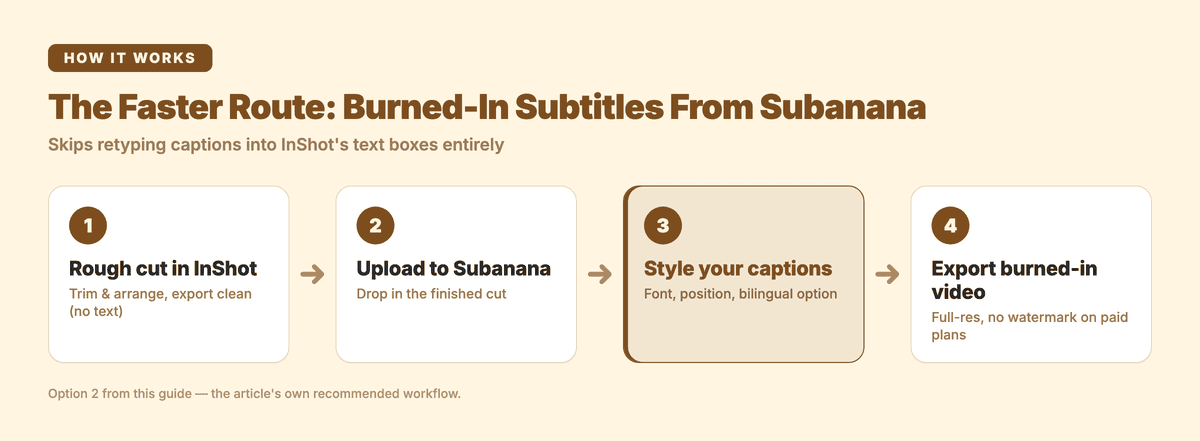
Option 2: The Faster Route — Export Burned-In Subtitles Directly
Rather than manually re-typing text into InShot, the most efficient workflow is to reverse the sequence:
- Rough cut in InShot: Trim your video, arrange your clips, and export the clean edit (without text) from InShot.
- Upload to Subanana: Drop your finished cut into Subanana.
- Style your captions: Choose your subtitle styling, font, and positioning directly inside Subanana’s editor. You can also generate bilingual stacked subtitles (e.g., English on top, Spanish or Japanese below) with one click.
- Export burned-in video: Render the video straight out of Subanana with the hardcoded subtitles baked in. Subanana supports full-resolution exports (up to 4K on paid plans) without watermarks.
This skips the manual-retyping step entirely and cuts your subtitling time down to a couple of minutes.
Comparison: InShot Native Captions vs. Subanana
| Feature | InShot Built-in | Subanana |
|---|---|---|
| Primary Use Case | All-in-one mobile video editing | Dedicated speech-to-text & subtitle engine |
| SRT / Subtitle File Export | Not built in (captions stay inside the project) | Yes (paid plans export SRT, VTT, TXT, DOCX, XLSX, Markdown, FCPXML) |
| SRT File Import | Not built in (captions come from typing or the auto-caption tool) | N/A (generates subtitles directly) |
| Accents & Noisy Audio | Moderate accuracy; requires frequent manual edits | High accuracy; routes across specialized AI models |
| Mixed-Language Audio | One language per pass; forces mid-recording language switches into one language | Paid plans offer Multiple-languages mode (up to 10 languages per file) |
| Bilingual Subtitles | Yes (bilingual auto-captions, per InShot's App Store listing) | Yes (one-click source + target translation layout) |
| Hardcoded (Burned-in) Video | Yes (rendered through app export) | Yes (single-language or dual-language video export) |
Frequently Asked Questions
Can I import an SRT file directly into InShot?
Not directly. The only two ways captions land on an InShot timeline are typing into manual text boxes or running the built-in auto-caption tool — there's no menu item for loading in an outside subtitle file. To use an external transcript in InShot, reference its timestamps and paste the lines into manual text boxes, or hardcode the subtitles onto your video using a tool like Subanana before bringing the clip into InShot.
Can InShot auto-generate subtitles for mixed-language or accented videos?
InShot’s built-in auto-caption tool requires you to pick one primary language per pass, so audio that bounces between languages mid-recording gets forced into whichever single language you selected. It also struggles with heavy background ambiance and technical or niche vocabulary. For multilingual content, Subanana's paid Multiple-languages mode (up to 10 languages in one file) is built for exactly this case, and will save substantial proofreading time either way.
Is InShot’s free version enough to add subtitles?
Yes, for manual typing — InShot lets you create unlimited manual text boxes without a subscription. Whether the automated auto-caption tool needs InShot Pro can vary by platform and app version, so check the in-app paywall for your install before counting on it.
Streamline Your Mobile Video Workflow
If you only produce 10-second videos with clear, studio-recorded English voiceovers, InShot’s native tools are often all you need. But if you deal with background noise, varied accents, multilingual dialogue, or simply want to avoid typing out mobile captions word by word, you don't have to settle for manual workarounds.
Try uploading your raw cut to Subanana, or use the Add Subtitles To Video tool directly in your browser. You can test your transcription on the free trial without a credit card, preview the accuracy on your first 15 minutes of footage, and see how fast subtitle generation should be.
If you edit on desktop too, these guides cover the same accurate-subtitle workflow for other editors:
How to add subtitles in DaVinci Resolve