
Zoom saves your in-meeting chat two ways. Click the chat panel's menu and hit Save Chat during or right after the meeting, and Zoom drops a .txt file into your Documents/Zoom folder, sorted by meeting name and date. Or turn on auto-save once, and it happens without you remembering. Either way, you get the typed messages, not anything anyone said out loud.
That distinction matters more than it sounds. If your meeting notes live in the chat window, you're one settings toggle away from losing them. And if the decision that mattered was spoken, not typed, no chat export was ever going to have it.
Save the chat manually, right after the meeting
Open the in-meeting chat panel, click the three-dot menu at the top, and choose Save Chat. Zoom writes a local .txt file to Documents/Zoom/[meeting name, date, time]/ by default; you can change that destination under Settings → Recording.
Two catches, both documented in Zoom's own support article on saving chat:
- Your manual save only captures what you personally saw: messages sent to everyone, plus any direct messages sent to or from you. It's not a full transcript of every private exchange in the meeting.
- The host can switch this off entirely. If "Allow users to save chats from the meeting" is unchecked, nobody, including the host, can save the chat at all. If you can't find a Save Chat option, that's usually why.
Turn on auto-save so you don't have to remember
Auto-save writes the chat file automatically once the meeting ends, no manual click required. It's a host-only setting, toggled at one of three levels: account (admin, applies to everyone), group (admin, applies to a team), or individual (in your own web-portal settings, under the Meeting tab's "In Meeting (Basic)" section: look for Meeting chat - Auto-save).
One limitation worth knowing before you rely on it: per Zoom's auto-save documentation, chat won't auto-save if the meeting was started from the Zoom mobile app; desktop or web client only auto-saves.
Why your chat log might come up short
Put the two mechanisms together and two failure modes show up constantly:
- You weren't the host, and chat-saving is locked. No amount of clicking Save Chat gets around an admin-level restriction.
- You joined from mobile. Auto-save silently doesn't run.
None of these are edge cases. They're the default behavior of a feature that was built for casual note-keeping, not for producing a reliable meeting record.
What the chat transcript won't have: what people actually said
Even a perfectly saved chat file only contains the conversation that happened in text. It has no record of the actual discussion: the reasoning behind a decision, the objection someone raised out loud, the "let's revisit this next week" that never got typed anywhere.
Zoom does have a separate feature for that: automatic audio transcription of cloud recordings. It's real, but it comes with more prerequisites than most people expect. Per Zoom's documentation, you need a Pro, Business, Education, or Enterprise account, cloud recording turned on (not local recording), and audio transcription turned on (you can enable it in your own settings unless an admin has locked it). Even then, output is a .vtt file with timestamps and speaker labels, and it doesn't land until the cloud recording finishes processing.
If you're a participant rather than the account owner, or your org is on a lower tier, or the meeting was recorded locally, that native transcript path is closed to you, regardless of how badly you need the record.
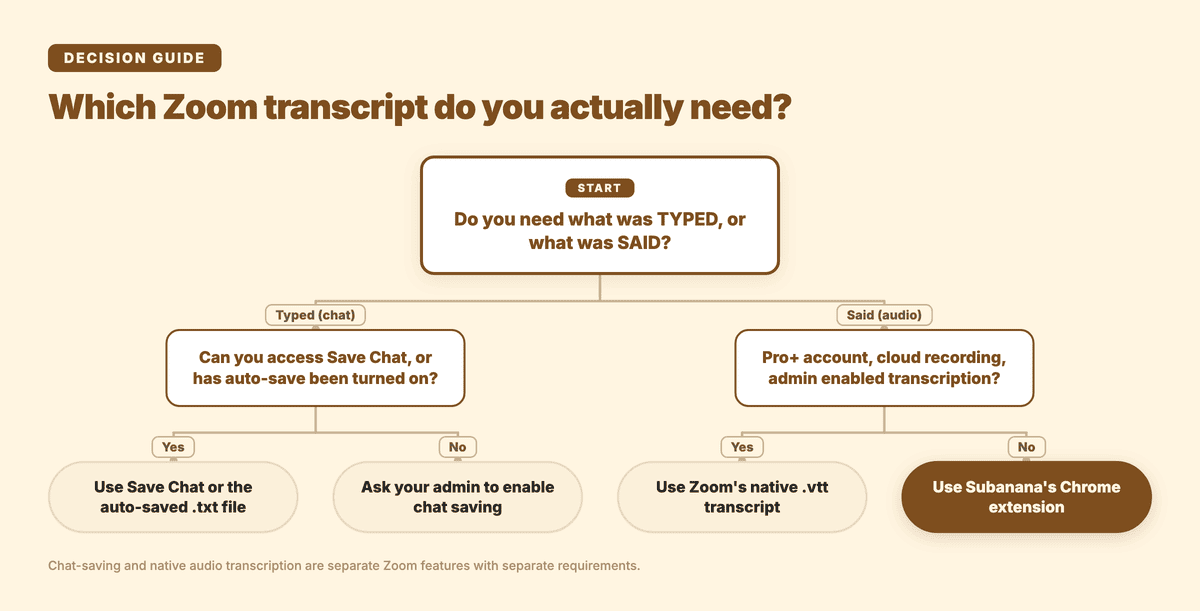
Get a transcript of what was said, not just typed
This is where Subanana's Chrome extension covers the gap. Rather than a bot joining the call, the extension detects the meeting from your browser and records it directly. Once the recording exists, Subanana transcribes it and generates a summary that pulls out the key discussion points, decisions, and action items, the same summary layer it runs on other uploaded or recorded audio.
Once the transcript exists, paid Subanana plans can export it as SRT, VTT, TXT, DOCX, or XLSX (the free plan can't export subtitles or transcripts — only the AI summary as Word or Markdown, plus a watermarked video). Subanana's AI meeting transcription tool supports all of those paid-plan formats alongside a Markdown export, so the record fits whatever your team already uses, whether that's a shared doc or a subtitle file. And because the transcript lives inside an editor with a built-in AI chat, you can ask it directly: "what did we agree on the launch date," "who owns the follow-up," instead of Ctrl-F-ing through a saved chat log that never had the answer to begin with.
That combination is really the point: the chat file tells you what was typed, and this gives you what was said. Keep both, and you've actually got the meeting record, not half of it.
We wrote a longer walkthrough of the recording-to-transcript pipeline if you want the full mechanics: how to transcribe a Zoom meeting into a clean transcript and AI summary. For Microsoft Teams meetings, a Subanana bot joins from your calendar and processes the recording after the call ends.
FAQ
How do I get a transcript of a Zoom chat?
Open the in-meeting chat panel, click the three-dot menu, and select Save Chat, or turn on auto-save in your settings so it happens for every meeting automatically. Either method only saves typed messages, not spoken audio.
Can I get a transcript of a Zoom meeting without recording?
Not with cloud transcription, which needs a cloud recording with audio transcription turned on. Zoom also has an in-meeting transcript (More, then Transcript) that you can save as a .txt file without recording, but only while it is running during the call. If neither was on, there's no way to reconstruct what was said after the fact.
Can everyone see the transcript in Zoom?
Chat saves are personal: you only get what you saw in the chat window, not a merged record of every private thread in the meeting. Cloud-recording transcripts are visible to whoever has access to the recording, which is typically the host and anyone they share it with.
How do I turn on transcription in Zoom?
For chat, it's the auto-save toggle in Meeting settings (account, group, or individual level). For spoken-audio transcription, turn on audio transcript under cloud recording settings (your own settings work unless an admin has locked it), and the account has to be on Pro tier or above. It's not available on Zoom's free plan.
Have a Zoom recording sitting around with no transcript? Try Subanana's AI meeting transcription: upload the file, or capture the next call with the Chrome extension, and get a transcript, summary, and action items.