
If you're choosing between Zoom Meeting and Zoom Webinar for an upcoming session, most comparisons you'll find focus on audience size and branding. What decides the transcript you're left with afterward is how many people are going to have their mic live during this call.
Zoom's recording and transcript plumbing is nearly identical between the two formats: cloud recording, the auto-generated VTT captions file, the separate audio transcript. What's different is the interaction model, meaning who can talk. A meeting can have up to 100 participants (on a Pro plan), all able to turn on their mic and camera. A webinar can have up to 1,000 panelists and up to 1 million view-only attendees, but attendees are muted by default and can only speak if a host promotes them. That one design choice decides how many voices land in your recording, and how much cleanup a transcript tool has to do afterward.
What actually differs between a Zoom Meeting and a Zoom Webinar
Zoom's own comparison, Meeting and webinar comparison, lays out the structural differences. A few of them matter directly for transcript quality, and a few don't.
Participant model. A meeting is built for a group that's all participating: everyone can be seen and heard, screens can be shared by anyone with permission, and the whole thing behaves like a room. A webinar is built for broadcast. A small number of hosts and panelists run the show, and attendees watch, listen, and interact through chat, Q&A, and polls rather than open mics.
Capacity. A Zoom Meeting on a Pro plan tops out around 100 participants (Business and higher plans raise that ceiling). A Zoom Webinar supports up to 1,000 panelists and, on the larger add-on tiers, up to 1 million view-only attendees. If you need 300 people in the room actively unmuting, you need a meeting with a capacity add-on, not a webinar.
Licensing. Zoom Webinar is a paid add-on on top of a Zoom Workplace plan. It doesn't come included the way basic meetings do, which is worth knowing before you assume webinar is the "free upgrade" option.
What the attendee sees. In a meeting, everyone typically sees everyone else's video tile. In a webinar, attendees see the host/panelist view only, plus chat and Q&A. They don't see each other, and by default they can't be seen or heard either.
None of that is new information if you've used Zoom before. What's less obvious is what it means for the recording you get out the other side.
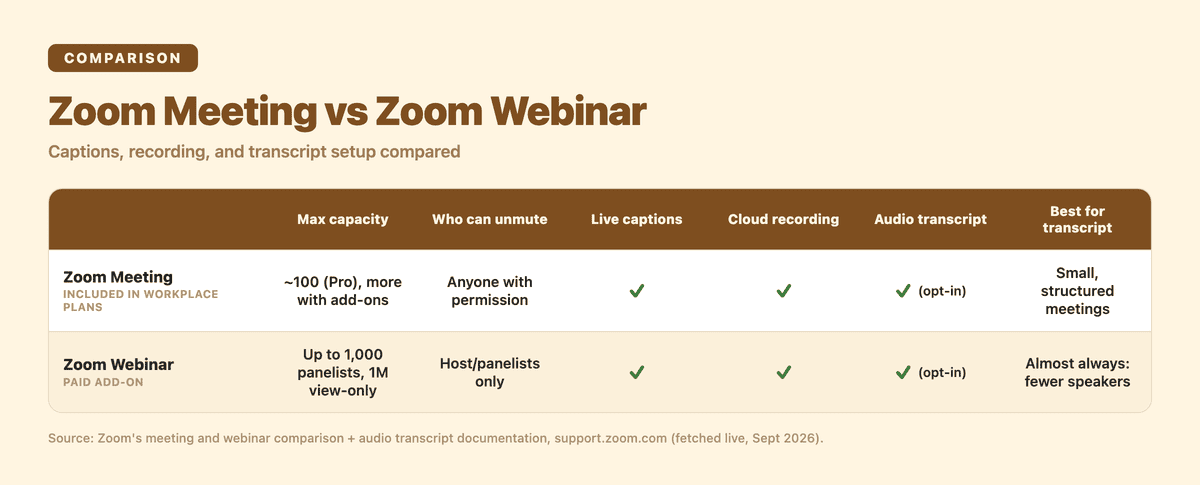
Zoom Meeting vs Zoom Webinar
| Zoom Meeting | Zoom Webinar | |
|---|---|---|
| Max capacity | ~100 (Pro), higher with add-ons | Up to 1,000 panelists, up to 1M view-only attendees |
| Who can unmute | Anyone with host permission (often everyone) | Host/panelists only, unless an attendee is promoted |
| Included in plan | Yes, on paid Zoom Workplace plans | No, separate paid add-on |
| Live captions | Yes | Yes |
| Cloud recording | Yes | Yes |
| Audio transcript (VTT) | Yes, if enabled in cloud recording settings | Yes, same setting |
| Typical speaker count in recording | Can be high (crosstalk-prone) | Low and controlled (host/panelists) |
| Attendee interaction | Open audio/video | Chat, Q&A, polls; audio by promotion only |
| Best for transcript cleanliness | Small, structured meetings | Almost always: fewer, defined speakers |
Sources: Zoom's meeting and webinar comparison, its audio transcript documentation, and its webinars page (source for the 1,000-panelist figure), all fetched live for this post.
Why the interaction model is what actually decides your transcript quality
This is the part most "webinar vs meeting" comparisons skip, because it's not a Zoom feature. It's a consequence of how each format is used.
A transcript tool, Zoom's own or anything downstream of the recording, has to figure out who's speaking and when. That's diarization. It's a solved problem when there are 3-5 distinct voices taking turns. It gets progressively harder as the number of overlapping speakers grows: more voices to tell apart, more crosstalk, more chance the tool merges two people into one speaker label or splits one person into two.
A meeting with 40 participants who all have mic access doesn't necessarily have 40 people talking, but it can. People interrupt, multiple people unmute to react, someone forgets to mute themselves eating lunch. None of that is a Zoom problem. It's just what open-mic groups do, but it's exactly the audio that makes a transcript harder to clean up afterward.
A webinar, by design, keeps the speaking roster small: host plus however many panelists you invited, usually single digits. Attendees who want to ask something type it into Q&A instead of unmuting, unless you explicitly promote them. The result is a much more structured audio track: fewer speaker changes, less overlap, and a transcript that generally comes out closer to correct on the first pass.
So the practical rule: if the thing you actually want out of this event is a clean, easy-to-read transcript (a training session, a product demo, an all-hands recap), the webinar's forced structure does a chunk of your cleanup work before you even hit record. If what you're running is a working session where everyone genuinely needs to talk, a meeting is the right tool and you should expect to spend more time on transcript cleanup afterward, or use a transcription tool that handles multi-speaker separation directly.
What Zoom's own recording and transcript setup actually gives you
Once you've picked a format, the recording and transcript path is the same either way. Cloud recording captures the session, and if the host or admin has enabled Create audio transcript under Advanced cloud recording settings, Zoom generates a separate transcript file as a .vtt, timestamped and tied to the recording. It doesn't arrive with the recording itself; per Zoom's documentation, it shows up in a second email once processing finishes, which can take a while after the recording is ready.
Live captions during the call are a separate feature from the after-the-fact transcript, and both are available on meetings and webinars alike. This isn't a webinar-exclusive perk. What changes is only how clean the input audio is before any of this processing happens, for the diarization reasons above.
Two things to plan for regardless of format: the setting has to be turned on ahead of time (it's not retroactive), and you're waiting on Zoom's own processing queue rather than getting a transcript the moment the call ends.
Can you turn a meeting into a webinar, or a webinar into a meeting?
Yes, but not casually. Per Zoom's conversion documentation, converting requires the right license and host or co-host privileges, and it's done through the Zoom web portal, not mid-call. A few constraints worth knowing before you plan around this:
- Recurring meetings can't be converted; only single-occurrence ones can.
- Converting a webinar to a meeting drops webinar-specific features like Q&A and surveys; they don't carry over.
- It's a scheduling-time decision, not something to lean on as a live fallback if you picked wrong.
Practically: decide the format before you schedule, based on who needs mic access, not after.
Can you run a meeting and a webinar at the same time?
No. Per Zoom's concurrent meeting documentation, Zoom doesn't allow hosting one meeting and one webinar simultaneously on the same license. Basic and Pro plans get 1 concurrent meeting, Business and above get 2 concurrent meetings, but a webinar never runs alongside another session on the same host license. If you're running back-to-back sessions of different formats, they need to be sequential, not overlapping.
So which should you pick?
A rough rule that holds up in most cases:
- Pick Meeting when everyone in the call needs to talk: team syncs, interviews, working sessions, small trainings under 100 people where discussion is the point.
- Pick Webinar when a small number of people are presenting to a larger, mostly-listening audience: all-hands, product launches, customer training, anything over 100 attendees, or anything where you want the audio (and the eventual transcript) to stay clean by design.
- If you're not sure, default to Meeting for anything under ~30 people where the interaction is the point, and Webinar for anything you'd describe as "broadcasting to" rather than "meeting with."
Zoom's captions and cloud recording work well on both formats, so this isn't a quality question. It comes down to which shape of audio you want left over once the event wraps: a handful of clean voices, or a full room of them.
From Zoom's recording to a clean transcript or summary
Whichever format you run, you'll eventually have a Zoom cloud recording and want more out of it than Zoom's own VTT file: a readable summary, a transcript in a different format, or a cleaner speaker split than the raw recording gives you.
That's where Subanana's Zoom capture comes in. It works through a Chrome extension that captures Zoom sessions directly. It isn't a bot that joins your call as a separate participant, so there's nothing extra sitting in your attendee list. For recordings you've already got sitting in Zoom's cloud, you can also just upload the file directly, up to 30GB or 8 hours per file, on any plan, with no separate export step required first.
From there, Subanana runs the audio through whichever speech-to-text model is actually best for that source language. The team continuously benchmarks options and routes accordingly, so you're not locked into one vendor's accuracy on languages it happens to be weaker on. It then adds punctuation and paragraph breaks automatically and can generate a meeting summary on top. Export lands in whichever format you actually need: SRT, VTT, TXT, DOCX, XLSX, or MD.
If your event was a webinar with an active chat and Q&A running alongside the audio, it's worth pulling that log too. See how to get a usable Zoom chat transcript for the chat side specifically, since chat and Q&A don't show up in the audio transcript at all.
And if what you actually need next is the step-by-step for getting a Zoom recording turned into text, not the format decision but the transcription steps themselves, that's covered separately in how to transcribe a Zoom meeting and how to transcribe Zoom meetings, start to finish. This post is about picking the right format before you hit record; those are about what to do with the recording once you have it.
FAQ
Why use Zoom Webinar instead of Meeting? Mainly for scale and control: webinars support far more attendees (up to 1M view-only, vs. ~100 in a standard meeting), and because attendees are muted by default, the audio stays predictable. That's useful for broadcast-style sessions where a small number of hosts or panelists are presenting to a larger, mostly-listening group.
Can participants talk in a Zoom webinar? Not by default. Webinar attendees join listen-only and interact via chat, Q&A, and polls. A host or co-host can promote an individual attendee to panelist, or use "Allow to talk," to give them a live mic. It's an explicit action, not something attendees can do themselves.
Can you turn a Zoom webinar into a meeting? Yes, through the Zoom web portal, provided you have the right license and host or co-host privileges. It's not something you switch mid-call. Recurring sessions can't be converted, and converting a webinar to a meeting drops webinar-only features like Q&A and surveys.
Can I host a Zoom webinar and a meeting at the same time? No. Zoom doesn't allow one host license to run a meeting and a webinar concurrently. Basic and Pro plans allow 1 concurrent meeting, Business and above allow 2, but a webinar never overlaps with another session on the same license.
Format decision made, recording in hand: check pricing if you're ready to see what Subanana does with it.