
Best Podcast Transcript Generator: 6 Tools Compared
The best podcast transcript generator turns a finished episode into text people can read, search engines can index, and your team can repurpose into show notes, quotes, newsletters, captions, and social clips — six tools compared below on speaker labels, exports, and price, including Subanana, Otter.ai, Descript, Rev, Happy Scribe, and Riverside.
Transcripts help listeners who cannot listen live, while giving search engines text they can index for the topics, names, and questions discussed in an episode.
The best podcast transcript generator depends on your workflow. A recording studio may be the right choice if you want to record and edit in the same place. A human transcription service may be worth the cost when every name and sentence must be polished. An upload-first tool may be better when you already have finished audio and want a clean, reusable transcript.
Subanana appears in this comparison alongside five alternatives, and each section notes where a competitor is the better choice.
How this list was put together
This comparison is based on each tool’s published pricing and feature pages, fetched on August 28, 2026. Prices and limits can change, so check the linked page before subscribing. The practical test is still your own episode audio, especially if you have overlapping speakers, music, crosstalk, accents, or specialist vocabulary.
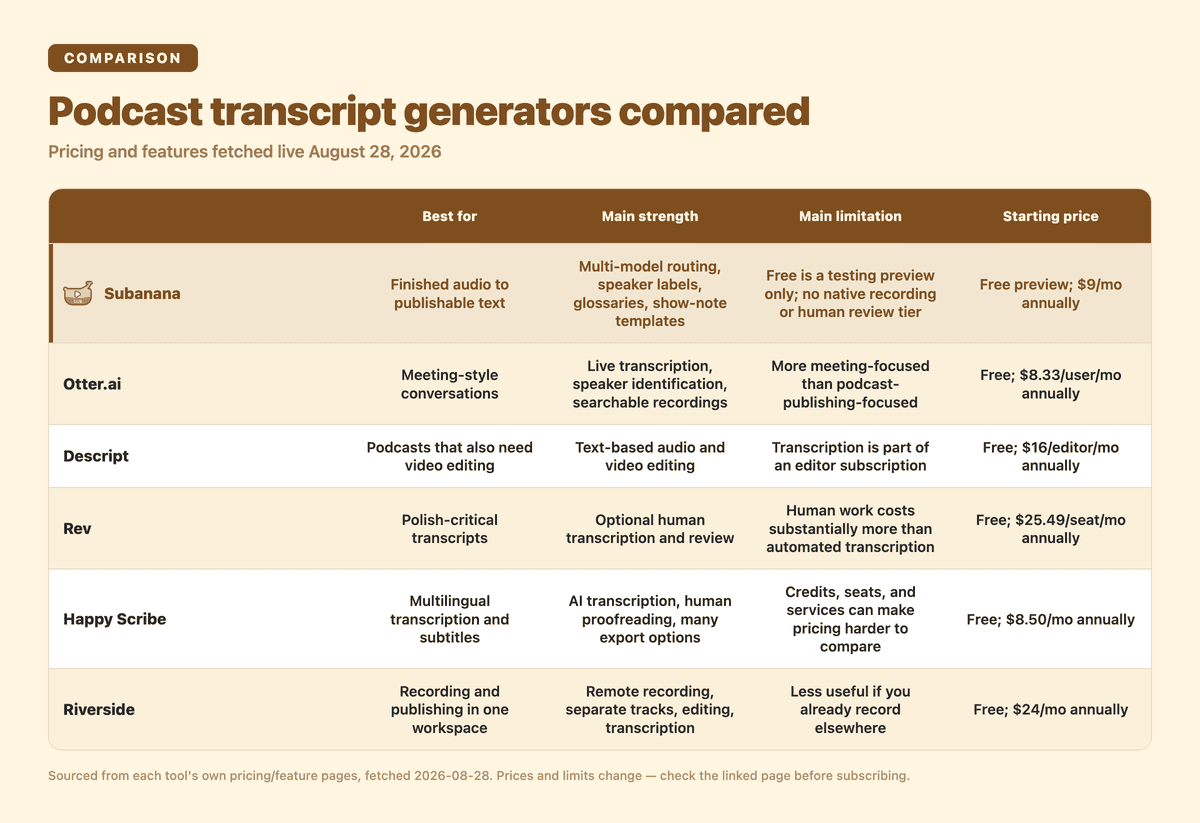
Quick comparison
| Tool | Best for | Main strength | Main limitation | Starting price |
|---|---|---|---|---|
| Subanana | Finished audio and publishable transcripts | Multi-model routing, speaker labels, glossaries, and show-note templates | Free is a testing preview only; no native podcast recording or human review tier | Free preview; paid plans from $9/month annually |
| Otter.ai | Meeting-style conversations | Live transcription, speaker identification, and searchable recordings | More meeting-focused than podcast-publishing-focused | Free; Pro from $8.33/user/month annually |
| Descript | Podcasts that also need video editing | Text-based audio and video editing | Transcription is part of an editor subscription | Free; Hobbyist from $16/editor/month annually |
| Rev | Polish-critical transcripts | Optional human transcription and review | Human work costs substantially more than automated transcription | Free; Essentials from $25.49/seat/month annually |
| Happy Scribe | Multilingual transcription and subtitles | AI transcription, human proofreading, and many export options | Credits, seats, and services can make pricing harder to compare | Free; Basic from $8.50/month annually |
| Riverside | Recording and publishing in one workspace | Remote recording, separate tracks, editing, and transcription | Less useful if you already record elsewhere | Free; Pro from $24/month annually |
1. Subanana: best for turning podcast audio into publishable text
Subanana is an upload-first AI speech-to-text web app. You upload an audio or video file, or paste a public YouTube link, and then edit and export the transcript.
It is a strong fit for podcasters who already have their recording workflow. Subanana does not record podcasts, so it is not a replacement for a remote recording studio. It is designed for the step after recording.
The most important feature for podcast production is speaker diarization. The editor can label different speakers, which is useful for interviews, co-hosted shows, and guest episodes. You should still review the labels before publishing, because speaker separation depends on the quality and separation of the audio.
Subanana runs multiple quality layers on every transcription. These include routing to the best-benched speech-to-text model per language, hallucination detection with automatic model substitution, LLM-assisted proofreading, and CPS flagging in the editor. Its multi-model routing supports 95+ languages.
For recurring shows, the glossary can store names, brands, and specialist terms. Workspace-wide and project-level glossary features help reduce repeated corrections across episodes. You can also use the Background Pack and Template Library to guide summaries and create publish-ready show notes from a transcript.
Paid plans include exports to SRT, VTT, TXT, DOCX, XLSX, and Markdown. That gives you options for a website transcript, an editorial document, a spreadsheet workflow, or caption files.
The Free plan includes a 15-minute transcription preview per project and three project uploads each month. It does not require a card. The Free plan cannot export a transcript or subtitle file, including SRT, VTT, TXT, DOCX, XLSX, or Markdown. It also does not allow you to select and copy transcript text in the editor.
The only Free export is a watermarked video covering the first five minutes, up to 720p. Transcript and subtitle exports require a paid Lite, Pro, or Max plan.
Paid plans are priced per workspace rather than per seat. Lite costs $9 per month when billed annually or $18 when billed monthly, with 60 minutes per month and 720 minutes per year. Pro costs $18 per month annually or $30 monthly, with 180 minutes per month and 2,160 minutes per year. Max costs $50 per month annually or $75 monthly, with 600 minutes per month and 7,200 minutes per year.
Pros
- Speaker labels for multi-host and guest episodes.
- Multi-model routing across 95+ languages.
- Glossaries for recurring names and podcast terminology.
- Templates for summaries and show notes.
- Uploads can be as large as 30 GB or eight hours on all plans, including Free.
- Paid plans export to Markdown, DOCX, TXT, XLSX, SRT, and VTT.
- Public YouTube links can be used as an input.
Cons
- No native podcast recording studio.
- No human-reviewed transcription tier.
- The Free plan cannot export a usable transcript or subtitle file.
- You need to review the transcript before publishing, as with any automatic transcription tool.
- Pricing is based partly on included transcription time, so high-volume producers should compare annual usage carefully.
Choose Subanana if your main goal is to turn finished episodes into editable, searchable content that can become show notes and other written assets. Use the Free plan to test accuracy, speaker labels, and the editing workflow on your own episode before subscribing. It is not a way to get a publishable transcript for free.
2. Otter.ai: best for meeting-style podcast conversations
Otter.ai is primarily a meeting transcription assistant. It records and transcribes conversations, identifies speakers, and adds search and AI-assisted workflows.
That makes it a practical option for interview podcasts where the conversation resembles a recorded meeting. It can also work well if you want mobile recording or live transcription alongside your existing workflow.
Otter’s Free plan includes live transcription, speaker identification, and 300 transcription minutes per month. It also allows only three lifetime audio or video file imports. That means the Free plan can support live meeting-style transcription indefinitely, but a podcaster with a back catalogue of uploaded episodes will quickly hit a sharp import limitation.
Otter Pro costs $16.99 per user per month when billed monthly or $8.33 per user per month when billed annually. It includes 1,200 in-app recording minutes and 10 audio or video file imports per month.
The Pro plan also adds more imports, longer meetings, unlimited storage, team vocabulary, taggable speakers, and expanded search and export features. Business plans add more file capacity, concurrent meetings, and administration features.
Its main weakness is positioning. Otter is built around capturing and understanding conversations. It is less specifically focused on converting a finished podcast into a polished article or a repeatable show-notes package. For meeting-style interviews, related workflows such as AI Meeting Transcription may also be relevant.
Pros
- Strong meeting and conversation workflow.
- Live transcription and recording.
- Speaker identification.
- Searchable recordings.
- Team vocabulary and speaker tags on paid plans.
- Mobile apps and meeting integrations.
Cons
- The Free plan allows only three uploaded files for the life of the account.
- Monthly transcription minutes and imports vary by plan.
- The product is more meeting-first than podcast-publishing-first.
- Show-note production may require another tool or manual editing.
- Pricing is per user, which matters for a production team.
Choose Otter if you want a conversation recorder and searchable meeting workspace that can also handle podcast-style audio.
3. Descript: best if your podcast also needs video editing
Descript combines transcription with text-based audio and video editing. You can edit the transcript and use those edits to change the underlying recording.
This is genuinely useful for video podcasts. A producer can remove a sentence from the transcript, cut the corresponding media, remove filler words, add captions, and export a finished video from the same project.
Descript’s Free plan costs $0 per month and includes 60 minutes, or one hour, of media per month. Its Hobbyist plan costs $16 per person per month when billed annually or $24 monthly, with 10 media hours, or 600 minutes, per month.
Creator carries the “Most Popular” badge. It costs $24 per person per month annually or $35 monthly, with 30 media hours, or 1,800 minutes, per month. Business costs $50 per person per month annually or $65 monthly, with 40 media hours, or 2,400 minutes, per month.
Descript transcribes in 25 languages. Its Speaker Detective feature can detect eight or more speakers per recording. Descript also includes Rooms, a native remote recording tool for recording podcasts or video with guests remotely.
The trade-off is that you are buying an editing environment, not just a transcript generator. That is excellent value if you need the editor. It can be unnecessary if you already edit video elsewhere and only need a written transcript with show notes.
Pros
- Text-based editing for audio and video.
- Strong fit for video podcasts.
- Speaker detection for eight or more speakers per recording.
- Captions, filler-word removal, and media exports.
- Native remote recording through Rooms.
- Recording and editing in one workspace.
- Templates and collaboration features.
Cons
- Transcription is tied to an editor subscription.
- Plans are priced per editor.
- The workflow can be more complex than an upload-and-export transcription tool.
- It is not primarily designed around long-form written show notes.
Choose Descript if your podcast is also a video production and you want transcript edits to control the media edit.
4. Rev: best when human review matters
Rev is the clearest choice in this list when you need an optional human transcription tier.
Its automated transcription is suited to fast drafts and large volumes. Its human transcription service is the differentiator. Rev publishes human transcription pricing at $1.99 per audio minute, with 99%+ accuracy guaranteed in 12 hours or less.
That human workflow matters for polish-critical episodes. You may need it for a legal interview, a highly visible guest episode, a transcript that will be quoted extensively, or audio with difficult names and overlapping speech.
Rev’s Free plan includes 45 AI transcription and caption minutes per month in English only. Rev Essentials, its lowest paid subscription, costs $25.49 per seat per month when billed annually or $29.99 monthly. It includes 5,000 AI transcription and caption minutes per seat per month.
Rev Pro carries the “Most Popular” subscription badge. It costs $47.99 per seat per month annually or $59.99 monthly. It includes 10,000 verbatim AI transcription minutes per seat per month and supports 37+ languages.
Rev’s own site now leads with the positioning “Investigative Intelligence Platform” and focuses primarily on legal and investigative teams, including case files, legal transcripts, and court reporting. Its general media and podcast use case is now secondary on the homepage, although its AI subscriptions and per-minute Human Transcription and Captions services remain available for podcast production.
Rev’s weakness is cost. Human transcription is much more expensive than an automated monthly plan. The service also does not focus specifically on turning a transcript into a complete set of podcast show notes.
Pros
- Human transcription is available.
- Human captions and review options are available.
- Automated transcription for faster, lower-cost drafts.
- Transcript editor and export workflows.
- Useful for high-stakes or polish-critical content.
- Mobile and meeting capture features on subscription plans.
Cons
- Human transcription is priced by the minute.
- Human delivery takes longer than an instant automated draft.
- The best workflow may require manual show-note writing afterward.
- Subscription plans are priced per seat.
- Rev’s primary market positioning is now legal and investigative work.
Choose Rev when a human-reviewed transcript is worth paying for. This is the competitor to pick when “good enough to edit” is not the same as “ready to publish.”
5. Happy Scribe: best for multilingual production and subtitles
Happy Scribe supports AI transcription, subtitles, translation, meeting recording, and human proofreading.
For podcasters, its broad language coverage and multiple export formats are the main attractions. Its free-tier AI speech-to-text supports 60+ languages and dialects. Happy Scribe markets 150+ supported languages overall across its product line.
The Free plan includes a 10-minute free trial of AI transcription, subtitling, and translation. Basic starts at $8.50 per month when billed annually. Pro starts at $19 per month annually and includes more AI transcription time, more seats, additional export formats, and expanded AI features.
Human proofreading is priced separately from the automated plans. It starts at $2.00 per minute, or $1.90 per minute for Business-tier customers. Happy Scribe also lets Pro and Business users choose from several third-party AI model providers for its Notetaker summaries.
Happy Scribe is a good choice for producers who publish in several languages or need subtitle formats beyond a basic transcript export. Its human proofreading option also gives it an advantage over tools that only provide automatic output.
The downside is that the pricing structure requires careful comparison. You need to account for credits, additional minutes, seats, and whether you need AI transcription, human proofreading, subtitles, or translation.
Pros
- Strong multilingual workflow.
- Automatic speaker detection.
- Human proofreading option.
- Subtitle, translation, and transcript features in one platform.
- Multiple integrations and export formats.
- Supports podcast-focused uploads and workflows.
Cons
- Credits and seats make plan comparison less simple.
- Human proofreading costs extra.
- Some features are more relevant to subtitles and meetings than written podcast publishing.
- You should confirm which export format your publishing workflow needs.
Choose Happy Scribe if multilingual episodes, subtitles, translation, or optional human proofreading are central to your production process.
6. Riverside: best if you record your podcast there already
Riverside combines remote podcast recording, separate audio and video tracks, editing, publishing, and transcription.
That integrated workflow is its biggest advantage. You can record a guest, keep separate tracks, generate a transcript, edit the recording through text, create clips, and prepare show notes in the same environment.
Riverside’s Free plan includes 2 hours of multitrack recording and editing, with a Riverside watermark, at up to 720p video quality. The Pro plan starts at $24 per month when billed annually, with higher-quality recording, more separate-track downloads, text-based editing, AI editing tools, unlimited transcriptions, and show-note features.
Riverside is especially attractive for remote interviews and video podcasts. It reduces the number of tools involved because recording and transcription happen together.
The trade-off is that it is less compelling if you already have finished audio from another recorder. In that case, you may be paying for a recording studio you do not need. Its transcription is also most useful as part of the wider recording and editing workflow.
Pros
- Native remote podcast recording.
- Separate audio and video tracks.
- Speaker labels and text-based editing.
- Transcription, clips, and show notes in one workspace.
- Strong fit for video podcasts.
- Publishing and hosting features on higher plans.
Cons
- Less useful if you already record somewhere else.
- The most valuable features sit inside a broader production subscription.
- Recording quality and workflow depend on guests using the platform correctly.
- Some recording and download limits vary by plan.
Choose Riverside if you want to record, transcribe, edit, and repurpose the episode in one place.
What makes a podcast transcript publishable?
A raw transcript is not automatically a good website page. Before publishing, check four things.
Speaker labels
Readers need to know who is speaking. This matters most for interviews, co-hosted shows, and episodes with frequent interruptions.
Proper names and terminology
Review guest names, companies, product names, places, and specialist vocabulary. A glossary can reduce repeated errors across a recurring show.
Readable formatting
Remove unnecessary filler while preserving meaning. Break long blocks into paragraphs. Add headings based on the topics discussed.
Useful navigation
Add the episode title, guest information, timestamps, a short summary, and links to resources mentioned in the conversation. A transcript becomes much more useful when a reader can scan it.
Which podcast transcript generator should you pick?
Choose Subanana if you already have your audio and want an editable transcript that can become show notes, summaries, and other written content. Its speaker diarization, glossary, multi-model quality stack, and template workflow are designed for this upload-to-publish step.
Choose Riverside if you record remote interviews and want recording, editing, transcription, and publishing in one place.
Choose Descript if your podcast is also a serious video production. Its text-based editing workflow can save time when the transcript needs to control the video cut.
Choose Rev if a human-reviewed transcript is the deciding factor. This is the strongest option for episodes where names, wording, and polish matter more than price or speed.
Choose Happy Scribe if you need multilingual transcription, subtitles, translation, or an optional human proofreading service.
Choose Otter if your podcast workflow looks more like live interviews and meeting capture than post-production publishing.
If your budget is tight, start with a free tier and use a real episode. Subanana’s Free plan gives you a 15-minute transcription preview per project, three project uploads each month, and no card requirement. It lets you test speaker labels, proper names, audio quality, and the editing workflow before choosing a paid plan — the Free plan is for testing, not for exporting a publishable file.
FAQ
How accurate are podcast transcript generators with multiple speakers?
Performance depends on the recording. Separate microphones or isolated tracks usually help. Crosstalk, background music, room echo, accents, and people speaking over one another make transcription harder.
Speaker labels should always be reviewed before publication. A tool with speaker diarization can save substantial editing time, but no automatic label should be treated as final without checking the episode.
How should I publish a podcast transcript for SEO?
Create a dedicated page for the episode. Include a descriptive title, a short summary, the guest’s name, key topics, timestamps, and the readable transcript.
You can also learn more about how to transcribe a video when your podcast has a video version. Link to the episode from your podcast archive and related articles. Make sure the transcript is visible as page text rather than hidden only inside an audio player.
Search visibility is not guaranteed, but useful, accessible text gives people and search engines more context about the episode.
Do transcripts help people discover podcasts?
They can help people discover the topics, names, and questions inside an episode. A searchable transcript also gives readers a way to decide whether an episode is relevant before listening.
Transcripts are one part of discovery. Titles, descriptions, distribution, links, clips, and the quality of the episode still matter.
Should I use automatic or human transcription?
Use automatic transcription when you need a fast working draft or produce episodes regularly. Use human transcription when the transcript must be highly polished and the cost is justified.
You can also combine the two. Generate an automatic transcript first, then send only the most important episodes for human review. If you are converting a finished recording into text, this voice recording to transcript workflow is a useful starting point.
Final recommendation
For most podcasters who already have finished audio, Subanana is a strong starting point. It combines speaker labels, glossary support, multi-model speech-to-text routing, multiple paid-plan exports, and templates for turning transcripts into publishable content.
The Free plan is useful for testing your own episode before subscribing. It is not a free transcript-export plan.
It is not the right fit for everyone. Riverside is better when recording is part of the same workflow. Descript is better when transcript edits need to control video. Rev is better when human review is non-negotiable.
Start with one representative episode. Include the hardest guest name, the noisiest section, and any recurring terminology. Then choose the tool that produces the least editing work for the way you actually publish.