
To turn a voice recording into a transcript: get the file off your phone or recorder, run it through automatic transcription, correct the passages your work actually depends on, then export in the format your next tool reads. For interviews, field research, and personal notes, that gives you a searchable working document instead of audio you have to replay.
This is a common place for people to get stuck. Almost nobody gets stuck on the transcribing part. They get stuck at the two ends: pulling the file off the device in a format the tool accepts, and getting the finished text out in a shape the next tool can read.
Why does this take longer than people expect?
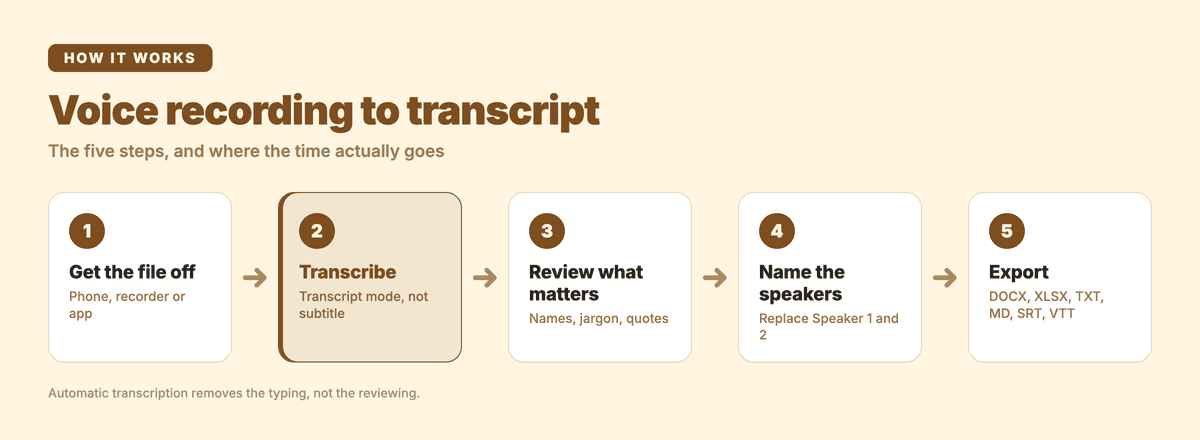
Automatic transcription removes the typing. It doesn't remove the listening. Background noise, people talking over each other, names you've never seen written down, sentences that trail off. All of that still needs a human pass before you can quote it or code it.
The manual baseline is worth knowing, because it's what you're comparing against. The University of Bath Library research-data guide puts it plainly: "it can take 4-7 hours to transcribe an hour of audio." The Utah State University Libraries oral-history guide lands in the same range, advising you to "allow four hours of transcription time for every one hour of audio."
Automatic transcription doesn't make that number zero. It moves the work. Instead of typing every sentence, you're reviewing, fixing names, confirming who spoke, and preparing an export.
What does a usable transcript need to carry?
It depends entirely on what you're doing next, and that's the decision to make before you upload anything.
- An interview transcript has to show who said what. Without speaker labels it's hard to quote and awkward to send back for review.
- A field-research transcript has to stay readable across long, noisy stretches, and it has to keep the terminology straight.
- A personal note has to be findable three weeks later, when you remember the idea but not the wording.
Format follows from that. DOCX or Markdown if you're going to write on top of it. XLSX if you're going to sort and tag excerpts. SRT or VTT if timing matters for a video. TXT if you just want a searchable record. There's also a choice of transcript style: verbatim keeps false starts and interruptions, clean-read is easier to scan but smooths the texture out of the conversation. I've written up that trade-off in verbatim vs clean-read transcript formats.
How do you turn a voice recording into a transcript?
1. Get the recording off the device
Find the original file on your phone, recorder, messaging app, or camera, and move it somewhere you can upload from. Keep the original untouched. Don't route it through an app that re-compresses it on the way.
The extension matters more than people expect. Subanana takes .mp3, .m4a, .wav, .ogg, .aac, .flac, and .opus, plus video files, up to 30 GB or 8 hours per file, the same ceiling on every plan, including free. You can also paste a public YouTube or Instagram link instead of downloading first, though the link has to point at a public post.
That .opus entry is there for a reason. It's what WhatsApp and Telegram voice notes are, and what several Android recorders produce. Microsoft's support page for Transcribe in Word lists its upload formats as ".wav, .mp4, .m4a, .mp3", and .opus isn't on that list. Check your extension before you plan a workflow around a tool.
2. Run it through transcription
Upload the file to an AI transcription tool and pick transcript mode rather than subtitle mode. Transcript mode gives you punctuated paragraphs you can read. That formatting is always on in transcript mode and there's no toggle to switch it off. That's deliberate. Nobody has ever asked me for an unpunctuated wall of interview text.
Subanana handles 95+ languages. On model choice: we continuously benchmark speech-recognition models and pick the best performer per source language for every transcription, so you're not locked into one vendor.
If more than one person is talking, turn on speaker identification (diarization). You can set the number of speakers yourself or let it detect them. Setting it yourself is usually better when you already know the answer. A two-person interview is a two-person interview.
3. Review the passages that matter
Don't treat the first output as finished. Review the parts you're going to quote, publish, code, or act on, and skim the rest.
Start with proper nouns. Names, jargon, place names, product names all go in the glossary, so they don't get mangled the same way in every file. Most transcription tools ship some form of glossary; that's table stakes. The part I'd actually compare on is granularity: Subanana keeps a workspace-wide list plus per-project lists, with bulk import from XLSX or CSV, so a term that matters everywhere and a term that matters in one study don't have to live in the same pile.
There's also an LLM-assisted proofreading pass that flags likely misheard words and same-sounding wrong words and proposes a fix. You approve or reject each one; nothing is applied silently. Know its limits: it won't catch a word the transcriber dropped, and it doesn't touch timing. For anything you're going to quote, listen to the audio.
On a long recording, you can ask questions about the transcript inside the editor, such as "what did she say about funding", and jump straight to the passage. That's the fastest way I know to find something in a two-hour file when you remember the topic and not the sentence.
4. Name the speakers
"Speaker 1" and "Speaker 2" are a starting point, not an answer. Replace them with names where the audio supports it, and mark the ones you can't resolve rather than guessing.
Word's Transcribe does the same generic labeling. Microsoft's page says the service "identifies and separates different speakers and labels them 'Speaker 1,' 'Speaker 2,' etc." Every tool hands you the same homework. If you want the mechanics of how the split is made in the first place, I've explained it in speaker diarization.
5. Export for the next tool
Pick the output based on where the text is going, not on what looks tidiest in the editor. Subanana exports SRT, VTT, TXT, DOCX, XLSX, Markdown, and FCPXML, or a ZIP of every subtitle track in one chosen format. If you need the transcript in another language, a transcript job carries one translation target.
Word deserves a real mention here. If you already pay for Microsoft 365, Transcribe is included, and the transcript lands directly inside the document you were going to write in anyway. That's a genuine advantage no separate tool matches. The constraints are on the same support page: a Microsoft 365 subscription can "transcribe a maximum of 300 minutes of uploaded audio per month," and on the web "Transcribe only works on the new Microsoft Edge and Chrome." I've walked through that workflow in how to transcribe audio in Microsoft Word.
Which workflow fits your recording?
Interviews
Speaker labels are the whole game. Before you process, add the participants' names to the glossary. After, check the places diarization tends to struggle: introductions, interruptions, one-word replies, and any moment two people talk at once.
Export DOCX if a person is going to revise the transcript, Markdown if your drafts live in plain text, SRT or VTT if it's feeding a video edit. There's more on the interview-specific workflow in how to transcribe an interview.
Field research
Field recordings are long, and they're messy: wind, traffic, footsteps, distant voices, stretches where nobody says anything usable. Sometimes several conversations end up in one file. Upload the whole thing rather than pre-trimming. At 8 hours per file you rarely need to cut it, and you can't recover context you deleted.
Load the glossary with place names, local terms, and your research vocabulary. Read the transcript beside the audio wherever a passage changes your interpretation, because automatic punctuation makes text easier to scan but doesn't recover words the recording lost. Asking the editor about a theme (funding, access, transport, a named site) is a fast way to find every mention before you code it. The qualitative research transcription guide goes deeper on that review pass.
XLSX is usually the right export when excerpts need tags and participant references. DOCX once it's becoming a written report.
Personal notes
Short clips, one speaker, no diarization problem to solve. The problem is retrieval: finding the useful sentence later without replaying forty voice memos.
Name projects and files descriptively, pin recurring terms in the glossary, and correct only what you're going to act on. TXT or Markdown drops straight into a notes system. DOCX makes sense when a voice memo is turning into a letter or an outline.
Which export format should you choose?
| Use case | What the recording usually is | What the transcript has to carry | Export you want |
|---|---|---|---|
| Interviews | A structured conversation between an interviewer and a participant | Speaker names, turn-taking, exact wording for quotes | DOCX or Markdown |
| Field research | A long, noisy recording with changing voices and dead air | Searchable passages, terminology, room for tags | XLSX or DOCX |
| Personal notes | Short, frequent clips with a single speaker | Fast retrieval and copyable excerpts | TXT or Markdown |
What should you check before you pay for anything?
Six things: accepted file formats, the per-file size and length ceiling, language coverage, how speakers are handled, what the proofreading actually does, and which exports you get. That last one decides whether you walk away with a file or with a preview trapped in an editor.
Our own free plan is the one people misread most, so here it is exactly. It generates the first 15 minutes of each file as a preview and allows 3 uploads a month, and it can't export a transcript or copy text out of the editor. The only export on free is a watermarked video. Use it to judge the output quality on your own audio. Don't plan a project around it. The plan comparison shows where the export unlocks.
FAQ
Can I turn a voice recording into a transcript for free?
You can generate a free preview, but read the limits before you commit. Subanana's free plan covers the first 15 minutes of each file and 3 uploads a month, and it can't export a transcript or copy text out of the editor. The only export is a watermarked video. If you already have a Microsoft 365 subscription, Word's Transcribe is included in what you're paying for.
How long does it take to get a transcript from a voice recording?
Manually, the university guides cited above put it at four to seven hours of work per hour of audio. Automatic transcription doesn't erase that time so much as change its shape: the machine produces a full draft, and your remaining job is reviewing names, noisy passages, and speaker labels before you export. How long that takes depends on how much of the recording you actually need to be accurate.
How do I get speaker names into the transcript?
Turn on speaker identification (diarization) before processing, and set the number of speakers manually if you know it. The output arrives with generic labels like "Speaker 1" and "Speaker 2", which you replace with real names during review. Add the participants' names to the glossary first so they're spelled consistently everywhere they appear.