
Short answer: yes, but with a catch. ChatGPT can create meeting minutes two ways — paste in a transcript and ask it to summarise, or use its Record mode (in the macOS desktop app, on a paid plan) to capture and summarise audio directly. The plain chat box can't hear or attend a meeting on its own, so either way you need to get the meeting into text first. That first step — an accurate transcript — is where most of the quality is won or lost.
Subanana is a browser tool for transcription and meeting summaries, and this post covers where a dedicated tool fits. But the honest version first: for a lot of meetings, ChatGPT alone is enough. Here's how to do it well, and the specific cases where it isn't.
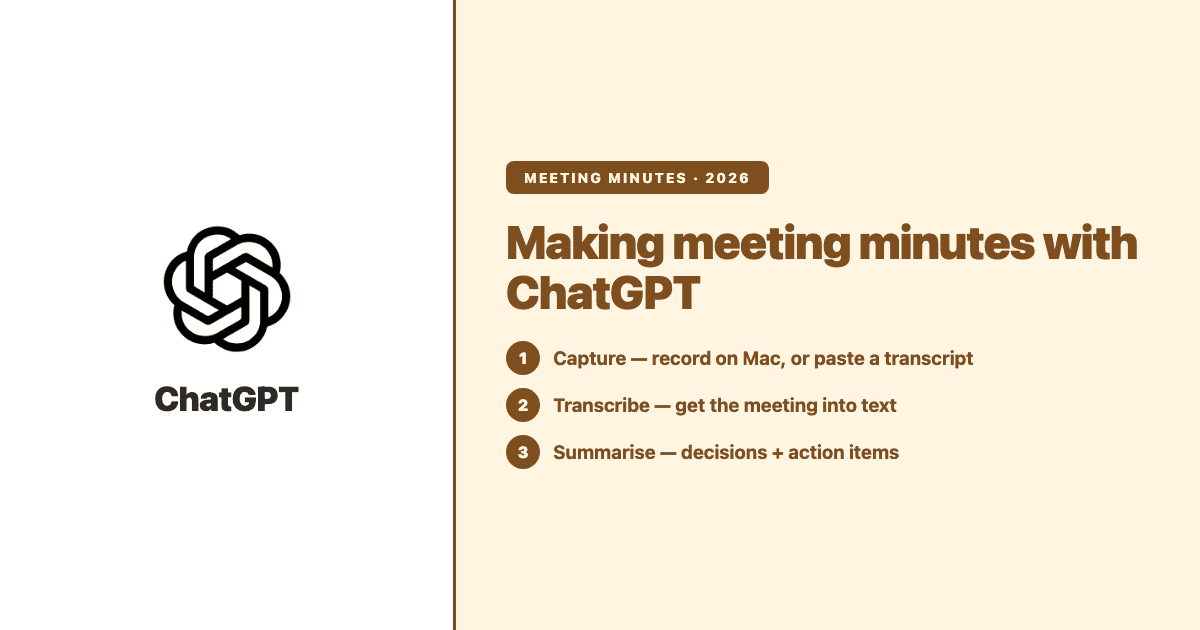
The two ways ChatGPT makes minutes
1. Paste a transcript, ask for minutes. This is the classic method and it works on any plan, in any browser. You bring the text — from a call recording you transcribed elsewhere, a Zoom/Teams transcript, or notes you typed — paste it into ChatGPT, and ask it to reformat it into minutes. ChatGPT is genuinely good at this formatting step: give it a structure and it will pull out decisions and action items reliably. What it can't do is produce the source transcript itself. No text in, no minutes out.
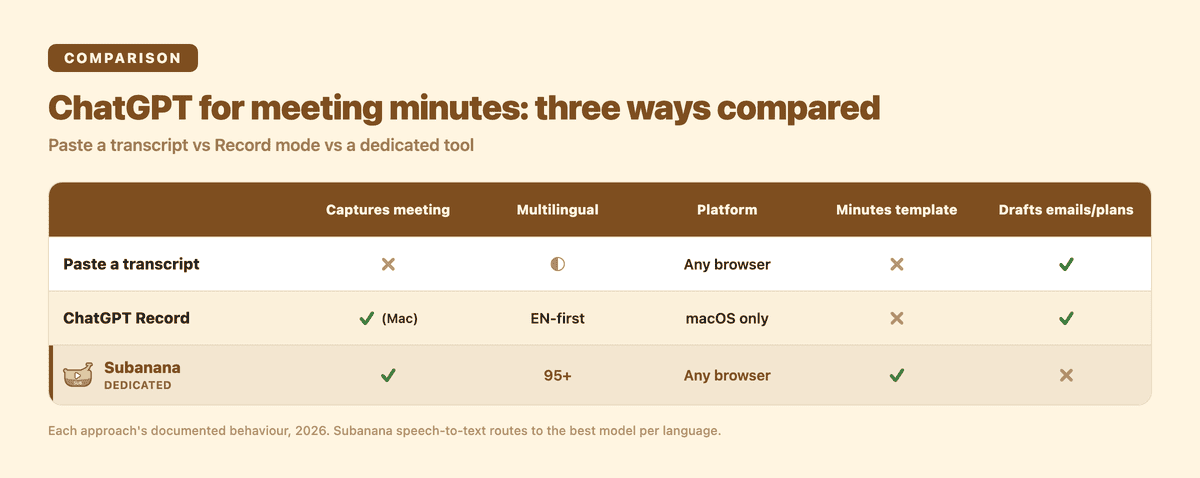
2. Record mode. In 2026 OpenAI added a Record mode that captures audio — meetings, brainstorms, voice memos — then transcribes and summarises it into follow-up tasks, plans, or an email, saved as a canvas in your chat (per OpenAI's Record documentation). It's a real upgrade over paste-a-transcript because one app does the capture and the summary. The constraints matter, though: it runs in the ChatGPT desktop app for macOS — the app, not the everyday web chat box — needs a paid plan, records on the machine it's running on rather than joining the call as a bot, and it produces a summary rather than a guaranteed word-for-word transcript.
So "can ChatGPT create meeting minutes" has two honest answers: yes, from a transcript you supply, and yes, from audio — if you're on a Mac, paying, and in the room with the recording.
How to do it with ChatGPT, step by step
This works even if you never touch a dedicated tool — and doing it well is mostly about the prompt.
1. Get the meeting into text
For the paste method, grab a transcript from your meeting platform (Google Meet, Teams and Zoom can all produce one) or from any transcription tool, and copy it. For Record mode, open the macOS app, start recording at the top of the call, and stop at the end. Either way, the input is a block of text with — ideally — some indication of who said what.
2. Give ChatGPT the minutes structure, not just "summarise this"
A vague "summarise this meeting" gives you a vague summary. Paste the transcript and ask for a specific shape. A prompt that works:
Turn this transcript into meeting minutes. Use these sections:
- Attendees (from the transcript)
- Decisions made (write each as a decision, not a discussion)
- Action items as a table: task | owner | due date
- Open questions / parked items
Keep it under one page. Don't invent anything not in the transcript.
The "don't invent anything not in the transcript" line matters. Language models will happily smooth over a gap with a plausible-sounding action item nobody agreed to. Anchoring it to the transcript reduces that.
3. Check the decisions and owners against the recording
This is the step people skip. The summary is a first draft, not the record. Read it against what was actually said, fix any action item that got the owner wrong, and add due dates where the call was vague. Five minutes here is the difference between minutes people trust and minutes people quietly ignore.
Where ChatGPT falls short for minutes
Credit where it's due: if you already pay for ChatGPT, work mostly in English, and run meetings from a Mac, Record mode is a genuinely convenient way to get from audio to next steps without leaving the assistant you already use. For that profile, it's hard to beat on convenience.
The gaps show up outside that profile:
- Multilingual and Cantonese/mixed-language meetings. ChatGPT's audio capture is English-centric. If your meetings are in Cantonese, Mandarin, Japanese, or the English-Cantonese code-switching that's normal in a lot of workplaces, general-purpose transcription tends to slip. This is the single biggest reason to use a tool that routes each language to the model that handles it best.
- Platform lock. Record mode is macOS-only. On Windows, on the web, or on a phone, you're back to the paste-a-transcript method — which means you still need a transcript from somewhere.
- It doesn't join the call. Record captures the audio on your own machine; it isn't a bot that dials into the meeting. For a scheduled call you have to remember to hit record.
- The summary isn't grounded for you to interrogate. You get a canvas of text, not a transcript you can search, correct line by line, or ask follow-up questions against later.
None of these make ChatGPT wrong for minutes. They just describe the meetings where a dedicated transcription tool does the job with less friction.
The dedicated-tool version of the same workflow
Here's the same job — meeting to minutes — in a tool built for it. The point isn't more features; it's removing the "get a transcript first" problem and handling languages ChatGPT struggles with.
1. Capture the meeting
Upload a recording (most audio and video formats work), or connect your calendar so the Google Meet or Microsoft Teams bot joins, records, and hands the recording back after the meeting ends. Either way you end up with one recording to work from — no separate transcription step to line up first.
2. Transcribe it in the meeting's actual language
The recording becomes a clean, readable transcript with punctuation and paragraphs restored and each speaker labelled. Subanana benchmarks speech-to-text models and routes each transcription to the best performer for the source language, across 95+ languages — which is what makes Cantonese, Mandarin, and mixed-language meetings hold up where a single general model slips.
3. Summarise into the minutes shape
Pick a Meeting summary template and the AI pulls out the key discussion points, decisions, and action items — grounded in the actual transcript, so the action items come with who said they'd do what. There's a library of built-in templates you apply in one click, or you can build your own to match the minutes template you already use. Then export to DOCX, TXT or Markdown, or ask the transcript directly — "what did we decide about the budget?" — and get an answer grounded in the meeting.
If you're in Hong Kong, one practical note: ChatGPT needs a VPN to access here, while a locally-accessible tool doesn't — worth factoring in if your workflow has to work without one.
FAQ
Can I use ChatGPT for meeting minutes?
Yes. Two ways: paste a transcript and ask it to format the minutes (works on any plan, any device), or use Record mode in the macOS desktop app on a paid plan to capture and summarise the audio directly. Both need the meeting in text form first — the plain chat box can't attend or hear a call on its own.
What is the best AI to use for meeting minutes?
It depends on your meetings. If they're English and you're already paying for ChatGPT on a Mac, ChatGPT Record is convenient. If they're multilingual — Cantonese, Mandarin, mixed English-Cantonese — or you're on Windows or the web, a dedicated transcription tool that captures the call and routes each language to the best speech-to-text model will give you a more reliable base to summarise from. Match the tool to the language and the platform, not to the brand name.
How to easily create meeting minutes?
Stop typing them live. Record the meeting once, get a transcript, and have an AI summarise that transcript into a fixed minutes structure (decisions + action items with owners and due dates). Then spend your time correcting the draft instead of writing it from scratch. The easy part is the summary; the part worth your attention is checking the decisions are right.
Is there a free AI minute taker?
There are free ways to try it. ChatGPT's free tier can format a transcript you paste in (though Record mode is paid and macOS-only). Subanana's free tier lets you preview the first 15 minutes of each file so you can see the transcript-and-summary quality on your own audio before paying. "Free forever, full-length, any language" is the part to be skeptical of — accurate transcription has a real cost behind it.
In short
ChatGPT can create meeting minutes: paste a transcript and it formats them well, or Record mode captures and summarises audio on a paid Mac setup. Where it struggles is multilingual meetings, non-Mac platforms, and calls it can't join. For English meetings on a Mac, it's a solid, convenient choice. For Cantonese, Mandarin, and mixed-language meetings — or when you want a transcript you can search and correct — a dedicated transcription tool is the better base to build minutes on.
Try Subanana free (preview the first 15 minutes of each file); plans are on the pricing page.