
Short answer: Want a transcript that shows who said what? Speaker labels (the "Speaker 1 / Speaker 2" tags) come from speaker diarization, which splits an audio recording by who's talking. Use a tool that supports diarization, tell it how many speakers to expect (or let it detect automatically), then rename the generic labels to real names in the editor. It works best on clean audio where people take turns and struggles when voices overlap.
Subanana is a browser transcription tool — here's where the settings live. The concepts are the same whichever tool you use.

What is a speaker label?
A speaker label is a tag attached to each stretch of a transcript marking who spoke it. Instead of one undifferentiated block, you get:
Speaker 1:  Did we agree on the launch date?
Speaker 2:  Friday, assuming QA signs off.
Speaker 1:  Then let's tell the team today.
The tool has no idea who anyone is. It only knows there are distinct voices, so it calls them Speaker 1, Speaker 2, and so on. Putting real names on them is a one-time rename you do afterwards. The underlying step that produces those tags is called diarization: literally, "who spoke when." It runs alongside transcription: one turns audio into words, the other decides which words belong to which voice.
Why it matters: for interviews, meetings, panels, focus groups and any multi-person recording, a transcript without speaker labels is close to useless. You can't quote anyone, can't follow a decision, can't tell a question from an answer. The labels are what make a group transcript usable.
What's the correct format for a speaker label?
There's no single official standard. Different tools and style guides format the same idea differently. The three you'll actually run into:
- Name (or number) + colon, own line. For example
Speaker 1: text, or after renaming,Maria: text. The most common format for meeting and interview transcripts, and the one used throughout this guide: easy to scan, easy to search for a name later. - Bracketed tag.
[Speaker 1] textor[Maria]. Common in subtitle files (SRT/VTT) and closed-caption workflows, where brackets are already used for non-speech cues like[laughter]or[applause], so a bracketed speaker tag matches the rest of the file. - Timestamp + name.
[00:04:12] Maria: text, used when you need to jump straight to a moment: legal transcripts, research coding, or anything reviewed by more than one person.
Pick one and keep it consistent through a document. A label format that changes partway through a transcript is what actually reads as wrong, not which of the three you picked. If you've come across the term audio transcription tag, that's the same concept under a different name: some tools and industries (call-centre QA, in particular) say "tag" where a meeting-transcript tool says "label."
How to get speaker labels automatically
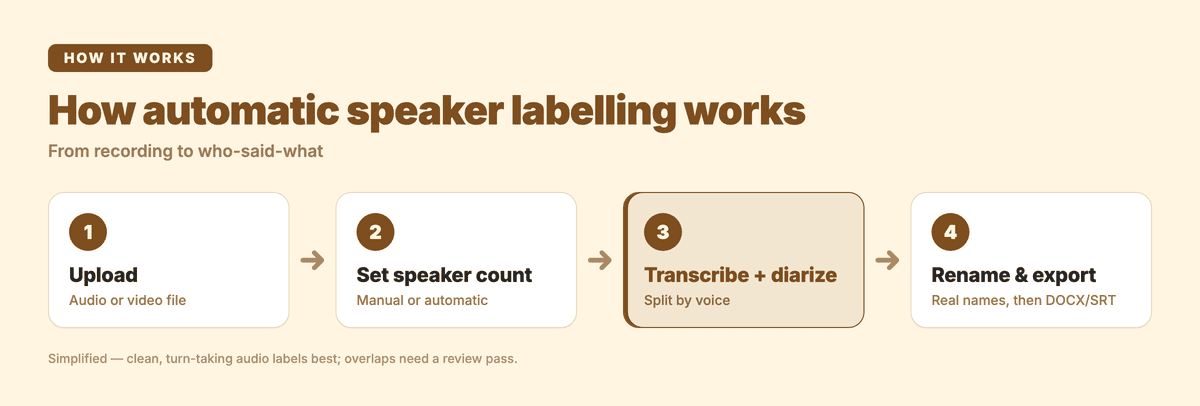
1. Upload the recording
Upload your audio or video file. Most formats (MP3, M4A, WAV, MP4) work. Cleaner audio produces cleaner labels, so if you're recording yourself, a mic per person beats one mic in the middle of the table.
2. Set the number of speakers
Before transcribing, tell the tool how many people are on the recording. Subanana lets you set the speaker count manually or leave it on automatic detection. Manual is more reliable when you know the number — a two-person interview labelled as "2 speakers" almost always comes out cleaner than one left to guess. Use automatic when you genuinely don't know (a panel, an open discussion).
3. Transcribe with diarization on
The tool transcribes and diarizes in one pass. You get back a transcript already split into speaker turns, with punctuation and paragraphs restored and filler words tidied, so it reads like a dialogue, not a dump.
4. Rename the speakers and export
Replace the generic "Speaker 1 / Speaker 2" labels with real names in the editor. Read through and fix any turns the tool assigned to the wrong voice (see below for when that happens), then export to DOCX, TXT, SRT, VTT or Markdown, or copy it straight into your notes. In the free tier you can preview the first 15 minutes of each file to check the labelling before committing; export is on the paid plans, from US$9/month billed annually — see the pricing page.
Where speaker labels get it wrong
No diarization is perfect, and it's worth knowing the failure modes so you can spot them rather than trust them blindly. Labels tend to slip when:
- Voices overlap. Two people talking at once is the hardest case: the tool has to attribute a single stretch of audio to one speaker, and crosstalk is where errors cluster.
- Voices sound alike. Similar pitch and accent (two men of similar age, say) are harder to tell apart than a mixed group.
- The audio is rough. Phone recordings, a single far-off mic, heavy background noise: anything that muddies the signal muddies the labelling too.
- Someone barely speaks. A person who says three words in an hour may get folded into another speaker, or split into an extra one.
The practical takeaway: diarization gets you most of the way, and the review pass is where you catch the rest. That's why every good workflow ends with a human skim, not with hitting export blind.
Tips for cleaner speaker labels
- Set the count when you know it. Telling the tool "3 speakers" beats letting it guess almost every time.
- Record a mic per speaker where you can. For interviews and podcasts, separate mics make the voices trivially easy to separate. One shared mic is the common cause of muddy labels.
- Do the rename first, then read. Put real names on the speakers before your review pass. It's far easier to catch "wait, Anna didn't say that" than "Speaker 3 is wrong."
- Fix, don't refight the audio. If two turns are swapped, correct them in the editor. Re-recording isn't an option for most meetings, and a two-second edit is faster than chasing a perfect first pass.
Once you've got clean, labelled turns, the natural next step is turning them into something: see the meeting minutes template for turning a labelled transcript into decisions and action items, or the multilingual meeting minutes guide if your calls run across languages.
FAQ
How do you identify speakers in a transcription?
Transcribe the recording with a tool that supports speaker diarization, which splits the audio by voice and tags each turn (Speaker 1, Speaker 2 …). Tell it how many speakers to expect for better accuracy, then rename the generic labels to real names in the editor and correct any turns assigned to the wrong voice.
Can you get speaker labels automatically?
Yes. Diarization runs automatically alongside transcription — you don't tag speakers by hand. You do two small things: set (or confirm) the number of speakers before transcribing, and rename the automatic "Speaker 1/2/3" labels to real names afterwards. The tool handles the who-spoke-when in between.
Why are my speaker labels wrong?
Usually overlapping speech, similar-sounding voices, or rough audio (phone calls, one distant mic, background noise). A speaker who talks very little can also get merged into another. Setting the speaker count manually and using cleaner audio (ideally a mic per person) cuts most of these errors; the rest you fix in a quick review pass.
What's the difference between transcription and diarization?
Transcription turns speech into text. Diarization decides which parts of that text belong to which voice. Good multi-speaker transcripts need both: the words, and the labels that tell you who said them. Most transcription tools built for meetings and interviews do the two together.
What's the correct format for a speaker label?
There's no single official standard. The common formats are a name or number followed by a colon on its own line (Speaker 1: text), a bracketed tag ([Speaker 1] text, often used in subtitle files alongside cues like [laughter]), and a timestamp plus name ([00:04:12] Maria:) for transcripts people need to jump around in. Any of the three is "correct" as long as you use it consistently through the document.
In short
Diarization separates a recording by voice and tags each turn. Set the number of speakers, rename the generic labels to real names, then review turns where voices overlap. Clean, turn-taking audio gives the best labels; the review pass catches the rest. That turns a group recording into a transcript you can quote, follow, and act on.
Try Subanana free (preview the first 15 minutes of each file); plans are on the pricing page.