
If you're already in a Google Meet call, Gemini's "Take notes for me" is the lowest-friction way to walk away with a written record. No bot to invite, no app to open, just a toggle in a meeting you're already having. It's good at that one job. Where it runs out of road is anywhere outside a single-language Google Meet call: Zoom, Teams, in-person meetings, anything with more than one spoken language, or a transcript you need to search, export, or hand a speaker's name to. This piece compares the two head-on so you know which one to reach for and when.
What Gemini's "Take notes for me" actually does
Turn it on either from the pencil icon in an active Meet call or from the gear icon when you schedule the meeting in Google Calendar, and Gemini listens through the call and produces a Google Doc afterward. Per Google's own Meet help page, that doc lands in two tabs: "Quick notes" (a fast summary) and "Full notes" (the fuller writeup, with Summary, Decisions, Next steps, and Details sections plus screenshots of anything on-screen for 10+ seconds). It's saved straight to the meeting organizer's Drive and attached to the calendar event. You can set the length (Standard or Longer) and choose which sections show up.
Three limits are worth knowing before you rely on it:
- One spoken language per meeting, from eight options: English, French, German, Italian, Japanese, Korean, Portuguese, or Spanish. A meeting that switches languages mid-call isn't supported.
- It requires an eligible Google Workspace or Google AI plan. This isn't a feature every Google account gets by default.
- It's scoped to Google Meet. There's no equivalent for Zoom, Teams, or an in-person conversation you're recording on your phone.
There's also a feature worth crediting Gemini for that a lot of comparison posts skip past. While the meeting is still running, you can ask Gemini for a "Summary so far" and get a live catch-up on what's been said, a real live-during-the-meeting capability, distinct from the after-the-fact notes doc.
What Gemini's notes don't cover
Two gaps show up as soon as you need more than a single-language Meet recap.
No documented speaker identification. Google's help page for "Take notes for me" doesn't mention any feature that attributes lines to individual speakers. If your notes need to show who said what, not just what was decided, you're adding that by hand afterward or using a tool built for it.
Output stops at a Google Doc. There's no SRT, VTT, or spreadsheet export path documented for the notes feature; the doc is the deliverable. That's fine if a Doc is all you need. It's a dead end if you need to feed a transcript into subtitle software, a spreadsheet, or anything downstream.
I've tried to make the comparison specific rather than one-sided. Gemini's built-in convenience is real, and I said so above.
If you want to see the tool itself before reading the comparison, the AI meeting transcription page shows the workflow end to end.
Gemini vs a dedicated meeting transcription tool
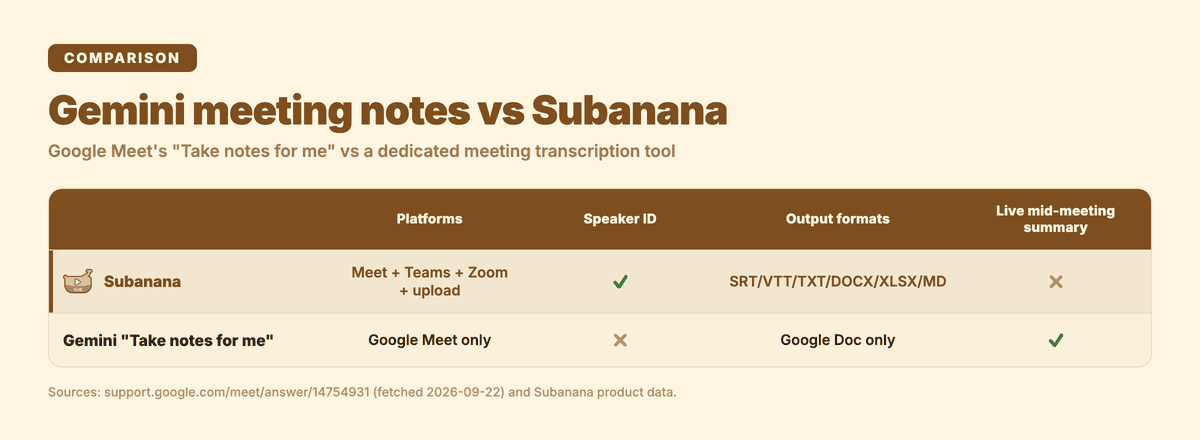
| Gemini "Take notes for me" | Subanana | |
|---|---|---|
| Setup | Built into Meet, one toggle | Connect calendar or upload a file |
| Platforms | Google Meet only | Google Meet + Microsoft Teams (auto-join bot), Zoom (Chrome extension), any in-person/other audio (upload) |
| Languages per session | 1 of 8 | 1 per file, chosen from 95+ |
| Speaker identification | Not documented | Included in the transcript |
| Live mid-meeting summary | Yes ("Summary so far") | No, processing starts after the meeting ends |
| Output format | Google Doc only | SRT, VTT, TXT, DOCX, XLSX, Markdown, or a ZIP of all of them |
| Action items | Extracted as text | Extracted as text |
| Free tier | Included with eligible plan | 15-min preview per file, 3 uploads/month, no transcript export without a paid plan |
A few honest notes on that table. Neither tool turns action items into an actual task — Gemini writes them into the notes doc as text, and so does Subanana; if you want them synced to a task manager, both require you to move them yourself. And the "languages per session" row isn't really Subanana beating Gemini on flexibility within one file — a single Subanana upload is still locked to one source language for that file, same as Gemini's one-language-per-meeting rule. The difference is the size of the menu (95+ languages to route into) and that it works from any recorded audio, not just a live Meet call.
Where the two diverge is scope and output. Gemini's feature is a capability inside Google Meet. It doesn't reach Zoom or Teams calls, and it can't process a file you already have. A dedicated tool starts from the recording itself, whichever platform it came from, and that's what unlocks speaker-level transcripts and export formats you can actually reuse elsewhere.
Getting a meeting transcript when Gemini's notes don't fit
If your meetings live outside Google Meet, run in more than one language, or you need to know who said what, here's the workflow:
- Connect your calendar (for Google Meet or Microsoft Teams) so the bot joins automatically and records once the meeting starts, with no manual step on meeting day. For Zoom, capture the call with the Chrome extension instead; for anything in person, just upload the recording afterward.
- Let it transcribe and summarize. Subanana processes the recording after the meeting ends — this is a post-production step, the same as Gemini's approach, not a live captioning feature. The transcript comes back with speaker identification built in, so you're not manually labeling who said what.
- Pick a summary template. There are 14 built-in templates for structuring the summary (decisions, action items, discussion points), and the summary itself is generated automatically once you pick one.
- Export whatever you need. SRT or VTT if you're feeding it into video software, DOCX or TXT for a plain document, XLSX if you want it in a spreadsheet, or a ZIP with everything.
Free-tier note: you can preview the first 15 minutes of a file and upload up to 3 files a month at no cost, but exporting the actual transcript or summary file requires a paid plan.
Frequently asked questions
Can Gemini take notes during a meeting?
Yes, in Google Meet specifically. Turn on "Take notes for me" from the pencil icon during the call or from the calendar event's settings beforehand, and Gemini listens through the meeting and produces a notes doc afterward. You can also ask for a live "Summary so far" while the meeting is still running.
Where do I find my Gemini meeting notes?
They're saved as a Google Doc in the meeting organizer's Drive, in a Meet-related folder, and the doc is also attached directly to the Calendar event for that meeting.
Who gets Gemini meeting notes?
The meeting organizer needs an eligible Google Workspace edition or Google AI plan for the feature to be available, and per Google's documentation the notes doc is saved to the organizer's Drive. Sharing settings then control who else on the call can see it.
How to use Gemini to make notes?
Schedule or join a Google Meet call, then turn on "Take notes for me": either the pencil icon in the meeting itself, or the gear icon when setting up the calendar invite. The meeting needs to run in a single one of the eight supported spoken languages for the notes to come out coherent.
The takeaway
Gemini's Meet notes are the right call when your meeting is already in Google Meet, runs in one of the eight supported languages, and a Google Doc summary is all you need. It's built in, free with an eligible plan, and it even gives you a live progress summary mid-call. Once you're outside those lines, whether that's a different platform, a transcript with speaker labels, or an export format you can reuse elsewhere, that's the point a dedicated transcription tool earns its keep.