
An hour-long Webex call is roughly 9,000 spoken words. Nobody rewatches the recording to find the one decision that mattered — they either took notes in the moment or the decision quietly evaporates. A good transcript, plus a summary that pulls out the decisions and action items, fixes that.
Webex can do part of this itself. Whether that's enough depends on your plan and your languages. This post covers how Webex transcription works out of the box, where it stops, and how to turn any Webex recording into a transcript plus a structured summary.
Does Webex transcribe meetings on its own?
Yes — through Webex Assistant and real-time transcription. When a host has it switched on, Webex shows live captions during the call and keeps a post-meeting transcript you can review afterward. For a lot of teams, that's all they need.
Two things decide whether it's enough for you:
- It's plan-gated. The free Webex plan doesn't include Webex Assistant or post-meeting transcript downloads — those sit on a paid Webex plan (Meet and up). If you're on a free or lightweight plan, or you've only got the recording file, the built-in transcript isn't an option.
- Language coverage is bounded. Webex transcribes a fixed set of spoken languages without an add-on license (fewer on free accounts), and the wider caption-language set needs a separate real-time translation license. If your meetings are multilingual or code-switched, native coverage may not reach your case.
So the built-in route is great when your org pays for Webex Assistant and your language is on the list. Outside that — a free-plan host, a recording someone sent you, a bilingual call — you bring your own transcription.
When you bring your own transcription tool
A separate tool earns its place when you want to:
- Work from a recording, not a live meeting — the call already happened, and you have the MP4.
- Transcribe multilingual or code-switched calls where native coverage falls short.
- Get more than a transcript — a summary with decisions and action items, in a format your team actually uses.
The workflow is the same regardless of platform: get the recording, then run it through the tool.
How to transcribe a Webex meeting with Subanana
Subanana's meeting bot auto-joins Google Meet and Microsoft Teams calls. Webex and Zoom use the record-then-upload route instead — two extra clicks, and it works on any recording:
- Record the meeting in Webex. Hit Record during the call; Webex saves it to the cloud or locally as a video file.
- Upload the recording to Subanana's meeting transcription tool and choose Meeting mode. It takes common audio and video formats.
- Set the source language — and add a translation target if the call was multilingual and you want a translated version alongside the original.
- Pick a summary template. Choose the Meeting template (or another from the built-in template library).
- Review, chat, and export. You get a punctuated, speaker-labelled transcript plus a summary with key points, decisions, and action items. You can ask the transcript questions directly — "what did we decide about the launch date?" — and export the result as DOCX, TXT, SRT, VTT, XLSX, or Markdown.
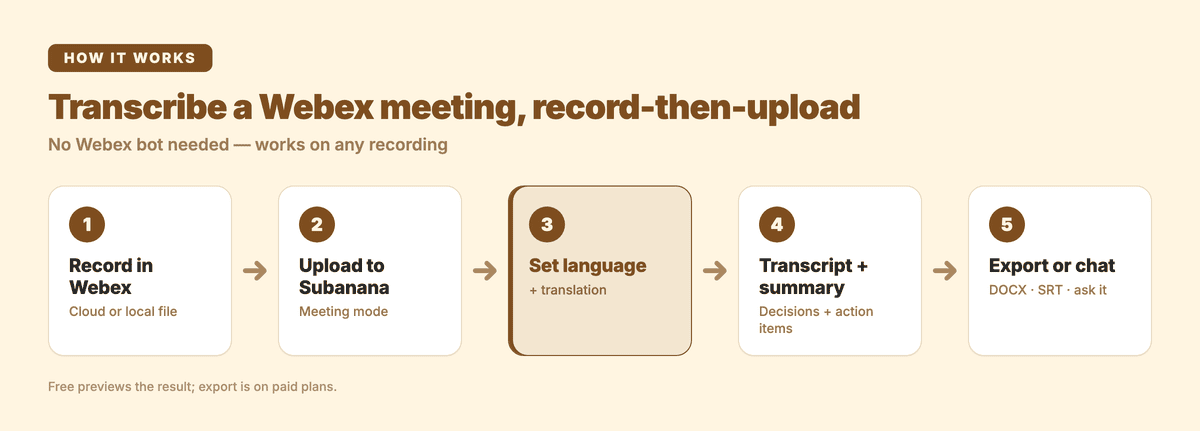
The free tier lets you preview the result so you can check accuracy first; exporting the file or copying the text out is on the paid plans, which start at US$9/month billed annually — see pricing.
Getting decisions and action items, not just a wall of text
A raw transcript is searchable, but it still buries the two things people actually want: what was decided and who owns what next. Subanana's meeting notes summary extracts those into a structured recap, and a background pack or glossary lets you feed in project names and jargon so the summary spells them right. If your team has a house format for minutes, the template library gets you close without reformatting by hand.
Tips for a cleaner Webex transcript
- Record at a decent quality. Webex's cloud recording is usually clean; if you record locally, a wired connection and a good mic beat a laptop speaker across the room.
- Name your speakers and terms. Turn on speaker identification, and pin recurring names and acronyms in the glossary before you transcribe.
- One translation target per pass. For a bilingual call, set the single translation target you need rather than trying to juggle several — you can always run another pass.
FAQ
Does Webex transcribe meetings automatically? Yes, through Webex Assistant and real-time transcription, but it's on a paid Webex plan (Meet and up) — the free plan has no Webex Assistant or transcript download. It also covers a limited set of spoken languages.
Can I transcribe a Webex recording I already have? Yes. Upload the recording file to a transcription tool like Subanana, choose your language, and you'll get a transcript plus a summary — no need to have had Webex Assistant on during the call.
Does Subanana join Webex calls with a bot? Subanana's meeting bot covers Google Meet and Microsoft Teams. For Webex and Zoom, record the meeting and upload the file — the transcript and summary come out the same.
Can I get action items out of a Webex meeting? Yes. In Meeting mode, the summary pulls out key points, decisions, and action items, and you can pick which model writes it. Export it as DOCX or copy it into your notes.
Can it handle a bilingual Webex call? Yes. Set the spoken source language and add one translation target, and you get the transcript in both — useful when native Webex coverage doesn't reach your language pair.
Related reading
- How to transcribe a Zoom meeting
- Microsoft Teams meeting transcription
- Google Meet transcription
- Meeting minutes templates
Webex Assistant is the zero-effort option when your plan includes it and your language is covered. For everything else — a free-plan host, a recording in hand, a bilingual call, or a summary you can actually act on — record the meeting and run it through Subanana. Same workflow whether the call was on Webex, Zoom, or a room mic.