
Live captions do two jobs on a stream. They make it watchable with the sound off — for deaf and hard-of-hearing viewers, and for the large share of people who watch muted — and they open the stream to viewers who read your language slowly or not at all. The catch is that the captioning built into streaming platforms is uneven, and none of it translates for a multilingual audience.
This guide covers what each platform actually does, where the gaps are, and how to add an accurate, translated caption track when you need one. Transparency up front: I run Subanana, a speech-to-text app with a live-caption feature. The platform notes below are drawn from each platform's own documentation, and the Subanana parts describe verified product behaviour — not invented tests.
Does your streaming platform caption live for you?
The short answer depends on where you stream.
- YouTube Live does generate automatic captions during a stream, but with real limits: they're English only, they only run on normal-latency streams (the mode with a 15–60 second delay), and you turn them on per stream in the closed-caption settings. They also don't carry over to the recording — after the stream ends, YouTube runs a fresh caption pass on the VOD, which can differ from what viewers saw live. (YouTube Help)
- Twitch has no built-in automatic captioning that's on for every channel. In practice, creators add captions with an OBS caption plugin (which pushes caption data into the stream so Twitch's native CC button works) or a caption extension that draws text over the player.
- OBS Studio doesn't listen to your audio and write captions itself — it's a mixer and encoder. Captions reach OBS from a source: a caption plugin, or a browser/window capture of a caption view you composite into your scene.
The pattern across all three: even where native captions exist, you get one language (usually English) shown as-is — not an accurate, translated, exportable track you control.
The two ways captions reach viewers
However you generate them, captions get to your audience in one of two ways, and the right choice depends on who's watching.
- Overlaid on the video — the captions are burned into the scene everyone sees, with no toggle. You do this by compositing a caption source into your OBS scene. Best when you want every viewer to see captions and you're serving one language.
- A separate readable feed — a caption page or link viewers open alongside the stream. This is the better choice when you need translation, because the feed can render the language each viewer needs rather than one baked-in track.
Most streamers end up wanting the first for accessibility and the second when they have an international audience.
How to add accurate, translated live captions with Subanana
Subanana's live caption is a browser-based feature that takes direct audio input — your microphone, or your stream's system audio routed into the browser tab (a virtual audio cable on Mac or Windows does that routing). It's not a bot that joins a platform; you run the session yourself on the machine that's streaming.
Two things make it a fit for streaming specifically:
- Accuracy. It transcribes and then runs a real-time correction pass over the live captions, so the text reads cleaner than a standard single-pass AI feed. It's the most accurate automatic option — for certified, legally-compliant accuracy, a trained human CART captioner is still the ceiling, and it's honest to say so.
- Live translation. Set one source language and up to 5 translation targets before you go live, and Subanana gives your audience a share link (open in any browser, or scan a QR code) where each viewer picks one display language — the source, or any target you configured.
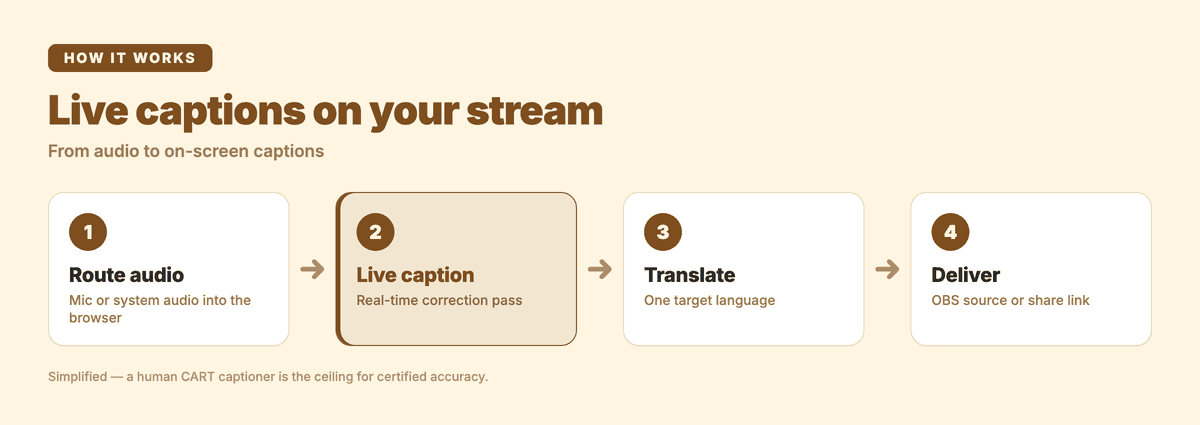
Putting it on your stream works one of two ways, matching the two delivery methods above:
- Overlay it in OBS. Add the Subanana caption view as a browser or window source in OBS and position it in your scene. Everyone watching the stream sees the captions.
- Share the audience link. Drop the link in your chat, panels or description so international viewers read live, translated captions in the configured language while they watch.
A few honest limits so you plan around them: transcripts come from the recording — re-run it afterwards as a regular file upload for SRT, DOCX or TXT; the host sets one source plus up to 5 translation targets (for a sixth target language you'd run a second session on another device); and audience viewers on the share link pick one language from the set you configured — they can't add one you didn't.
Which method should you use?
Match the method to your audience:
- English-only stream, accessibility only, on YouTube Live → the platform's automatic captions are the least-effort option. Turn them on in the stream's closed-caption settings and confirm you're on normal latency.
- On Twitch, or you want captions styled your way → an OBS caption source — a plugin, or a captured caption view you composite into the scene.
- International or multilingual audience, or you want the most accurate AI captions → a dedicated live-caption tool with translation and a share link. This is where Subanana fits: corrected captions plus one-language live translation your viewers can actually read.
Subanana's live caption runs on the Max plan, and every workspace gets a one-time 5-minute free trial to test it on your own audio before committing.
Frequently asked questions
Can OBS add captions on its own? No. OBS mixes and encodes your stream; it doesn't transcribe. Captions come from a source — a caption plugin, or a browser/window capture of a caption view you add to your scene.
Will YouTube's automatic live captions translate for international viewers? No. YouTube's live automatic captions are English-only and shown as-is. For translated live captions you need a tool that translates the caption feed, then either overlay it or share its audience link.
Do live captions get saved with the recording? On YouTube, live automatic captions don't carry over to the VOD — a new pass runs on the recording afterwards. With Subanana, the event recording is saved automatically; re-process it afterwards and the SRT comes from there.
Is AI as accurate as a human captioner? For certified accuracy, a trained human CART captioner is still the standard. Subanana's live caption adds a real-time correction pass, which makes it more accurate than standard AI captions — the best automatic option, not a replacement for a professional captioner.
Further reading
- What Is Live Captioning? Real-Time Captions and Translation
- How to Set Up Multilingual Live Captions for a Webinar
- Best Live Captioning Tools and Services (2026)
Captions turn a stream from something a subset of your audience can follow into something anyone can — muted, hard of hearing, or reading a second language. Start with your platform's built-in option if English-only accessibility is all you need; reach for a dedicated tool when you want accurate captions or a caption feed your international viewers can read in their own language with Subanana's live captioning.